Fill out and submit onboarding documents
Employees can receive onboarding documents and notifications directly through TimeForge, without having to learn a separate system or shuffle piles of paper forms. This is part of TimeForge’s powerful Human Resources module.
If your HR department has sent you materials through TimeForge, you can use these steps to fill out and submit your documents. As always, make sure you follow any instructions provided by your HR department!
Locate your onboarding documents
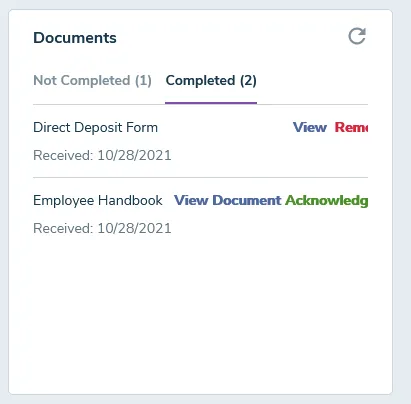
Section titled “Locate your onboarding documents”While logged in and on the Today Page, navigate to Documents module. Your page should look something like this:
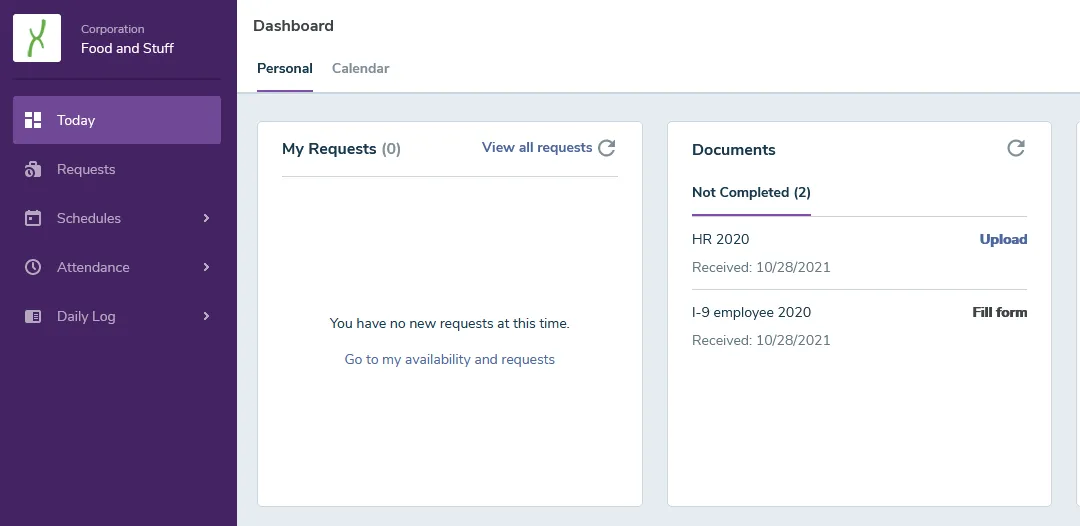
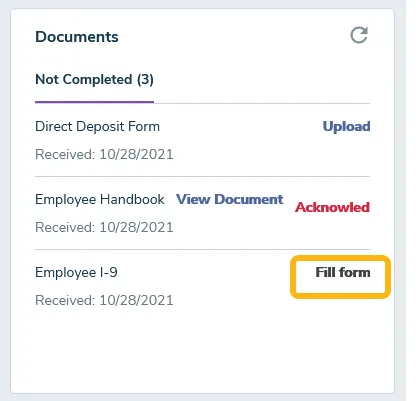
If the link says Fill Form...
The form is an online form. Simply click the link to open and complete the form online in your browser window.
If the link says View Document/Acknowledge
The document is a PDF or another type of file. You’ll need to view and download the file to proceed. Don’t worry! We’ll explain how below.
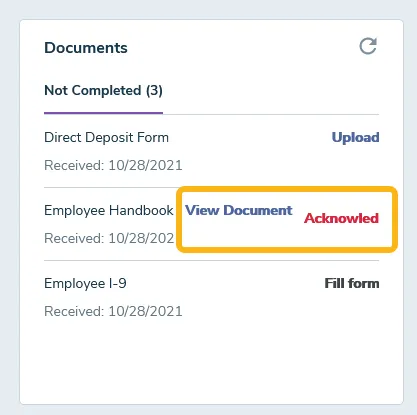
Click View Document to select the file uploaded by your employer. Click on the name of the file next to open the document.
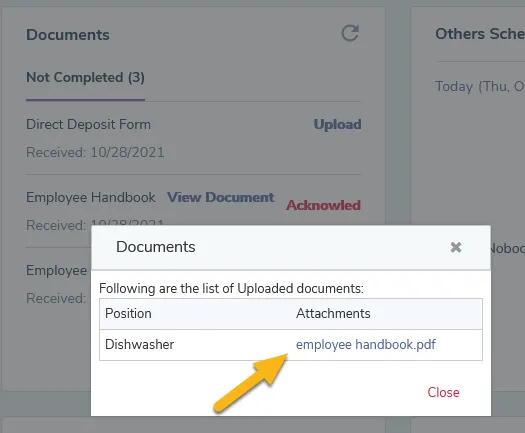
Depending on your computer’s settings, this may open the document in a program like Adobe Reader, or the document may simply open up in a new browser window. If at all possible, open with Adobe.
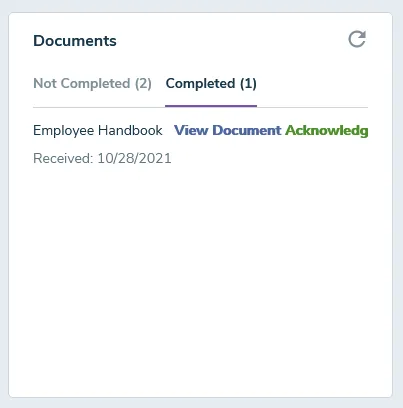
After you have read the document, make sure to click on the Acknowledge option. This will move your document to the Completed section.
If the link says Fill Form
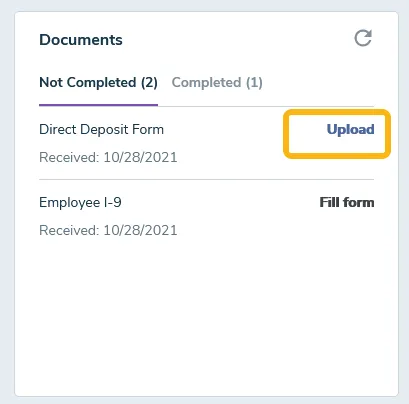
Section titled “If the link says Fill Form”Click the Upload link to attach and upload your completed and signed form.
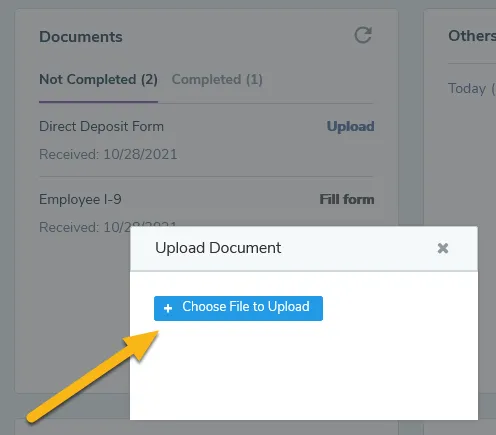
After you select the file you want to upload, the document will appear in the Completed section and available for HR to view.
Help! When I try to download or save the filled-out form, it only saves a blank version!
That’s because Adobe is proprietary software, and you likely don’t have access to a paid version. No sweat.
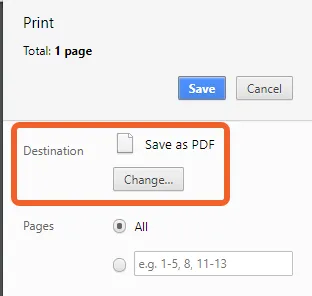
If you are filling out a PDF form, and you are unable to save, you may need to select the print option, then choose “Print to PDF” or “Save to PDF,” depending on your system. This will “print” a filled-out version of the form to your desktop as a PDF file.
Here’s an example of what it would look like if you were to select print and then “Save as PDF” in Google Chrome: