

Request time off
This article will show you how to request time off in TimeForge using a Leave Type. The Leave Types you have access to will depend on your company’s rules regarding PTO (for example, they might offer a week’s worth of paid leave after your first year, or you might be required to accrue your leave over time based on the number of hours you worked). Leave types can be paid or unpaid, accrued or not.
If your employer requires you to submit PTO requests a certain number of days in advance, TimeForge will automatically let you know if you try to create a request that does not meet the requirements.
Click the Requests Tab
Section titled “Click the Requests Tab”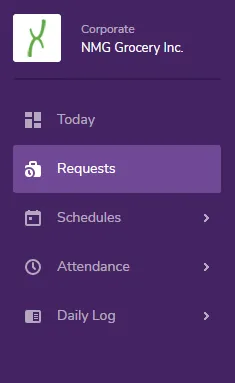
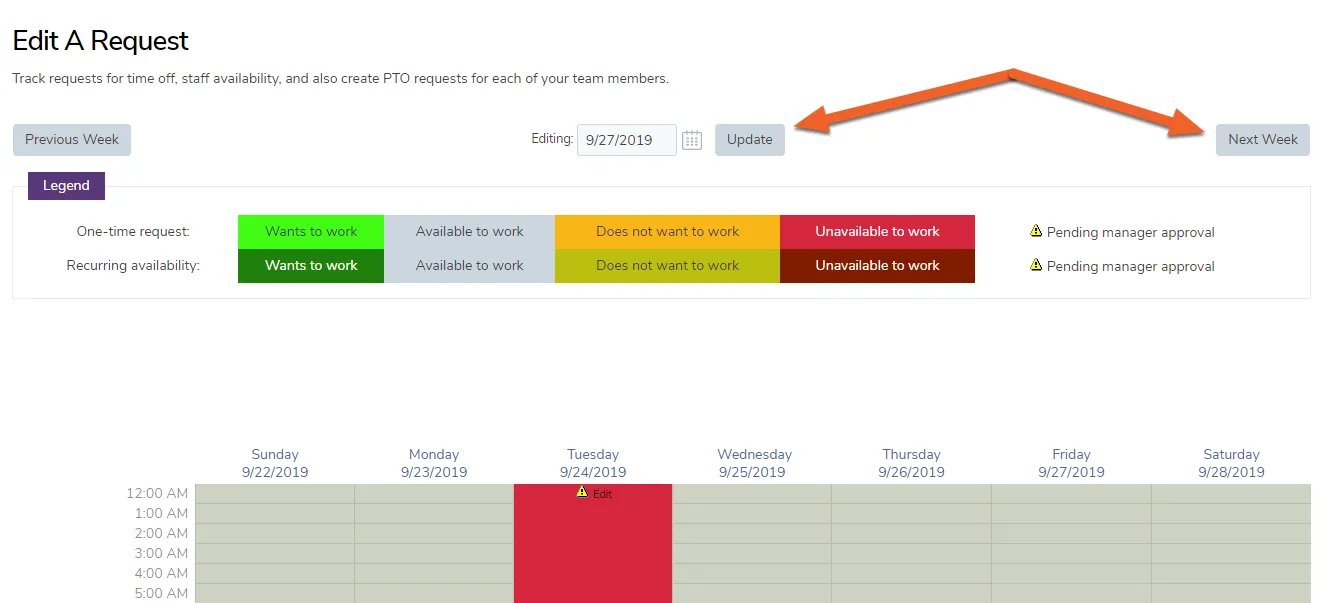
Locate the date on which you want to take time off
Section titled “Locate the date on which you want to take time off”You can either use the date selector in the middle of the page or the Next Week button to the right. Many businesses require employees to submit their requests at least a week in advance.
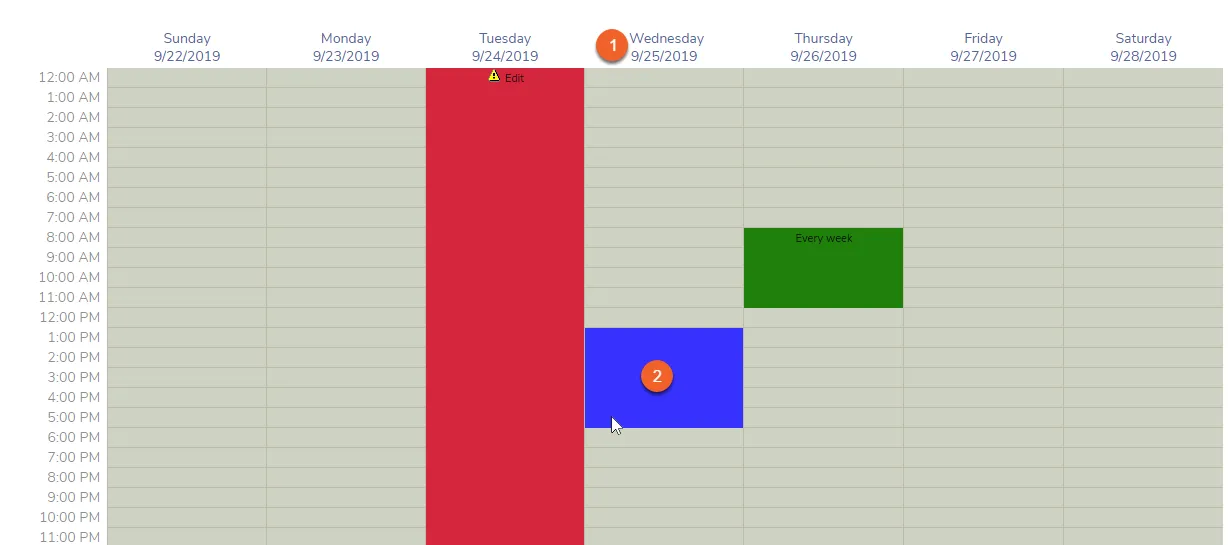
When you’ve found the right date, you can either:
- Click the link at the top of the appropriate column, or
- Select a time period by dragging the cursor between two times (e.g. 1PM and 5PM, to request a half day).
Choose the type of leave you wish to use for this request (if any)
Section titled “Choose the type of leave you wish to use for this request (if any)”If you are using a leave type, such as PTO or some other accrued leave, make sure you select it in the drop down menu. You will only be able to view and select leave types for which you are eligible.
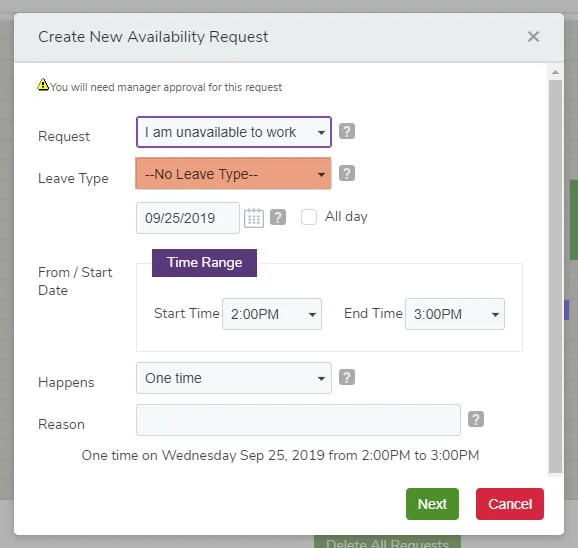
Be sure to fill out the rest of the form, then click the Next button to submit your request. Your manager will be notified of the pending request, and you will be able to see and edit the request both on your Today page as well as under Requests.