Create requests or change your availability
Creating time-off or want-to-work requests and changing your availability to work is easy with TimeForge!
Staff requests are immediately sent to management for manager approval, and you will receive notifications through TimeForge and email when your request is approved or denied.
Availability and Requests
Section titled “Availability and Requests”In many restaurants, retail businesses, and other industries, staff members are required to work with two different concepts for work preferences:
- Availability is when you are normally available to work. For example, you may be available on Monday, Wednesday, or Friday from 8am - 2pm. Perhaps you are not available to work on Tuesdays or Thursdays because of school conflicts or another job. Availability sheets are typically passed out on a continuous basis (school semesters are common) and are filled out by staff members.
- Requests are normally one-time changes to your normal availability. For example, you may be available next Tuesday to work because your professor canceled class. In many locations, requests are placed in some sort of log book - either an industry specific manager log (such as a Red Book from Red Book Solutions or a Beat Yesterday book) or a simple spiral notebook or binder.
TimeForge supports both types of work preferences from a single Availability & Requests page. Recurring requests can be be made within TimeForge, similar to an Availability sheet, and individual daily Requests can also be made within TimeForge.
Types of Availability and Requests in TimeForge
Section titled “Types of Availability and Requests in TimeForge”TimeForge supports 4 different types of Availability and Requests that enable staff members to easily customize their work schedule:
- Available to work. By default, you are always available and can be scheduled to work. Create either Wants to work, Does not want to work, or Unavailable to work requests to change your availability. Each of these types is explained below.
- Wants to work. If you would like to work a particular shift, for example on a day that works well with your schedule, create a Wants to work request.
- Does not want to work. These requests indicate that you would prefer to not work but can work if required.
- Unavailable to work. If you cannot work, an Unavailable to work request will ensure that you are not placed on the schedule during this time frame.
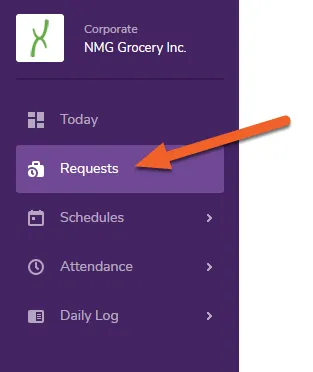
Click the Requests tab in the left side navigation menu
Section titled “Click the Requests tab in the left side navigation menu”While logged in, select the Requests tab in the left side menu.
View the Request Calendar
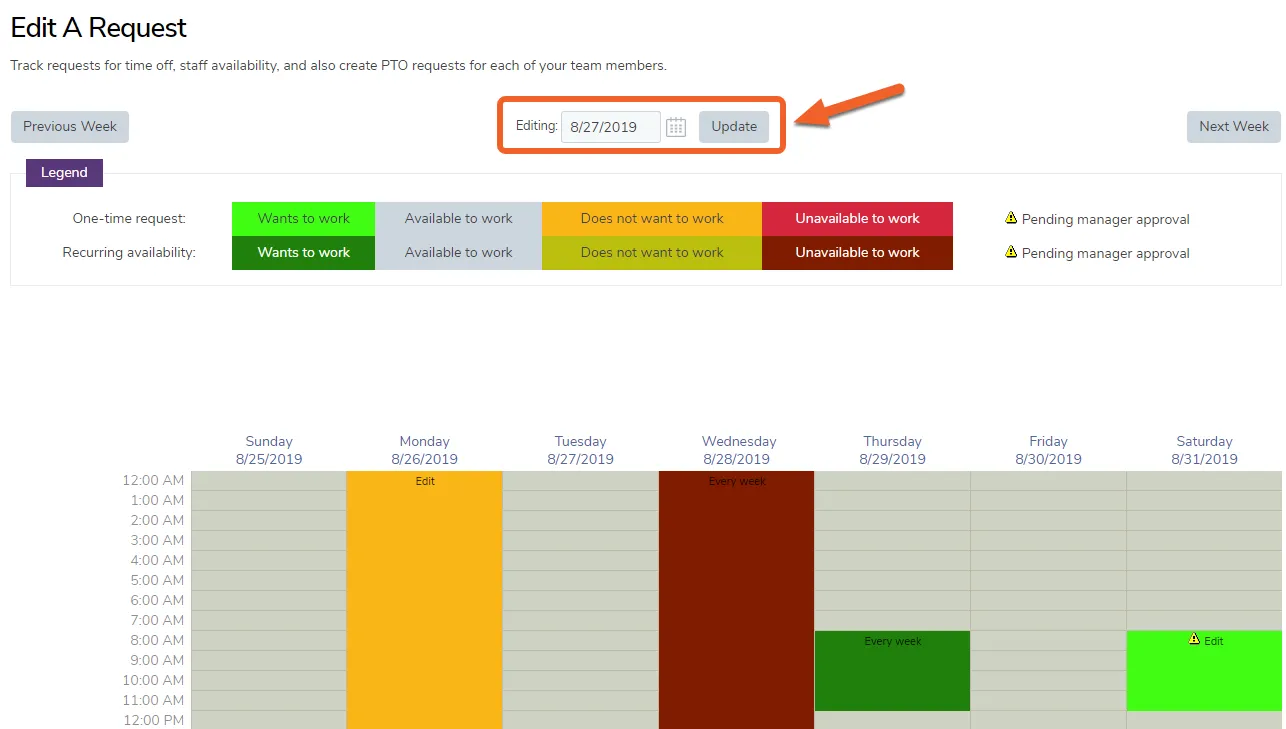
Section titled “View the Request Calendar”The Request Calendar shows the current week and any requests or availability that have been made, both approved and pending. You can navigate around this page by clicking on the Previous Week or Next Week buttons. Alternatively, you can use the date selector (centered between the Previous/Next buttons) to jump directly to the work day of your choosing.
Create a new Request or update an existing Request
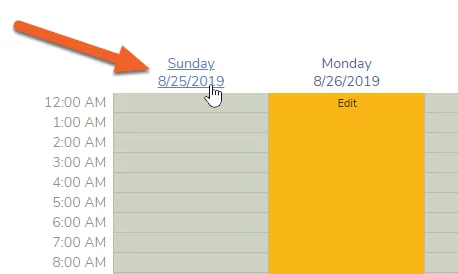
Section titled “Create a new Request or update an existing Request”To create a request or update your availability, click on the date links above each column on the calendar, or click and drag your mouse over the date and times you want to adjust. This will open a pop-up window, allowing you to fill out the details of your availability request.
Fill out the Create New Availability Request form
Section titled “Fill out the Create New Availability Request form”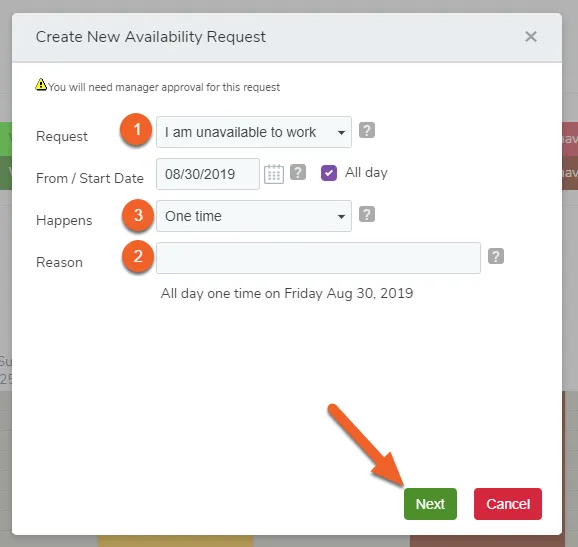
After clicking on a date on the Calendar, the above pop-up will be displayed.
- Choose the appropriate request (Wants to work, Available to work, Does not want to work, or Unavailable to work).
- Enter a reason for management to review, and if necessary.
- The Happens selection can be modified so that the request can happen:
- One time: The request occurs only once on the start date
- Daily: The request occurs every day between a start date and end date
- Every weekday (Mon - Fri): The request happens on Monday, Tuesday, Wednesday, Thursday, and Friday’s in between the start date and the end date
- Every weekend (Sat - Sun): The request happens on Saturday’s and Sunday’s in between the start date and the end date
- Every Mon, Wed, and Fri: The request occurs on Monday, Wednesday and Friday’s in between the start date and the end date
- Every Tue and Thurs: The request occurs on Tuesday and Thursday’s in between the start date and the end date
- Weekly: You can pick which days of the week the request occurs on
- Monthly: The request can occur either monthly or based on the day of the month.
TimeForge will also allow you to make a request for specific parts of the day. You can enter your own time range by unselecting the checkbox that says All Day.
Requests may be denied if made too early
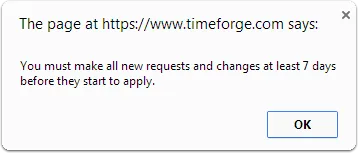
Section titled “Requests may be denied if made too early”Managers can require that all requests and availability changes be made several days in advance, to ensure that the labor schedule is not disrupted. In this example, requests must be made at least 7 days in advance, and TimeForge will not allow you to continue:
View your Pending and Approved Requests
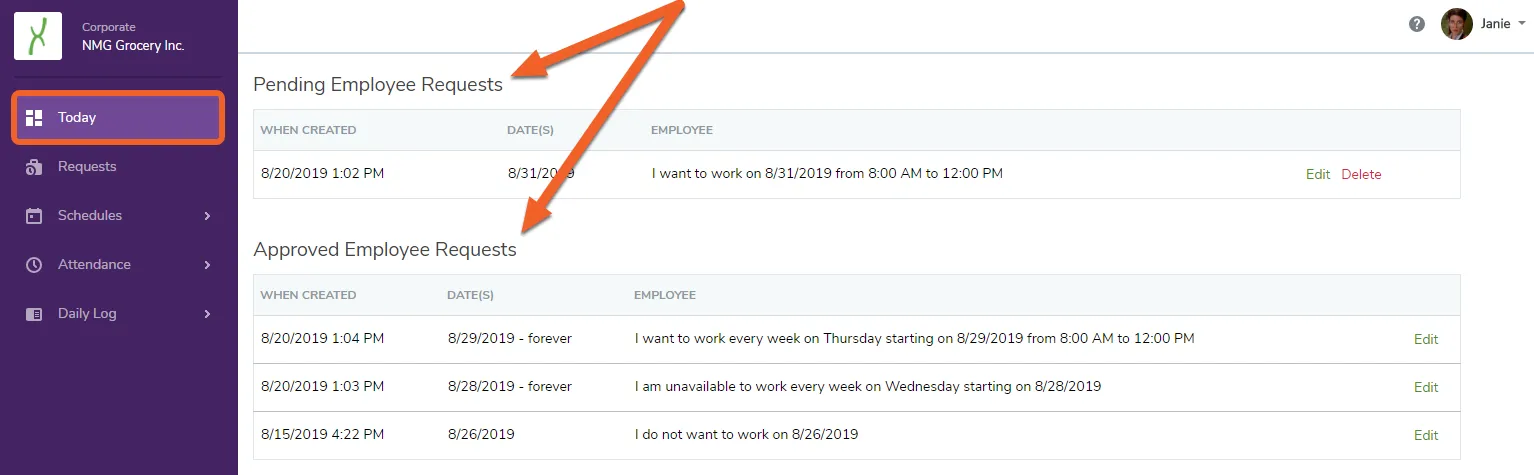
Section titled “View your Pending and Approved Requests”After a request or change to availability has been made, you can see the request and status on your Today page.