Adjust the app settings
The settings page allows you to select which language to use throughout the TimeForge Employee Mobile app (English or Spanish) and to set your default page when you log in (can be set to My Schedule, My Attendance, or Time Clock).
Select Settings from the side menu
Section titled “Select Settings from the side menu”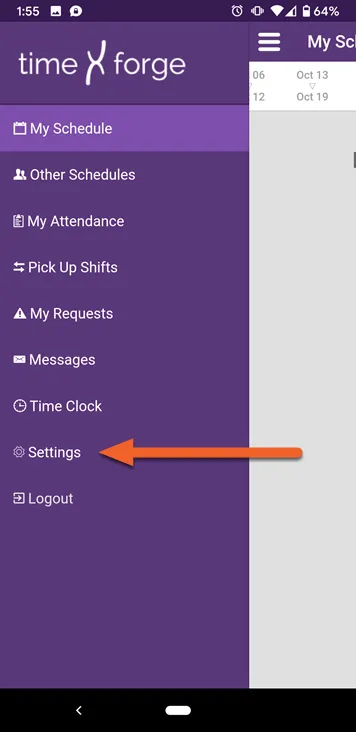
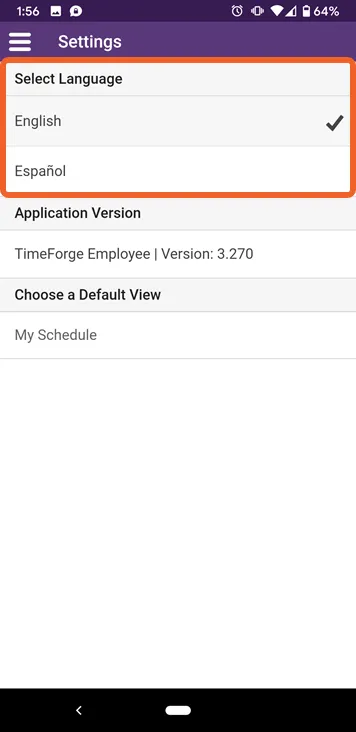
Switch between English and Spanish
Section titled “Switch between English and Spanish”Tap on a language option to switch to that language. The selected language will show a checkmark:
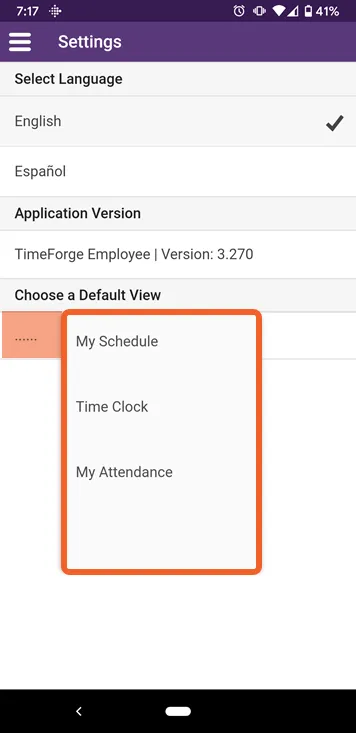
Choose a Default View
Section titled “Choose a Default View”Tap the line beneath “Choose a Default View” to select from one of the available options (My Schedule, Time Clock, or My Attendance).
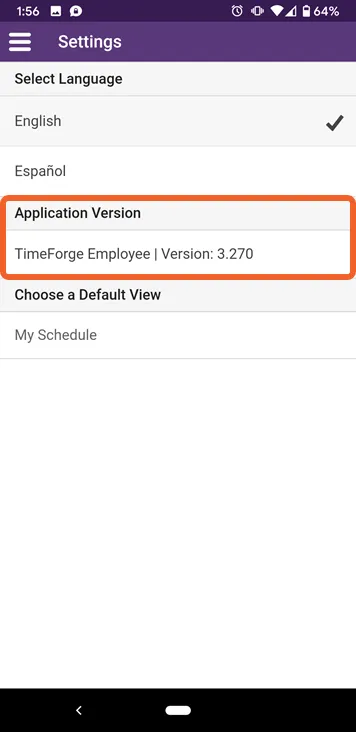
Application Version
Section titled “Application Version”This shows the software version of the Employee App. There is nothing to select here, but if you have problems with the app, it may be useful to mention the version you’re using when you call Support.