View your schedule and confirm your shifts
Under My Schedule in the TimeForge Employee mobile app, you can view past and future shifts, as well as confirm your upcoming shifts. Here’s how.
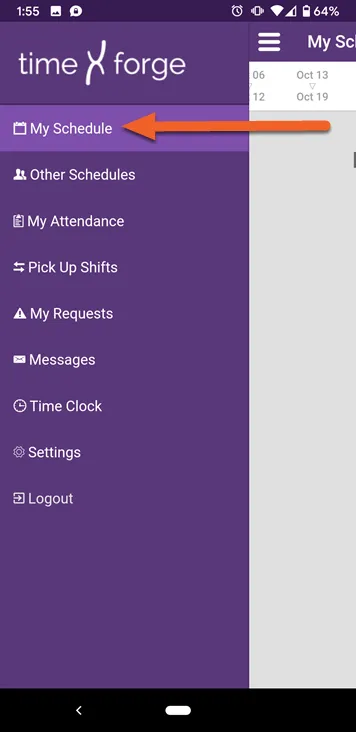
Select My Schedule from the menu
Section titled “Select My Schedule from the menu”If My Schedule isn’t your default page when you log into the app, simply open the menu and select it from the list.
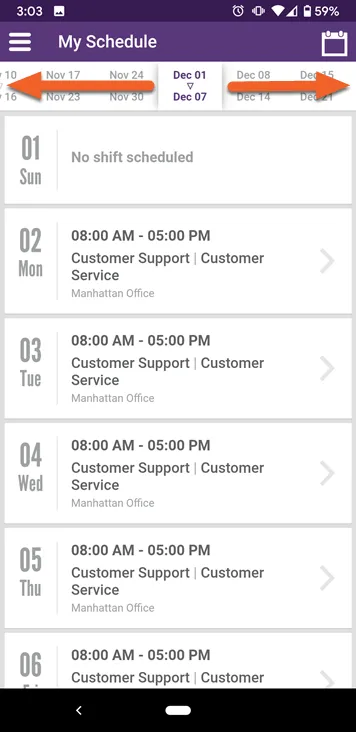
Swipe right or left to view past/future weeks
Section titled “Swipe right or left to view past/future weeks”By default, the page will open to the current work week. At the top of the screen, there’s a scrolling date selector. Swipe right or left to view past or future work weeks.
Confirm a shift
Section titled “Confirm a shift”When you confirm a shift on your schedule, you are committing to working that shift. Your employer may not require you to confirm shifts – or they may ask that you confirm on the day you’re scheduled to work.
Tap the shift you want to confirm
Section titled “Tap the shift you want to confirm”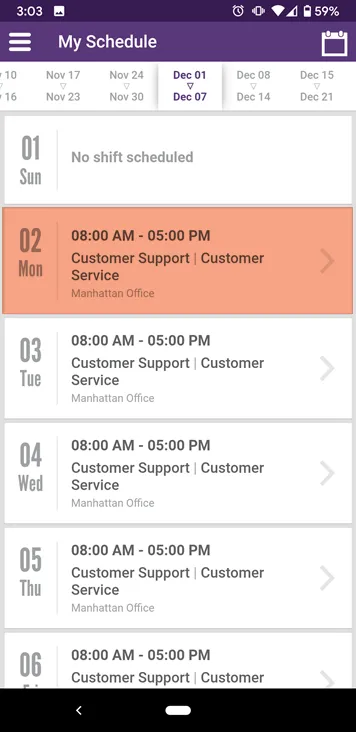
Tap the Confirm button
Section titled “Tap the Confirm button”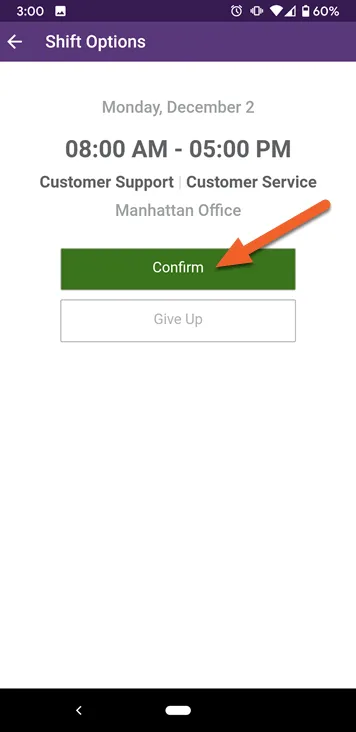
Why is the button grayed out?
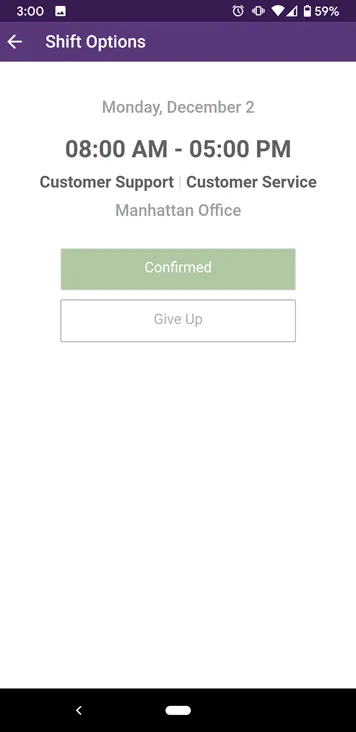
Tap OK to confirm that you want to confirm
Section titled “Tap OK to confirm that you want to confirm”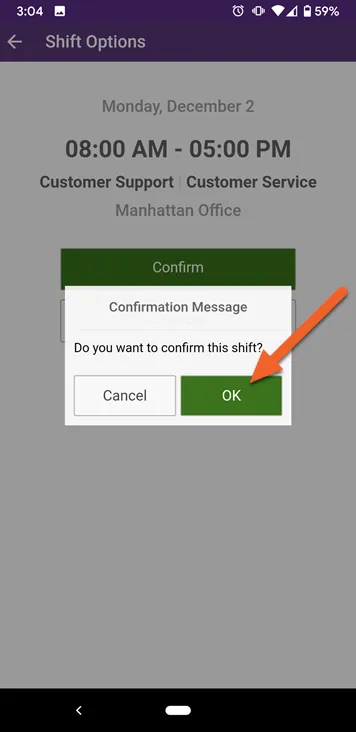
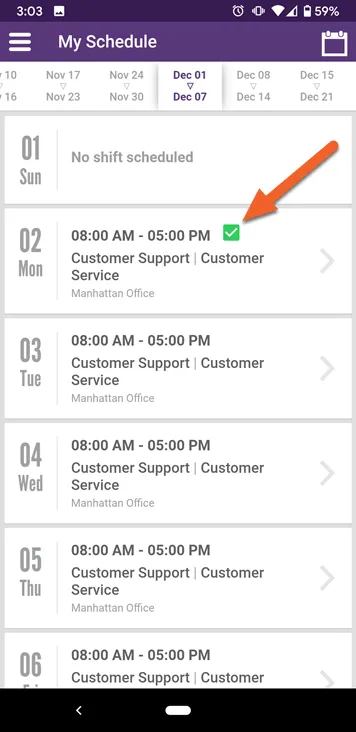
Shifts that are confirmed have green check boxes next to them: