View your upcoming work schedule
As an employee using TimeForge, you can see work schedules that your management team has posted. Schedules can be emailed to your email address, sent to your cell phone via text message, or you can log in to TimeForge at any time to review posted schedules.
When you log into TimeForge, the first thing you will see is your Today page (which acts like your home page in TimeForge). Your Today page contains a ton of useful information regarding your upcoming schedule, all provided in an easy-to-read calendar format:
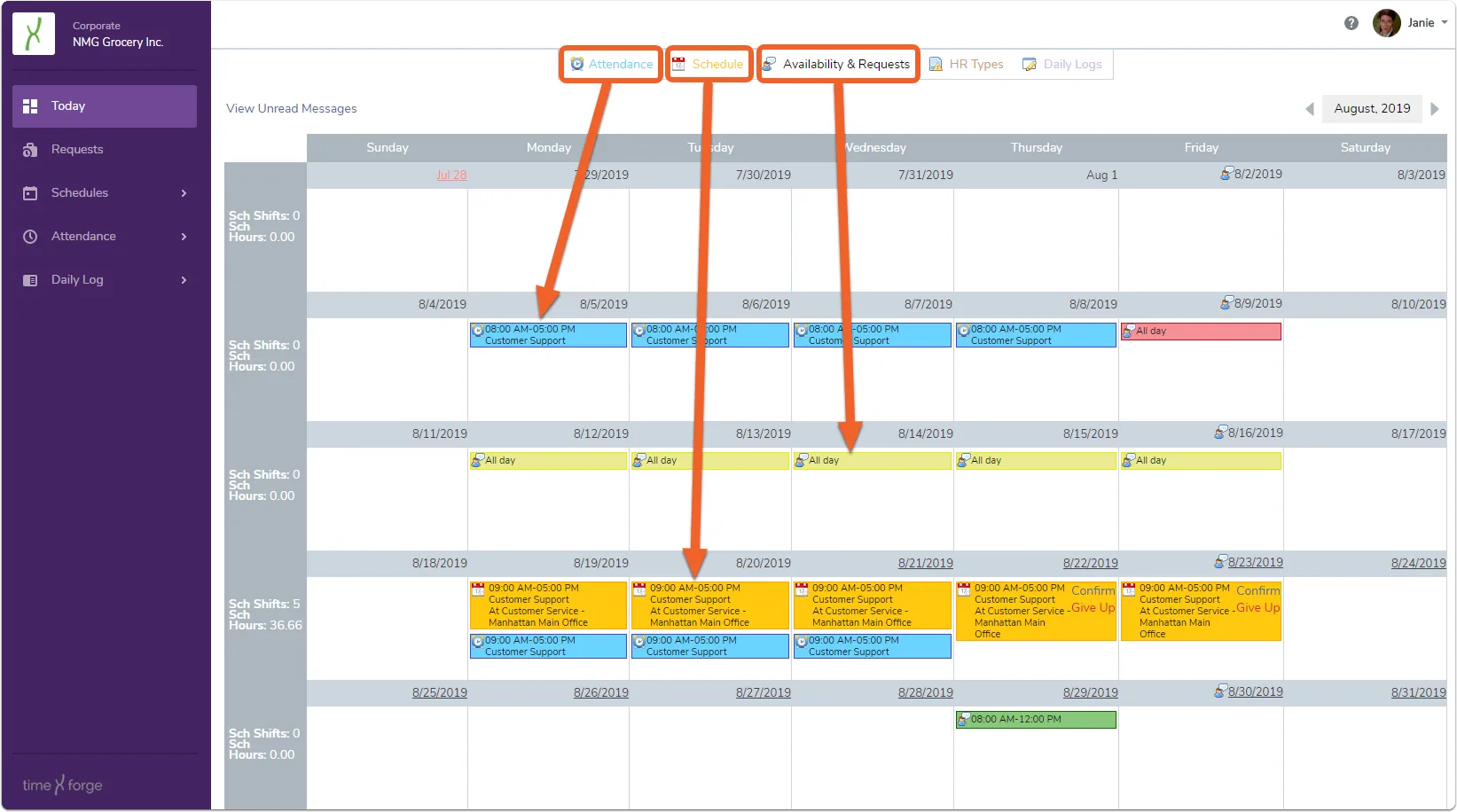
The legend above the calendar tells you what you’re looking at. For example, attendance entries have a clock icon and are blue, while your posted shifts have a calendar icon and are in orange.
Time-off requests and availability are denoted by the team member icon and are color-coded based on the type of request (e.g. Wants to work, Does not want to work, Unavailable to work).
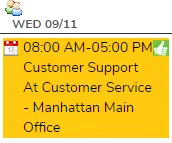
Your scheduled shifts will include important details, such as the hours scheduled (e.g. 9AM-5PM), what department (e.g. Customer Support), and for what position and location (e.g. Customer Service rep for the Manhattan Main Office), as in the example below:
Using your calendar, you can also perform a number of work and shift related actions:
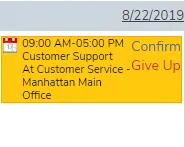
- Give Up a shift, allowing other staff members to pick up and work your assigned shifts.
- Pick Up a shift, if another staff member or coworker has given up a shift that you would like to work.
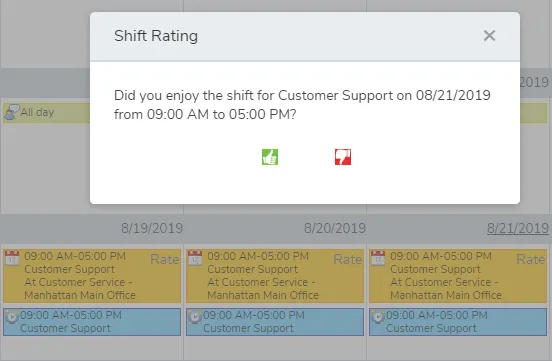
- Rate a shift after it has been worked, providing feedback to managers about the shift - simply mark the shift up or down. (Shift ratings must be enabled for your location. In enabled, a Rate link will appear next to your worked shifts.)
- Confirm a shift, indicating that you intend to be at work for this shift.
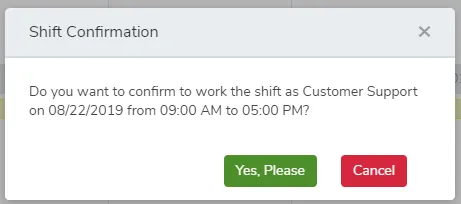
TimeForge uses data collected from Ratings, Shift Confirmations, and Shift Swaps in an attempt to build future work schedules that are better suited to your needs.
Accept or reject a shift
TimeForge is a great tool for managers because it makes scheduling employees and tracking attendance simple.
TimeForge is also great for employees because it gives them the power to accept or reject their shifts for someone else to pick up. If an employee decides to deny their shift and give it up, manager approval will still be required before it takes effect. The employee will have to log in to their TimeForge account and follow these steps to accept or reject their shift.
From the Today tab, the employee can view their upcoming shifts and schedule information.
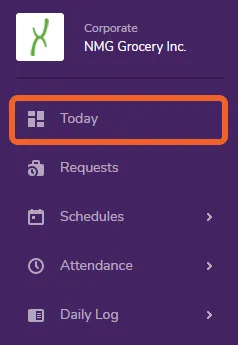
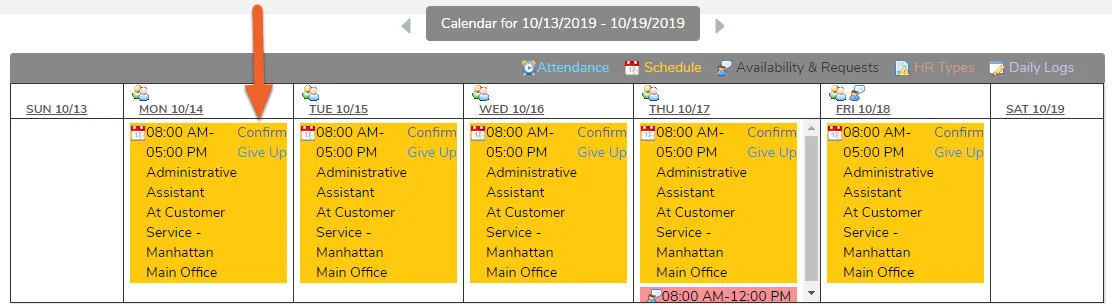
The employee’s upcoming work schedules are displayed in an easy to read format, and include today’s scheduled shifts as well as any upcoming shifts that managers have posted. Each shift includes the start and end times, as well as the position (and section) the employee is supposed to work. Scheduled shifts appear in yellow.
The employee can click on Confirm or Give Up for any particular shift, which acts as a way to accept or reject the shift.
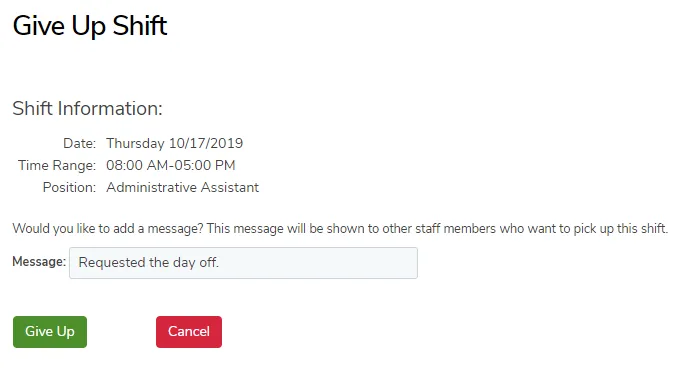
On the Give Up Shift screen, review that the shift information is correct. You can also enter a brief message that will be shown to other staff members and managers before they pick up the shift or before management approves the shift.
Click the Give Up button when you are finished.
Once you give up a shift, it will be “pending” until someone picks it up and the manager approves the swap.
You can pick it back up yourself on the Today page if needed.
Pick up a bid shift or shift swap
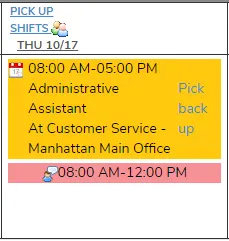
You can Pick Up shifts that have been assigned to other employees (shift swap) or that have been made available as bid shifts or transfer bid shifts by a manager. This is done on the Available Shift Swaps page in TimeForge or directly from the Today Page for any date that has a PICK UP SHIFTS option.
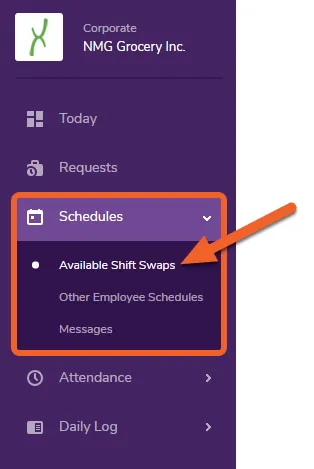
Open the Schedules tab in the left side navigation menu, then select Available Shift Swaps from the list.
TimeForge provides two ways to look for shifts to pick up, if you would like to work extra hours:
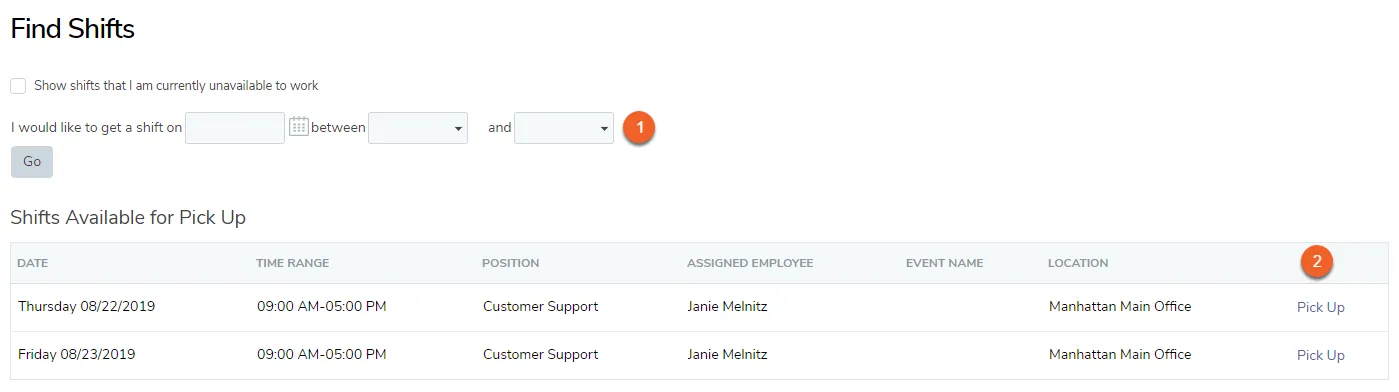
- Find Shifts. You can search for shifts on a certain date between the times that you specify. If a shift is found, you may request to pick it up. This option may be useful if there are a lot of available shifts to choose from and you need to narrow down the list.
- Pick Up an Available Shift. Qualifying shifts that have already been given up by other staff members are listed beneath the Find Shifts section. These shifts display the date, length of the shift, position, and the employee that is currently assigned to work the shift. If the shift swap is approved, you will be replacing the Assigned Employee.
After searching for shifts using the Shift Swaps page, any found shifts are displayed directly beneath the Find Shifts screen. This shift is currently assigned to another staff member, as shown:

When you click on Request to Pick Up this shift, TimeForge will attempt to reassign the shift to you. This may require manager approval depending on your location’s settings in TimeForge.
Once the shift swap is approved, TimeForge will assign the shift to your account and will notify you (according to your Alert preferences in your profile) that the shift is now your responsibility.
Alternatively, instead of searching for a shift to pick up, you can simply click the Pick Up link next to an available shift. If the shift is a bid shift or transfer bid shift, this will be listed under the ‘Assigned Employee’ column in place of a name.
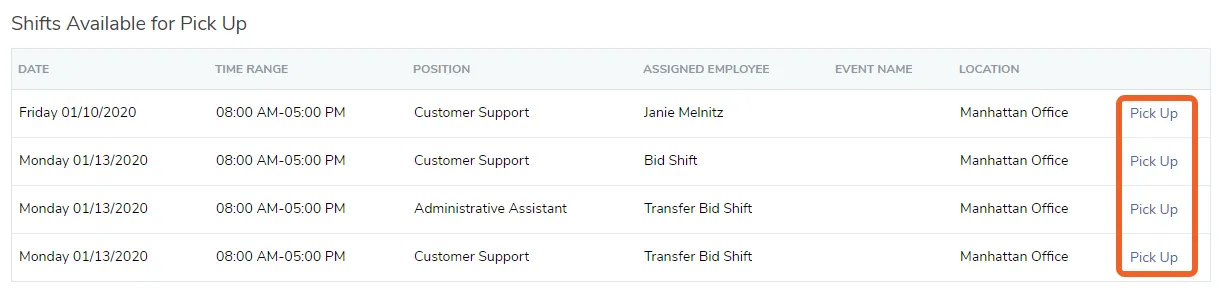
Again, if approval is required, TimeForge will notify your manager of your request. If the shift swap is approved, you will be notified according to your alert preferences, and TimeForge will assign the shift to your account.
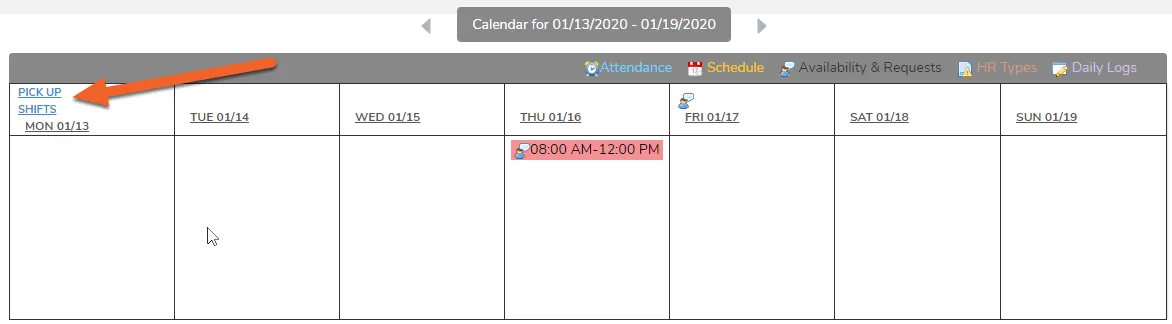
Shifts you are eligible to pick up will also display on your Today Page calendar. Simply click the PICK UP SHIFTS link on the date you’d like to work. This will take you to the Available Shift Swaps page (described above), where you’ll see a list of available shifts.
Pick up a transfer bid shift
Transfer Bid Shifts are just like normal bid shifts, except they’re shared across store locations. They must be enabled by management and scheduled by a manger in order to be available to pick up. When you pick up a transfer bid shift, you follow the normal rules for bid shifts and shift swaps as set by your management, who may require the pick up to be approved before you are responsible for working the shift.
To pick up a Transfer Bid Shift, you follow the same steps as you normally would for picking up an available shift. Any shifts that you are eligible for will display on your Today Page and in your Available Shift Swaps.
If starting from the Today Page, simply PICK UP SHIFTS for the date you’d like to work.
Pick up a bid shift or shift swap
This will take you to your Available Shift Swaps page, where you can select the shift you’d like to pick up.
For Transfer Bid Shifts, you’ll want to make sure you note the location of the shift, as it might be different from your usual/home location.
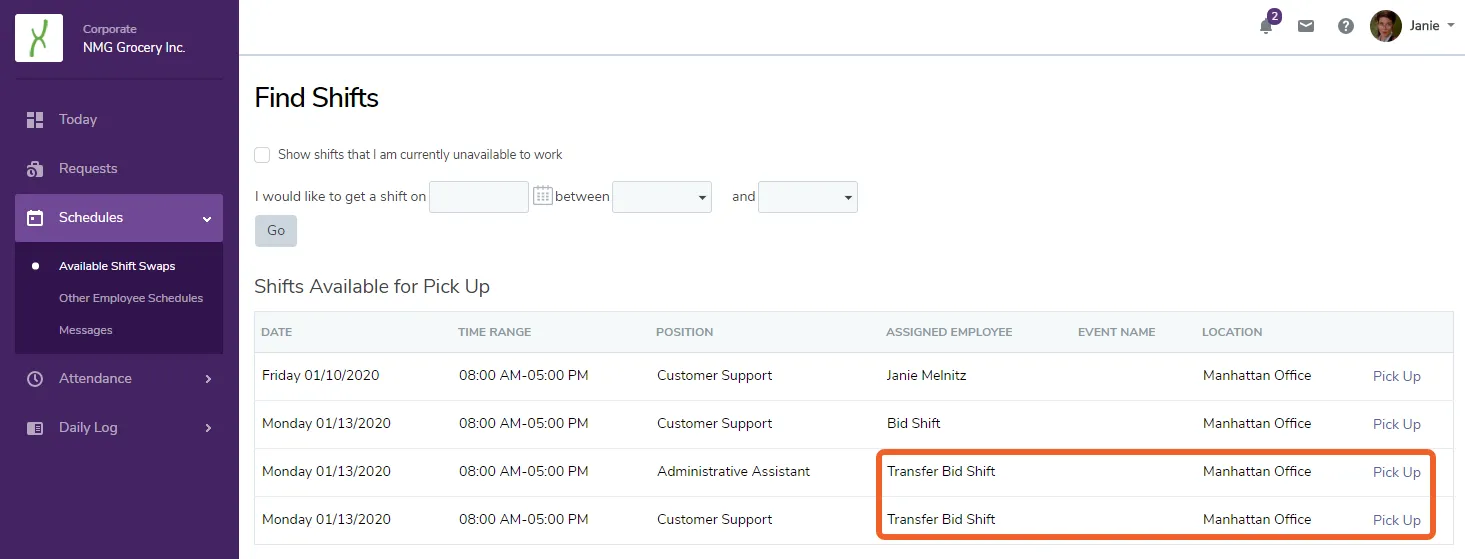
If manager approval is required, TimeForge will notify the store manager of your request. If the pick up is approved, you will be notified according to your Alert preferences, and TimeForge will assign the shift to you.
Import your schedule into Google Calendar
Here are some quick and easy steps for importing your schedule into your Google Calendar.
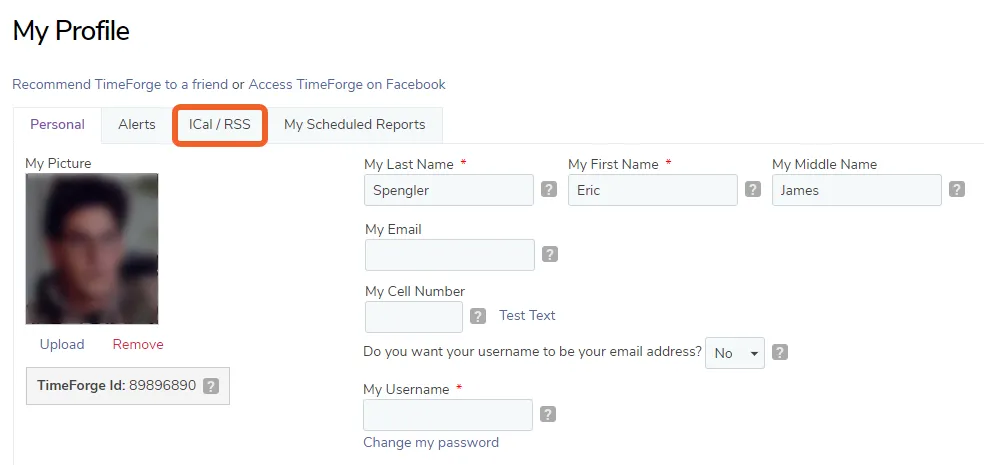
Click the dropdown menu in the upper right and select My Profile to visit your profile page. From there, click the ICal/RSS tab:
Choose a timezone, then click Save my Settings at the bottom of the page.
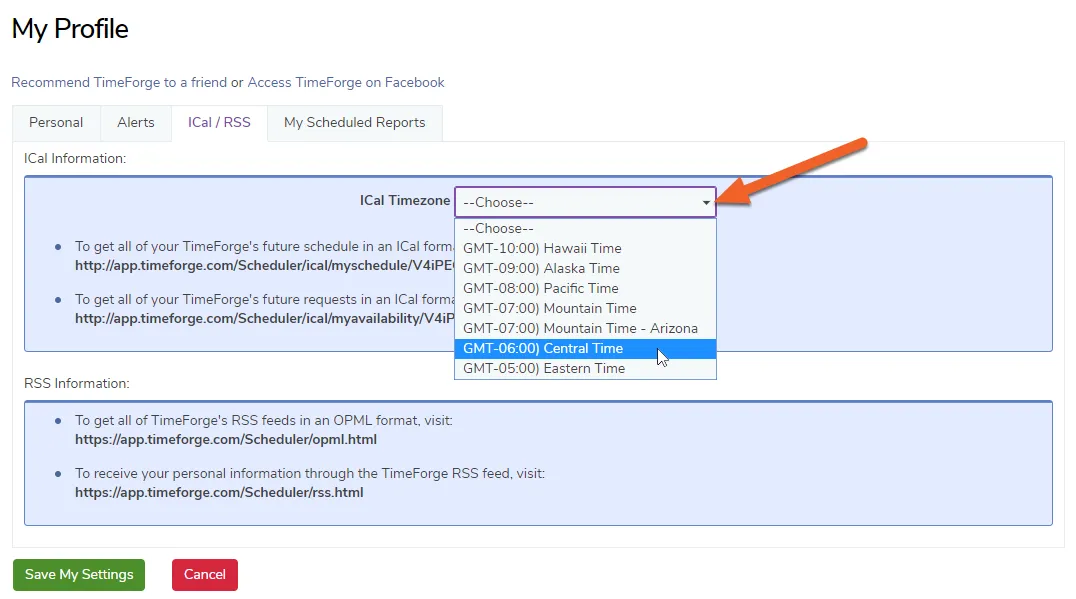
Next, highlight the URL for the schedule you want to import, then right-click and select Copy. This will copy the URL, which you will need for the next step.

For most browsers, this can be done by clicking a plus sign at the top of the window.

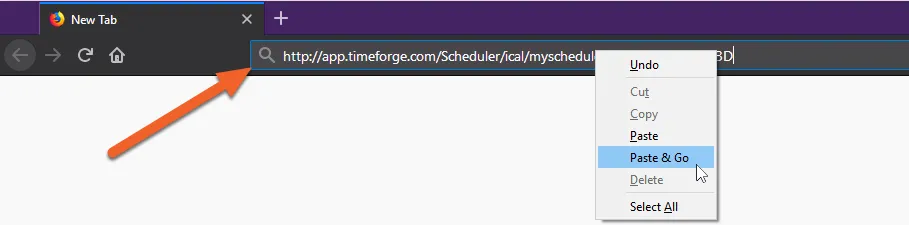
Depending on your browser’s settings, the ICal file (.ics) may download automatically, or you may be prompted to choose where to save it. If prompted, save the file.
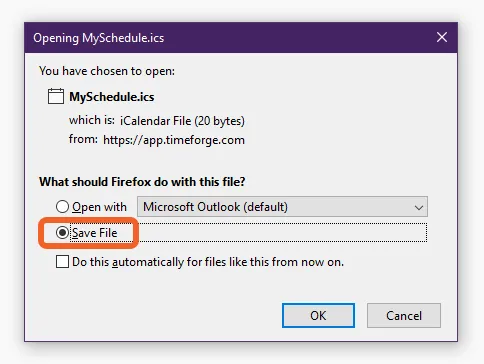
Now that you’ve exported the schedule from TimeForge, it’s time to import it into Google Calendar!
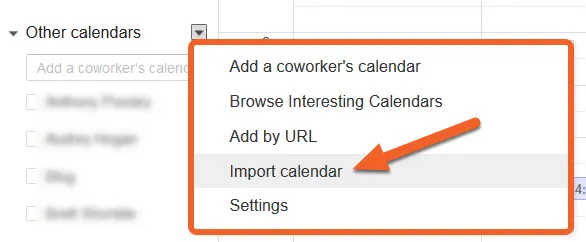
To do this, open your Google Calendar, click the down arrow next to Other Calendars (on the left) and select Import calendar from the list.
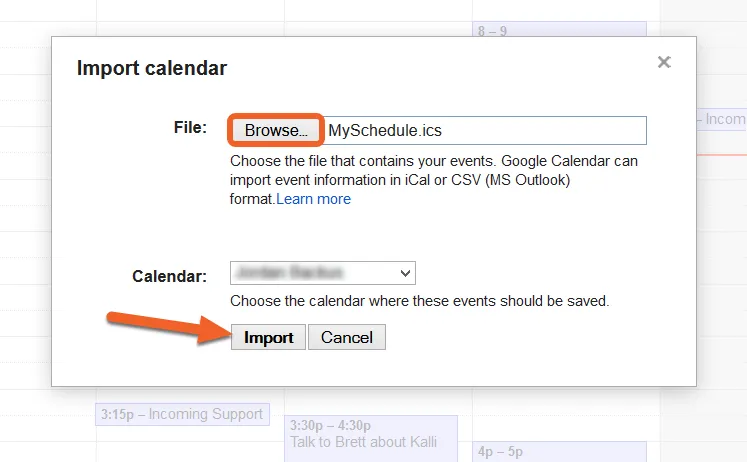
Browse for the file you just saved, then click Import. Your schedule will then appear on your Google Calendar!
Rate your shifts
When enabled, shift ratings are a quick and easy way for your managers to get an idea of how good the schedule was so that they can make the best schedules possible in the future. Shift ratings also help the TimeForge AutoScheduler better understand which schedules work best for employees, so that TimeForge can build them even better schedules.
The goal of every schedule is to make everyone happy – happy managers, happy employees, and happy customers. Be sure to rate all of your shifts so your managers know how you feel.
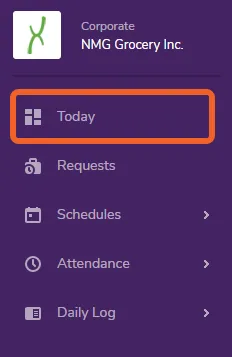
You can rate your shifts directly from your schedule on the Today page.
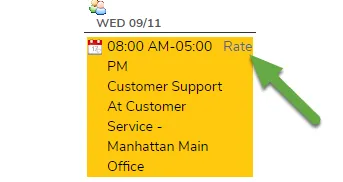
Look for the date you were scheduled to work (scheduled shifts are in yellow and are preceded by a calendar icon in the upper left). In the upper right, you’ll see a Rate link – click this to rate your shift.
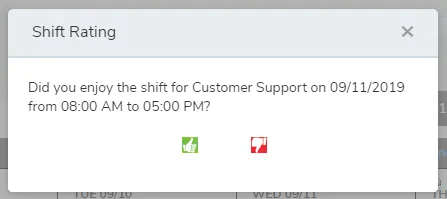
Click on the green “thumbs up” button if you enjoyed your shift. If you did not enjoy your shift, click on the red “thumbs down” button.
That’s all there is to it! The rated shift will now show the icon for the rating you gave it: