Take or end a break
TimeForge Attendance is a powerful time tracking tool for businesses and staff members alike. Employees can clock in and out using TimeForge, track scheduled and unscheduled breaks, lunch breaks, meal periods, and others. Taking breaks is easy with TimeForge!
Visit your Today Page
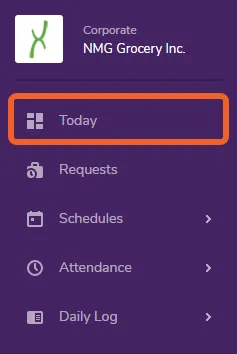
Section titled “Visit your Today Page”When you log into TimeForge, click the Today tab in the left side navigation menu to visit your Today Page, also known as your employee dashboard. Here you can see important information about your schedule, time off or availability requests, messages, and more.
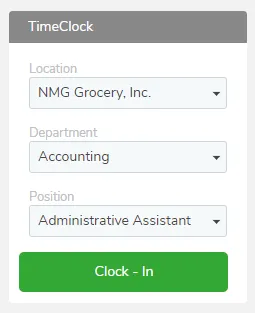
If you are on a computer which allows employee clock-ins with TimeForge Attendance, you will also see a button to clock in. Make sure you’re clocked in – otherwise you won’t be able to take a break through TimeForge.
Return to the Today Page to take a Break
Section titled “Return to the Today Page to take a Break”If you are scheduled or allowed to take a break, and you have already clocked in, you can return to the Today Page to take a break.
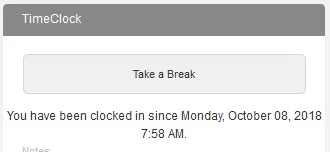
Click on the Take a Break button to actually take your break.
Choose the Break Type (if configured)
Section titled “Choose the Break Type (if configured)”Depending on your employer’s TimeForge settings, you may be allowed to choose the type of break, and those options might include:
- Paid Required
- Paid Optional
- Unpaid Required
- Unpaid Optional
Click on the Break Type drop-down and choose the type of break you would like to take.
Ending your break is also easy!
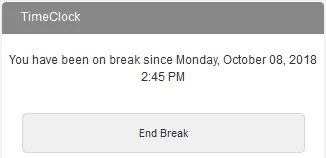
Section titled “Ending your break is also easy!”When you are ready to end your break, simply return to the Today Page and click the End Break button.