Import your schedule into Google Calendar
Here are some quick and easy steps for importing your schedule into your Google Calendar.
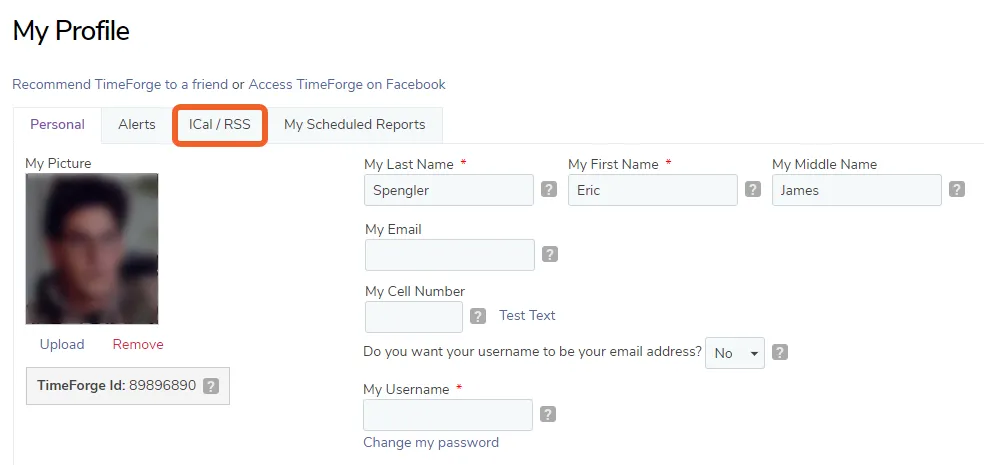
Open the ICal / RSS tab on your Profile
Section titled “Open the ICal / RSS tab on your Profile”Click the dropdown menu in the upper right and select My Profile to visit your profile page. From there, click the ICal/RSS tab:
Choose a time zone in the ICal Information box
Section titled “Choose a time zone in the ICal Information box”Choose a timezone, then click Save my Settings at the bottom of the page.
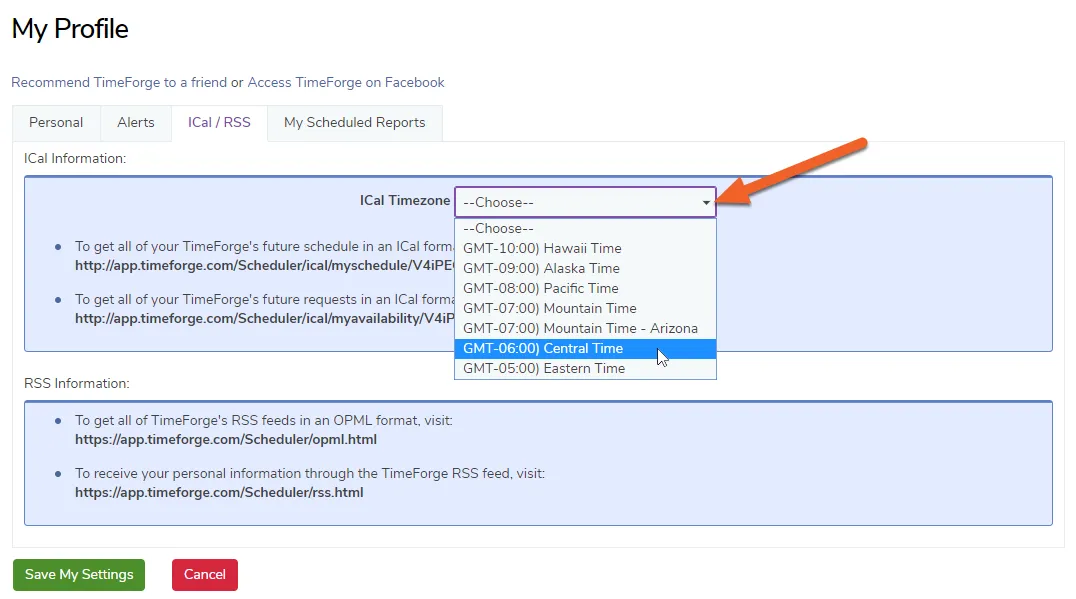
Copy the URL for the schedule you want to import
Section titled “Copy the URL for the schedule you want to import”Next, highlight the URL for the schedule you want to import, then right-click and select Copy. This will copy the URL, which you will need for the next step.

Open a new browser tab or window
Section titled “Open a new browser tab or window”For most browsers, this can be done by clicking a plus sign at the top of the window.

Paste the copied URL and hit enter (or Paste & Go)
Section titled “Paste the copied URL and hit enter (or Paste & Go)”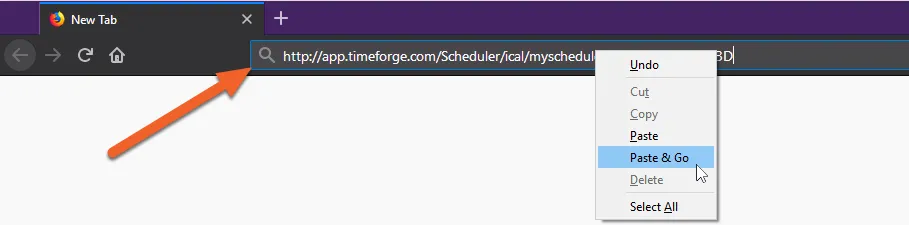
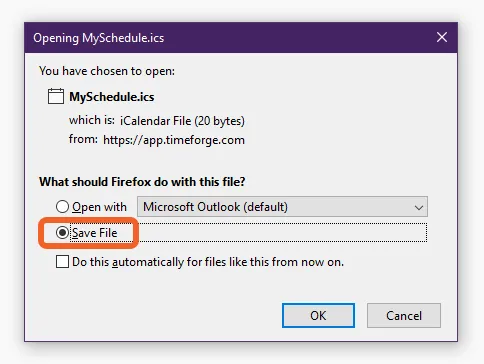
Depending on your browser’s settings, the ICal file (.ics) may download automatically, or you may be prompted to choose where to save it. If prompted, save the file.
Import the file into Google Calendar
Section titled “Import the file into Google Calendar”Now that you’ve exported the schedule from TimeForge, it’s time to import it into Google Calendar!
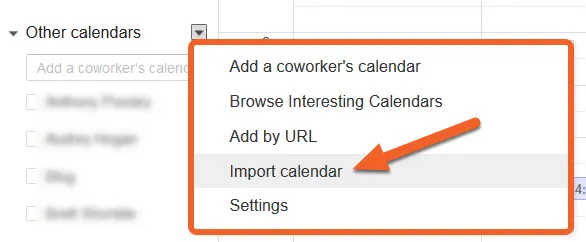
To do this, open your Google Calendar, click the down arrow next to Other Calendars (on the left) and select Import calendar from the list.
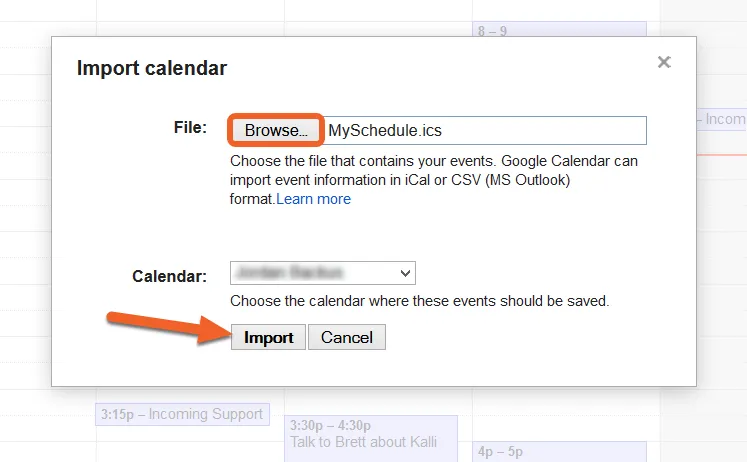
Locate the file and click Import
Section titled “Locate the file and click Import”Browse for the file you just saved, then click Import. Your schedule will then appear on your Google Calendar!