Request time off or set your availability
The TimeForge Employee Mobile App now offers the ability to submit availability requests directly from your smart phone! This makes it easier than ever for employees to indicate their availability.
In order to make use of this feature, you’ll need to have the latest version of the Employee Mobile App installed on your device. This app is free and is available for both iOS and Android. To download, simply visit the Apple store or Google Play store and search for “TimeForge Employee App.”
Open the My Requests page
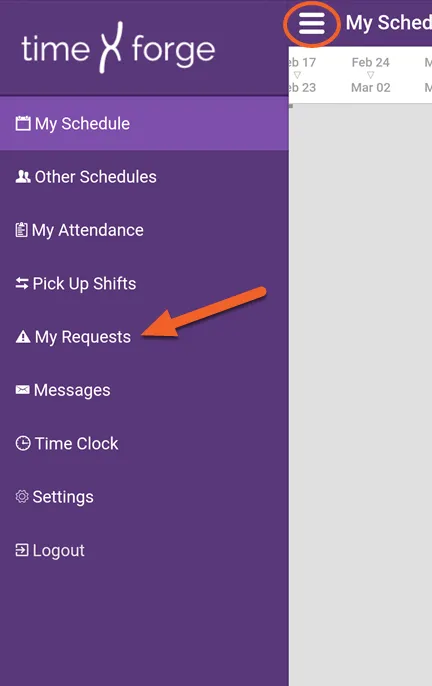
Section titled “Open the My Requests page”To begin, click on the menu button (three horizontal lines) in the upper left corner. This will open up the TimeForge menu.
Then, select My Requests from the list.
Click the + plus sign in the lower right
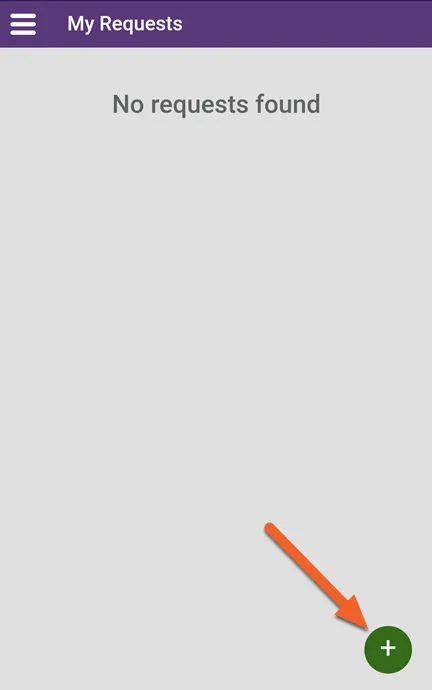
Section titled “Click the + plus sign in the lower right”Click the plus sign to start a new time off or availability request.
Select Available or Unavailable, then fill out the request
Section titled “Select Available or Unavailable, then fill out the request”At the top of the screen, you’ll see two options: Unavailable and Available. If this is a request for time off, select Unavailable. Otherwise, select Available.
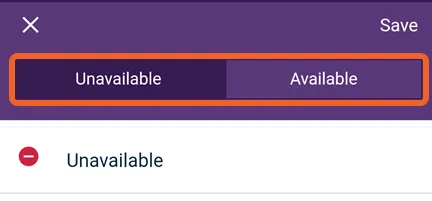
Then, select the options for date, time, whether the request should be recurring (repeat), and any comments you’d like to provide to your manager.
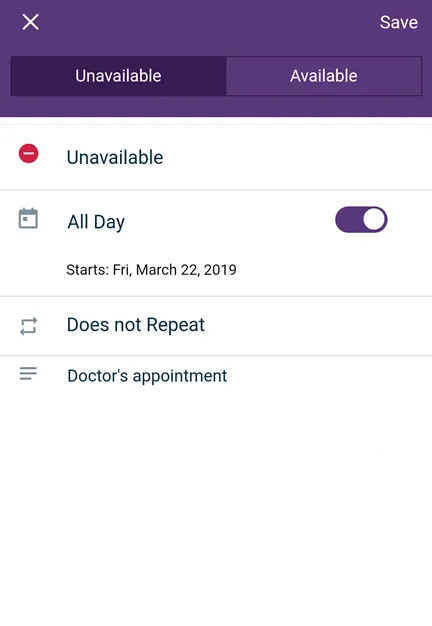
Here’s an example of a request to take a full day off from work:
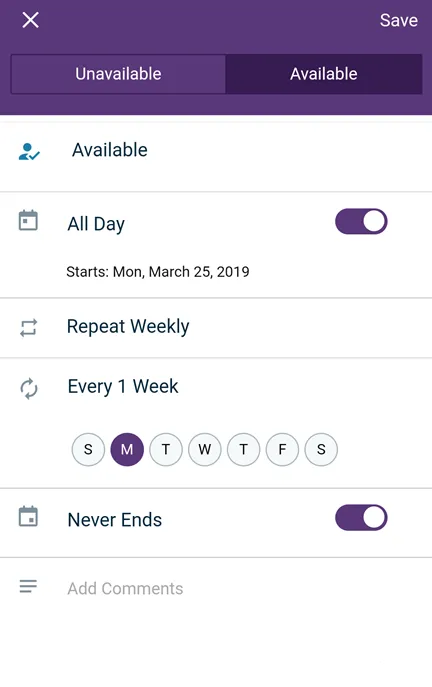
And here’s an example of a request to let your manager know that you’re available all day every Monday:
Click Save in the upper right
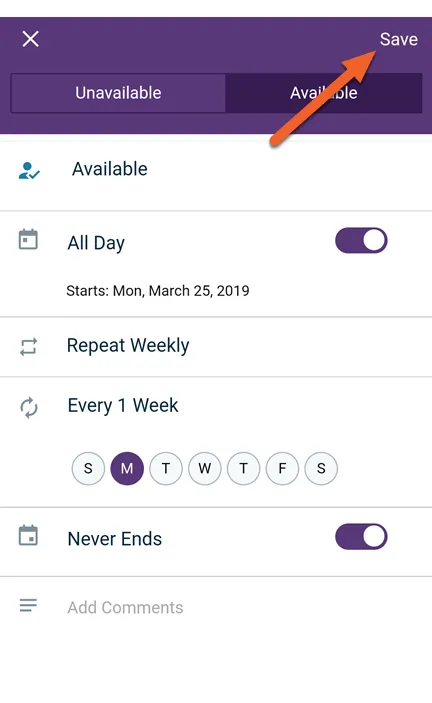
Section titled “Click Save in the upper right”Click Save to submit your request to a Supervisor or Manager for approval.
Requesting time off using a leave policy
Section titled “Requesting time off using a leave policy”If your employer tracks PTO, Sick, or other leave policies in TimeForge, you can create time off requests using your available hours. To create a time off request using a leave policy, first tap the “Unavailable” option. You should then see leave policies assigned to your profile with an available balance.
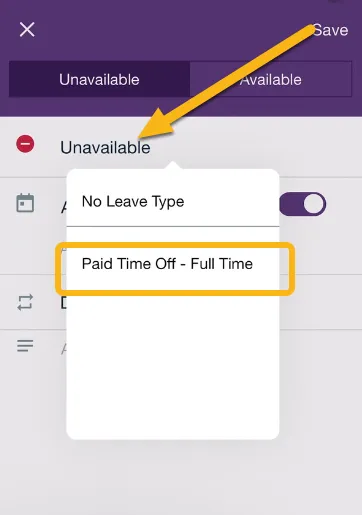
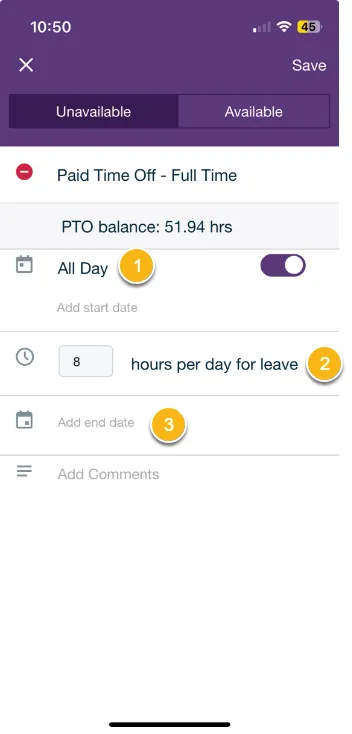
After you select the leave policy you want to use, you can view your available balance and set up the following parameters.
- The date your time off request begins
- How many hours you’d like to use for each of your days off
- The date your time off request ends
View or edit your existing requests
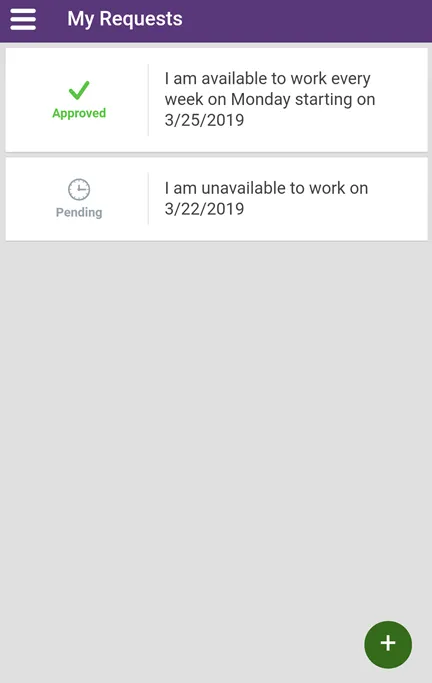
Section titled “View or edit your existing requests”When you hit save, you’ll be returned to your list of existing availability and time off requests. Each one will be clearly marked to show its status.
For example, this person has an approved availability request but their time off request is still being considered:
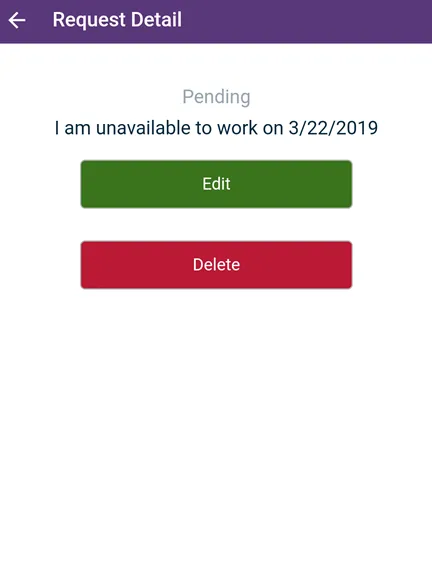
Clicking on a request in your list will provide you with additional options to edit or delete the request.