Log in and navigate the app
The TimeForge Employee mobile app allows employees to view their schedule, attendance, and even swap shifts with each other, all from the convenience of a mobile phone or tablet.
This guide will teach you the ins and outs of using the app, including how to request time off directly from the app (a new feature introduced in 2019).
The app is available from both the Apple Store and Google Play Store for FREE!
Don't have the app yet? Here's how to get it.
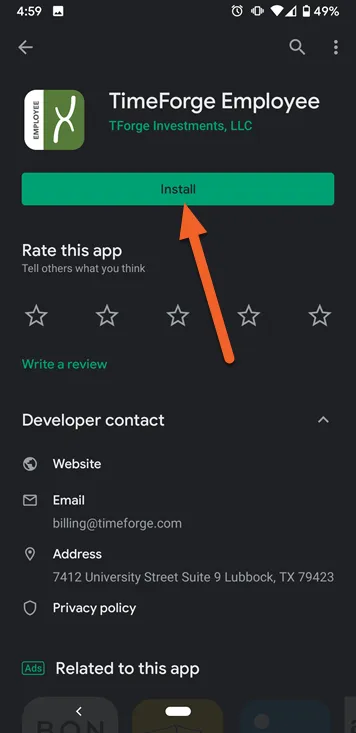
- If you’re an iPhone or iPad user, open up the Apple Store on the device, OR if you’re using an Android device, go to the Google Play Store.
- Search for “TimeForge Employee” in the store. The app you are looking for should be the first result and should display a green TimeForge logo.
- Install the app.
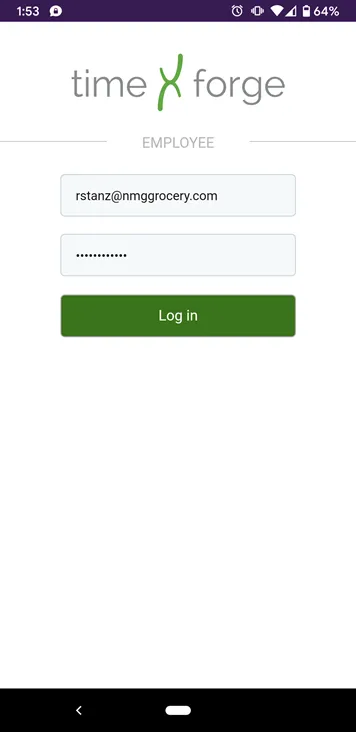
To log in to the TimeForge Employee app, you will use the same username and password that you use for your TimeForge account when you log in from a browser.
If you do not have a username and password, you will need to contact your supervisor for assistance.
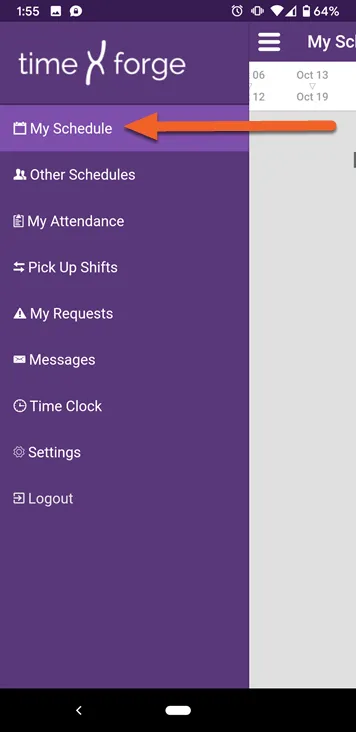
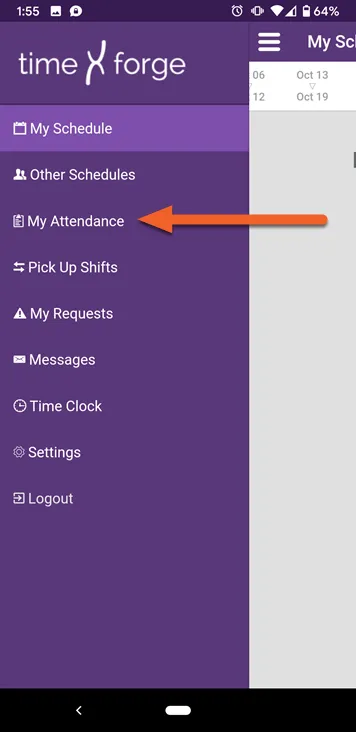
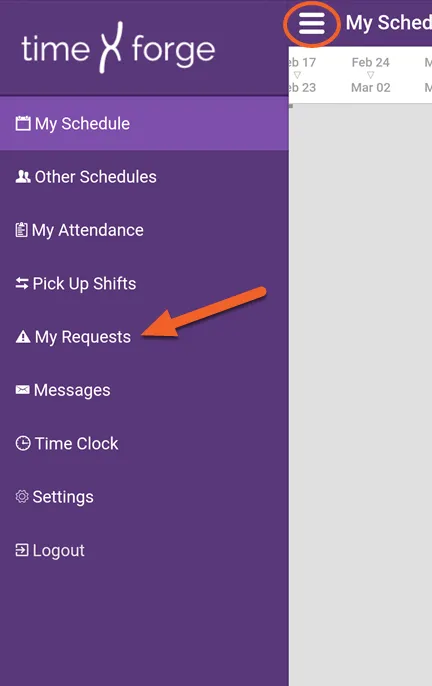
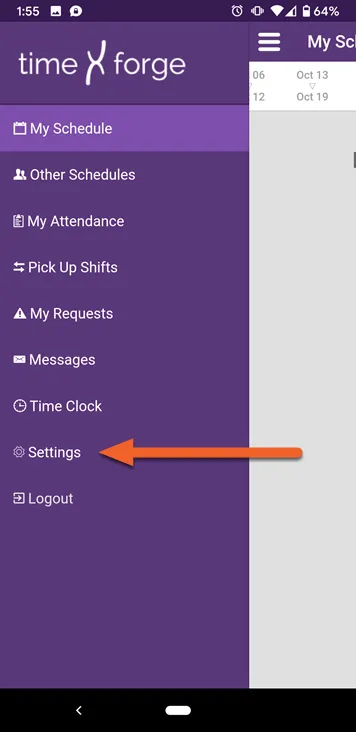
Tap the menu icon in the upper left corner (three horizontal lines) to access the side menu.
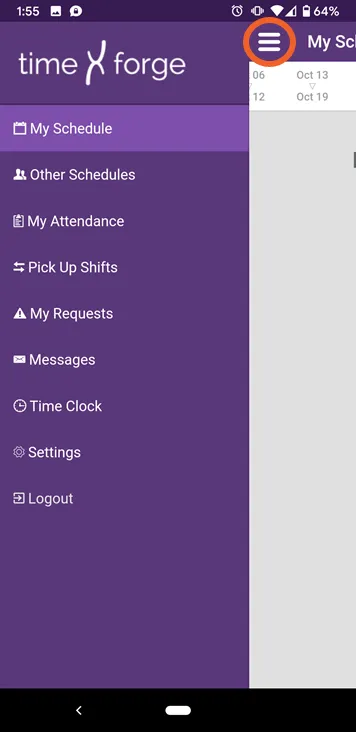
The pages on this app and their functions are as follows:
- My Schedule: View your work schedule and confirm or give up a shift.
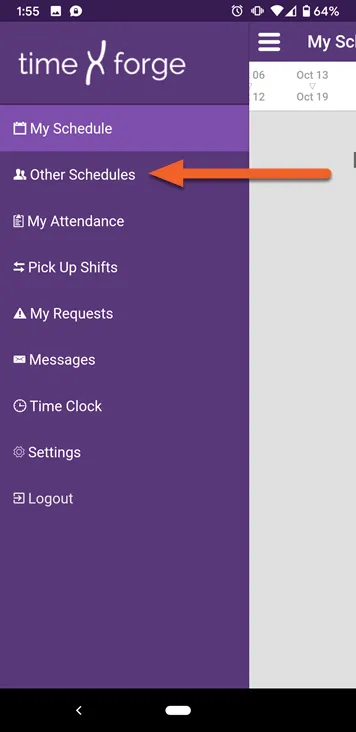
- Other Schedules: View other employees’ schedules.
- My Attendance: View your attendance and hours worked.
- Pick Up Shifts: View shifts that have been given up by other employees and pick them up.
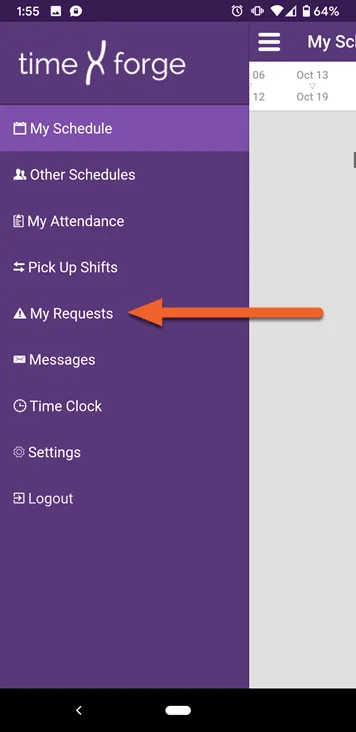
- My Requests: View your pending, approved and denied requests, as well as submit new ones.
- Messages: View your TimeForge messages.
- Time Clock: Clock in, clock out, and take a break.
- Settings: Adjust settings in the app, such as language.
- Logout: Log out and close the app.
To learn more about the features and functions of the app, keep reading!
View your schedule and confirm your shifts
Under My Schedule in the TimeForge Employee mobile app, you can view past and future shifts, as well as confirm your upcoming shifts. Here’s how.
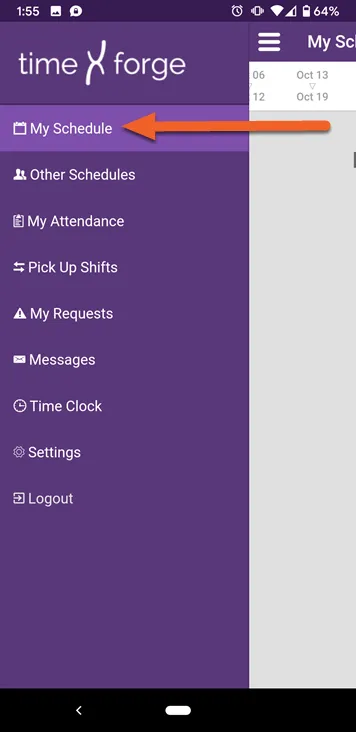
If My Schedule isn’t your default page when you log into the app, simply open the menu and select it from the list.
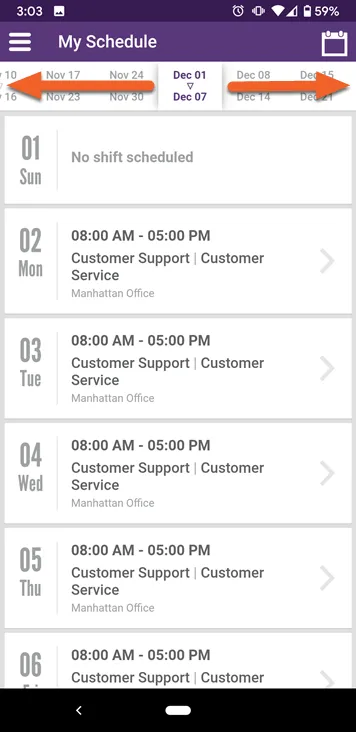
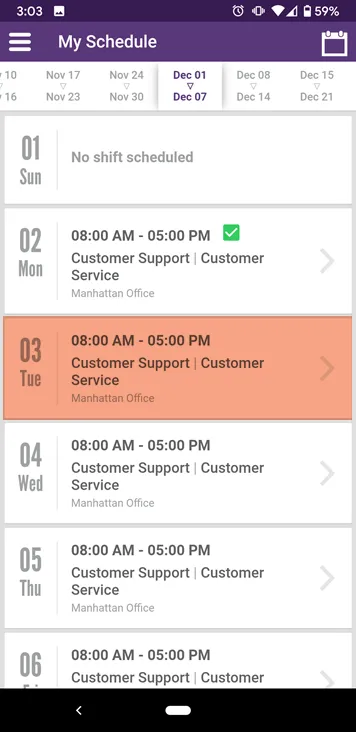
By default, the page will open to the current work week. At the top of the screen, there’s a scrolling date selector. Swipe right or left to view past or future work weeks.
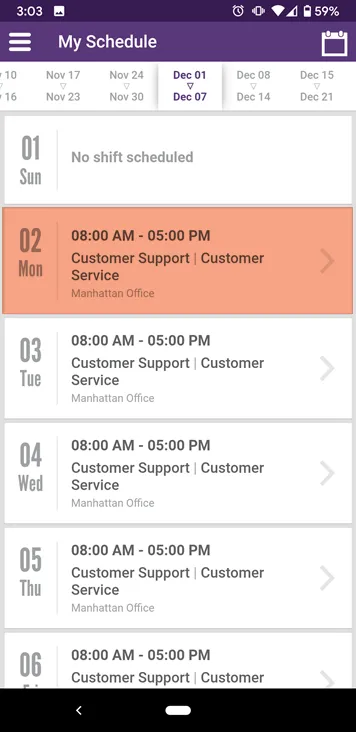
When you confirm a shift on your schedule, you are committing to working that shift. Your employer may not require you to confirm shifts – or they may ask that you confirm on the day you’re scheduled to work.
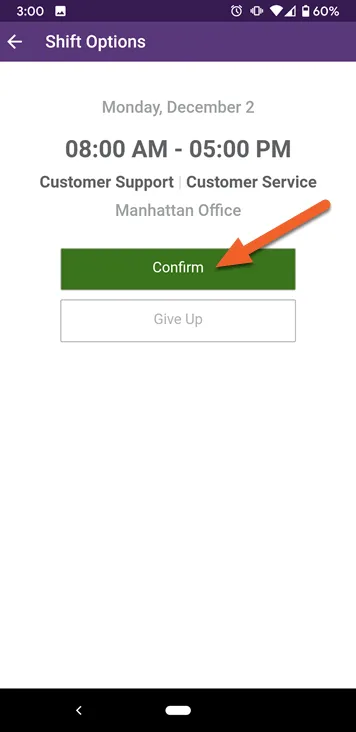
Why is the button grayed out?
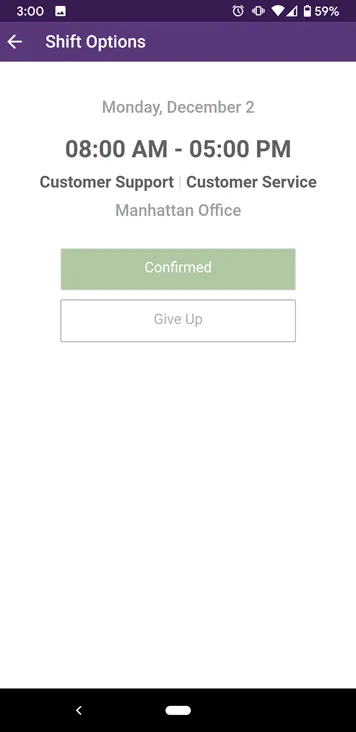
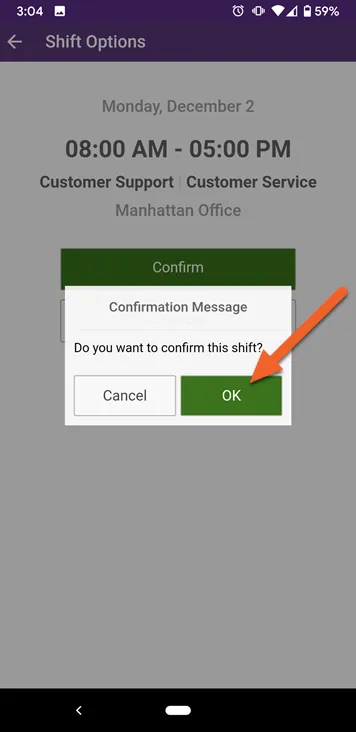
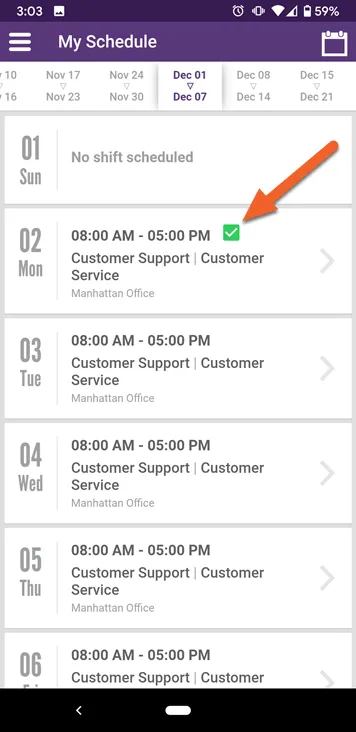
Shifts that are confirmed have green check boxes next to them:
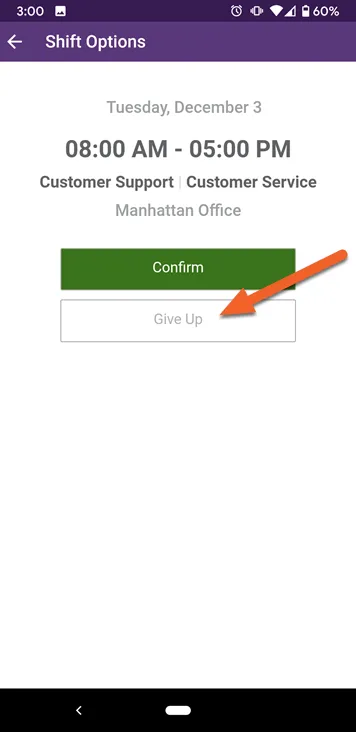
Give up shifts
When you give up a shift, you are indicating that you don’t want to work that shift if possible. Keep in mind that you are still responsible for working that shift until another employee has picked it up and the change has been approved by your manager.
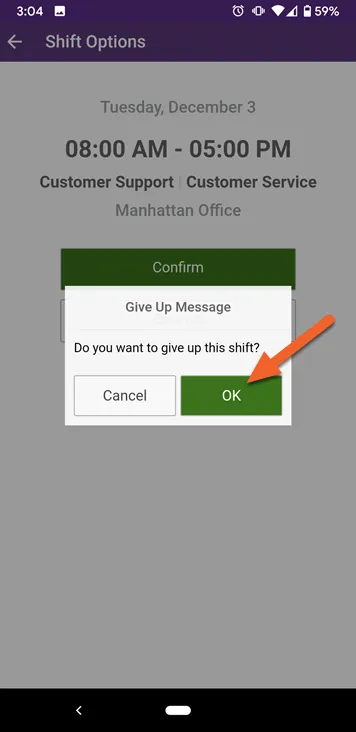
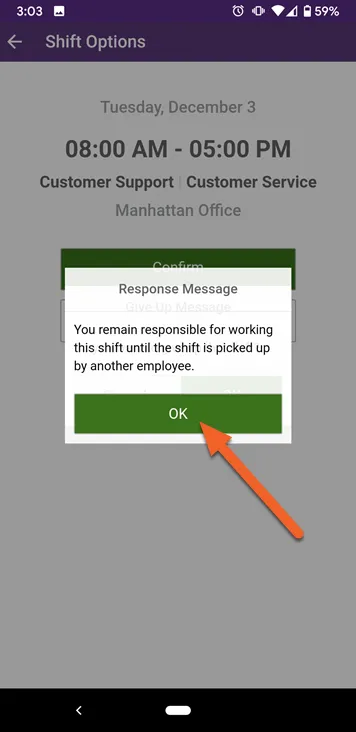
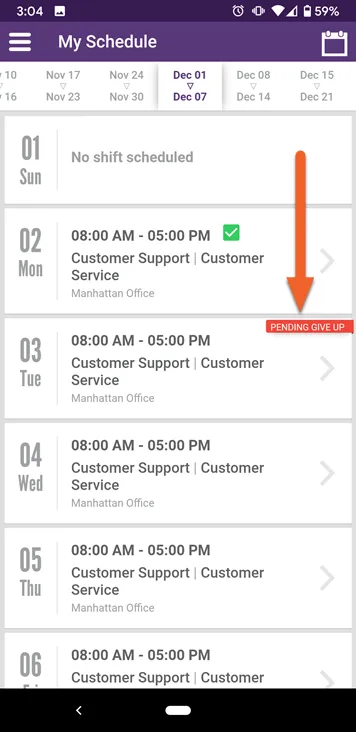
When a shift is given up, a red “Pending Give Up” box will appear on the shift until another employee picks it up and a manager approves.
After approval, the shift will disappear from your schedule.
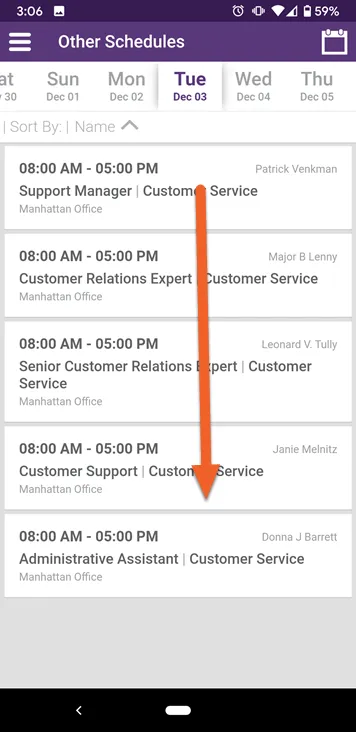
View other employees' schedules
Curious to see who else is working with you? Maybe you need to view another employee’s schedule to swap a day off? You can view other schedules from within the Employee Mobile app. Here’s how.
As when viewing your own schedule, you can swipe right or left to view dates in the past or in the future.
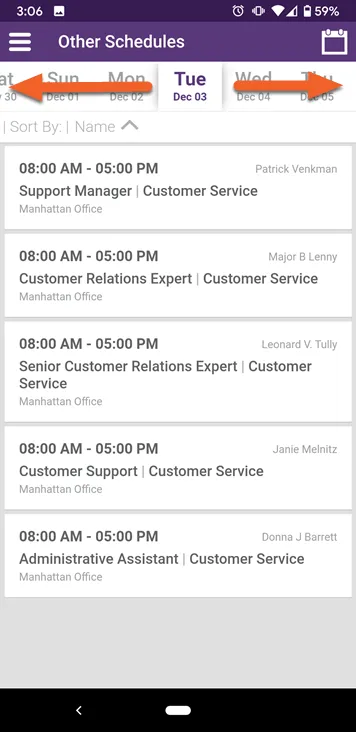
If there are many scheduled shifts at your location, you can view them by scrolling down the page.
View your attendance
The TimeForge Mobile App allows you to view your attendance for the current day, as well as previous attendance (timecard) entries.
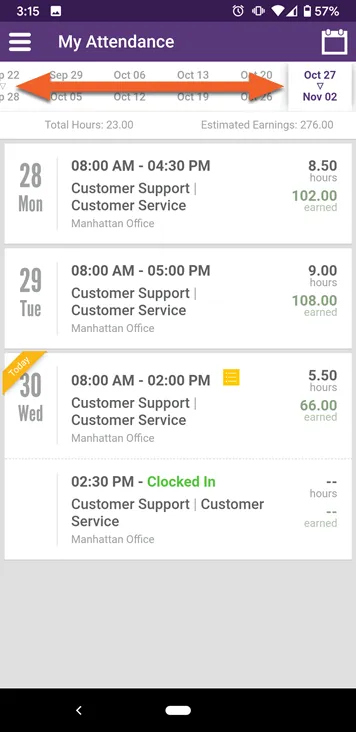
By default, the page will open to the current week. Just below the date selector, you’ll see your total hours and estimated earnings for the week:
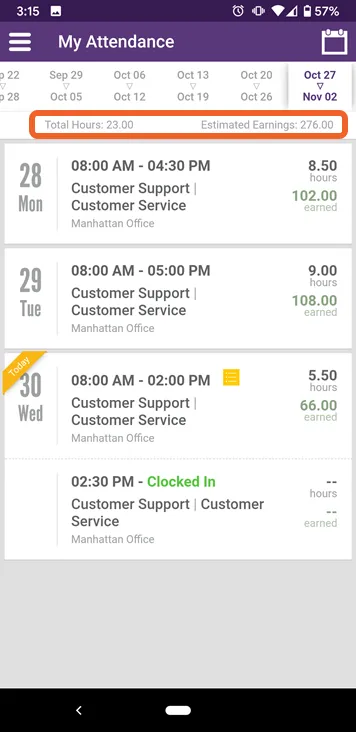
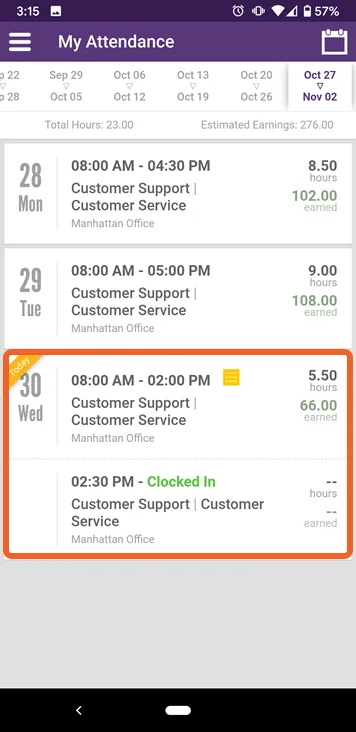
You’ll also see a daily breakdown of hours and dollars earned according to your attendance.
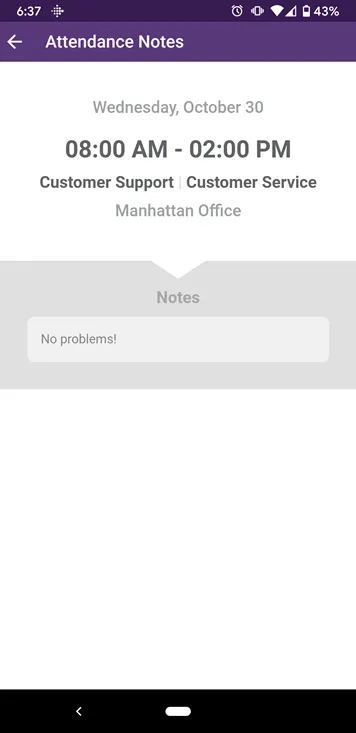
The current date will be highlighted with a “Today” ribbon in the upper left. If you have left any shift notes, the entry will also be marked by a list icon. The app will also let you know if you’re clocked in:
To view previous attendance, swipe the date selector:
Pick up shifts that have been given up by other staff members
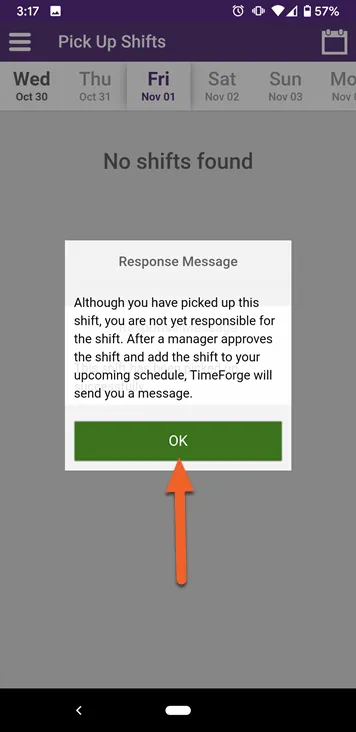
In addition to being able to give up shifts, you can also pick up available shifts using the TimeForge Employee mobile app. Keep in mind that you are not responsible for a shift until your manager has approved the pick-up.
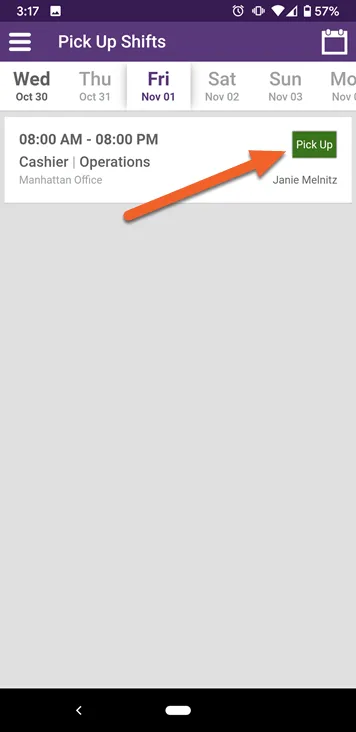
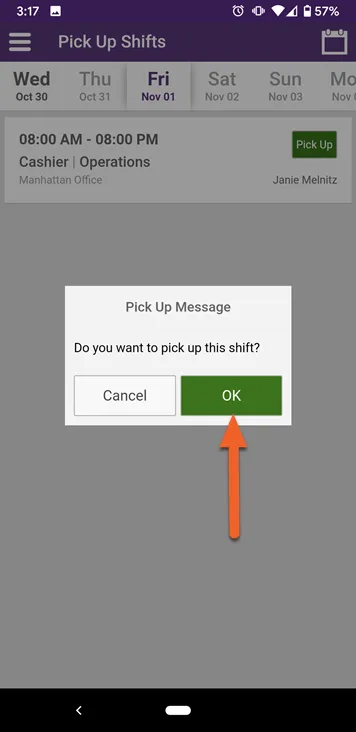
This warning is simply a reminder that you are not responsible for the shift until a manager has approved the change.
Pick up a bid shift or transfer bid shift
Using the TimeForge Employee Mobile app, staff members can pick up Bid Shifts and Transfer Bid Shifts.
Bid Shifts are unassigned shifts that have been made available by management and which can be picked up by eligible employees. Depending on the rules set by management, the first person to bid on a shift may automatically with the bid – or your manager may prefer to select a winner manually. Either way, employees are not responsible for the shift until their bid has been approved.
Transfer Bid Shifts are just like normal bids, except they’re shared across store locations. When picking up a transfer bid shift, make sure to note the location address and give yourself plenty of time to arrive on-site for your shift.
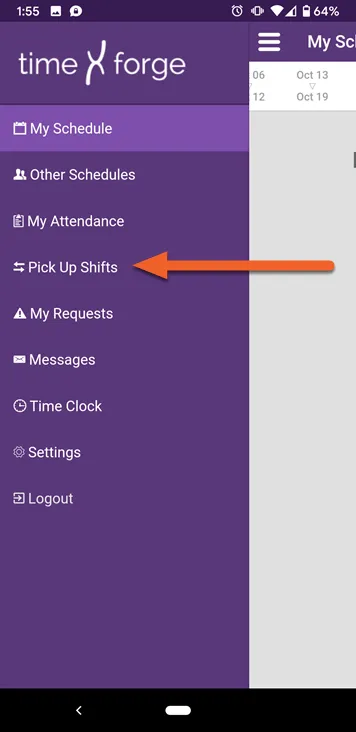
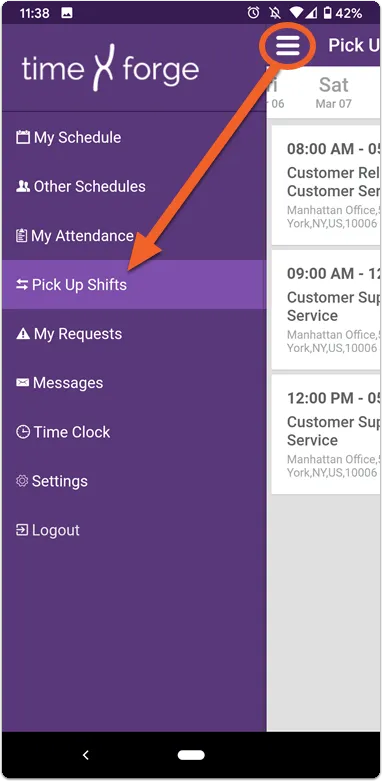
Tap the three horizontal lines to open the navigation menu, then select Pick Up Shifts.
By default, the app may show you the current date, but you can use the sliding date selector at the top to skip ahead and pick up shifts for next week, for example.
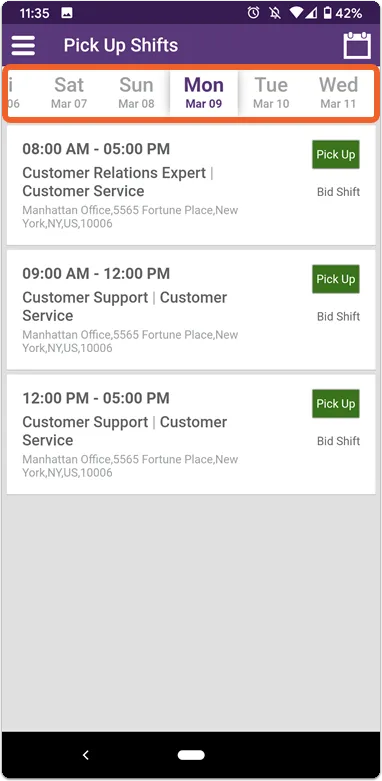
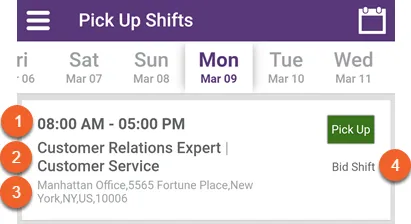
Each entry for a given day will have important information about the shift, including:
- Start and end times
- Position and department
- Location (full address)
- What type of shift (e.g. bid, transfer) or who gave it up (in the case of a shift swap)
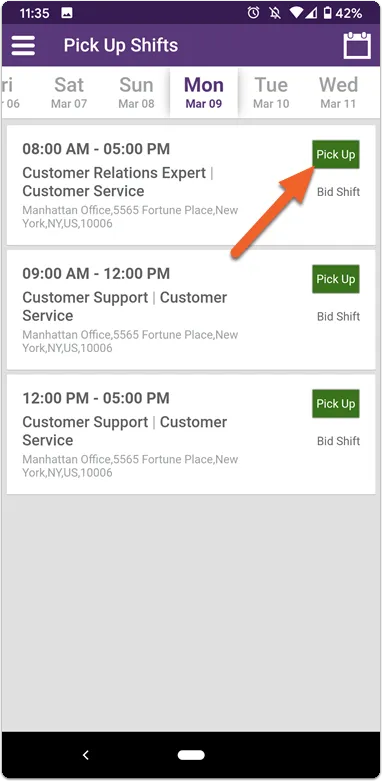
To bid on a shift, tap the Pick Up button. Remember, you’re not responsible for a shift until your bid has been approved by management!
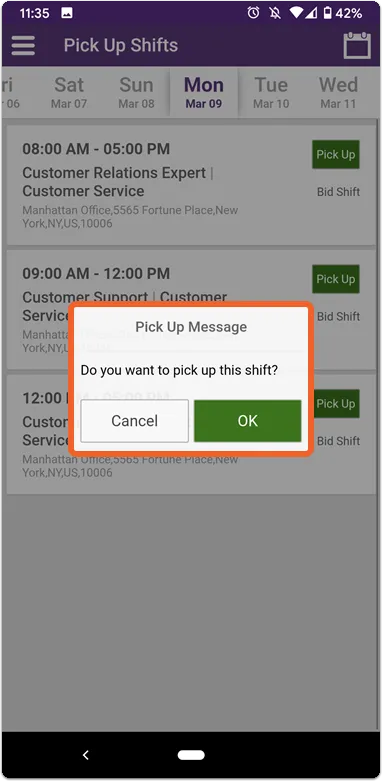
A pop-up box will ask you to confirm your choice. Tap OK to proceed or Cancel to cancel your bid.
View and edit requests for time off
You can easily view and edit your time off requests from within the Employee Mobile App. Here’s how.
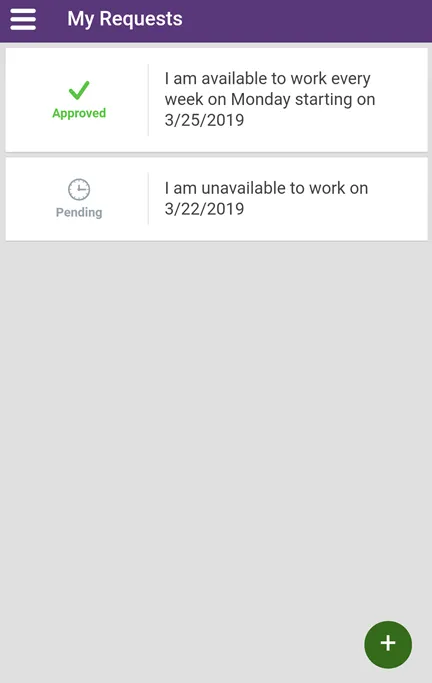
Your requests will be listed in the order you submitted them, with the latest requests at the top of the page.
- Pending requests are those waiting on manager approval.
- Approved requests are those that have been approved by management.
- Denied requests are those that have been denied.
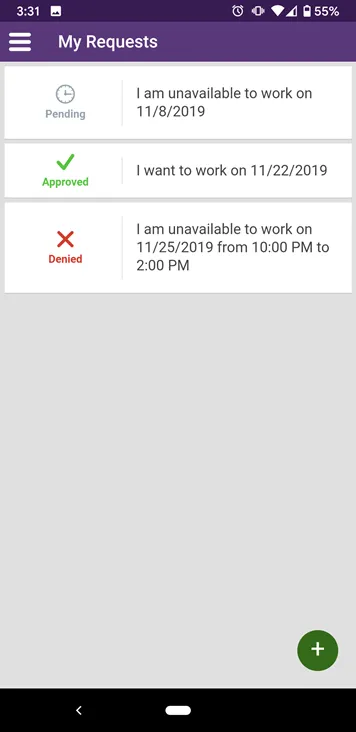
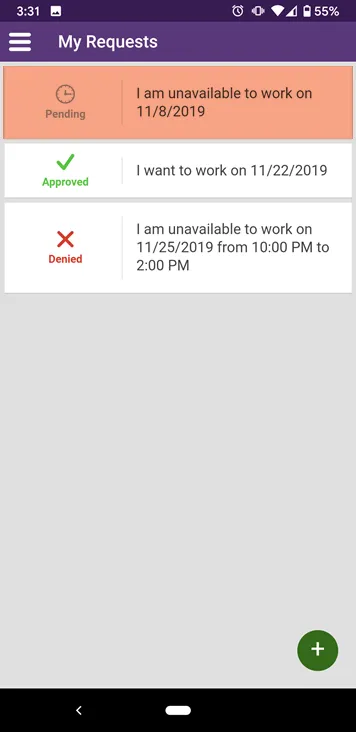
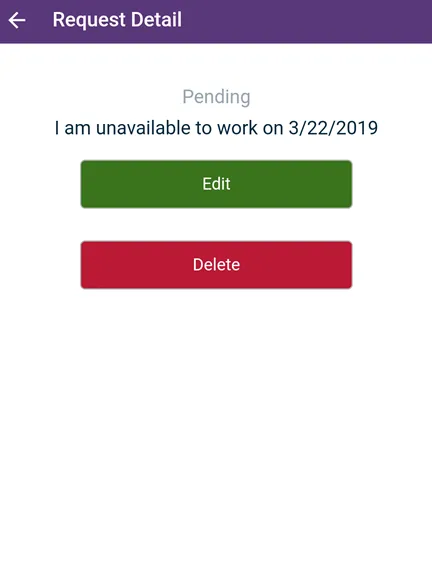
Pending requests can always be edited/deleted. Approved and denied requests may be inaccessible depending on how your employer has configured TimeForge.
Let’s select the pending request:
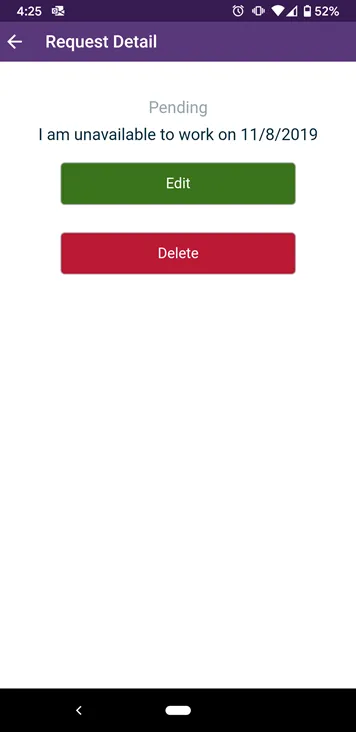
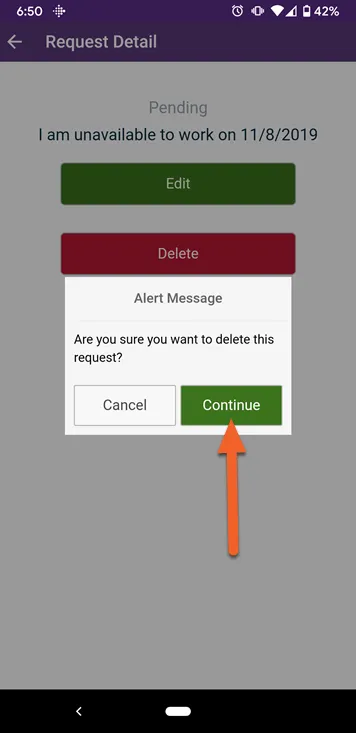
If you choose to Delete, you will be asked to confirm your choice by tapping the Continue button.
Keep reading this guide to learn more about creating and editing requests!
Request time off or set your availability
The TimeForge Employee Mobile App now offers the ability to submit availability requests directly from your smart phone! This makes it easier than ever for employees to indicate their availability.
In order to make use of this feature, you’ll need to have the latest version of the Employee Mobile App installed on your device. This app is free and is available for both iOS and Android. To download, simply visit the Apple store or Google Play store and search for “TimeForge Employee App.”
To begin, click on the menu button (three horizontal lines) in the upper left corner. This will open up the TimeForge menu.
Then, select My Requests from the list.
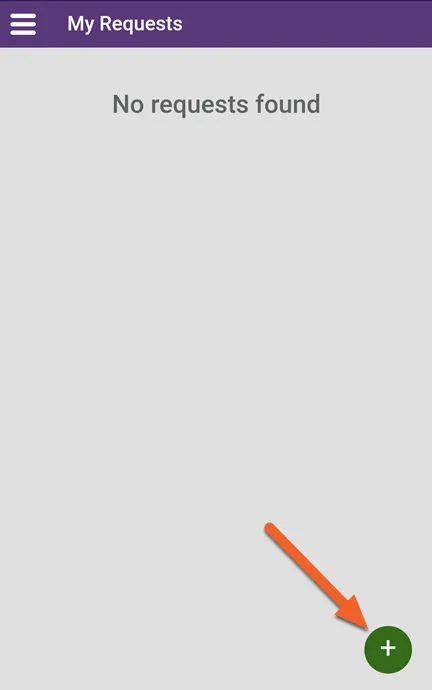
Click the plus sign to start a new time off or availability request.
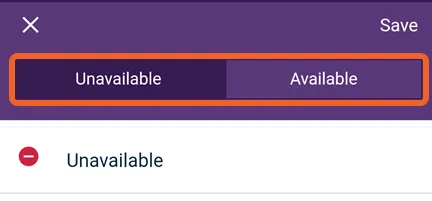
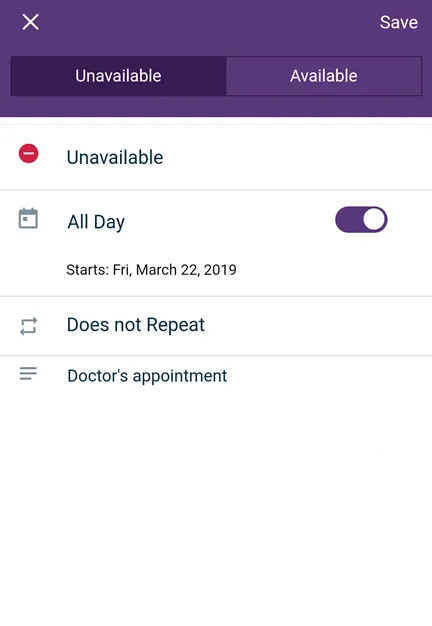
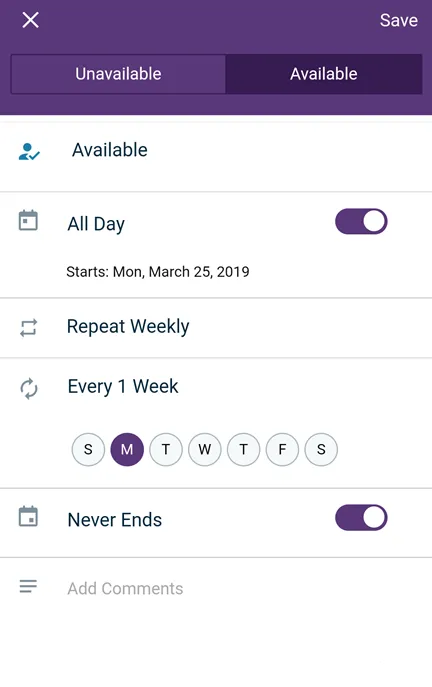
At the top of the screen, you’ll see two options: Unavailable and Available. If this is a request for time off, select Unavailable. Otherwise, select Available.
Then, select the options for date, time, whether the request should be recurring (repeat), and any comments you’d like to provide to your manager.
Here’s an example of a request to take a full day off from work:
And here’s an example of a request to let your manager know that you’re available all day every Monday:
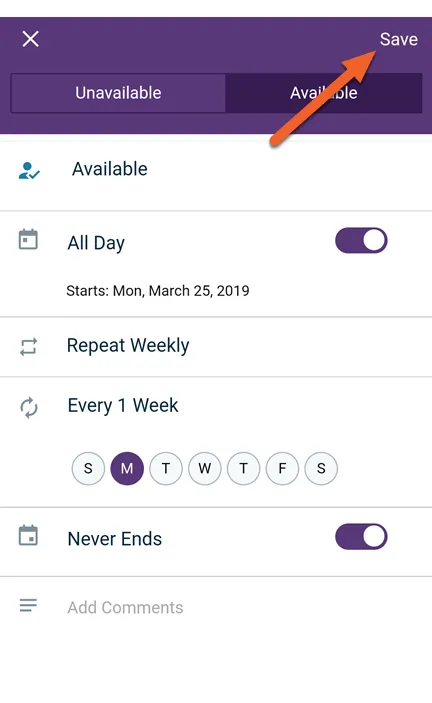
Click Save to submit your request to a Supervisor or Manager for approval.
If your employer tracks PTO, Sick, or other leave policies in TimeForge, you can create time off requests using your available hours. To create a time off request using a leave policy, first tap the “Unavailable” option. You should then see leave policies assigned to your profile with an available balance.
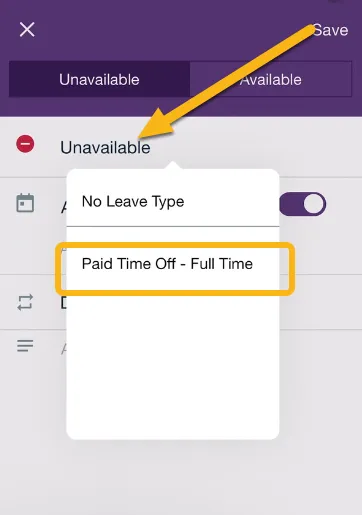
After you select the leave policy you want to use, you can view your available balance and set up the following parameters.
- The date your time off request begins
- How many hours you’d like to use for each of your days off
- The date your time off request ends
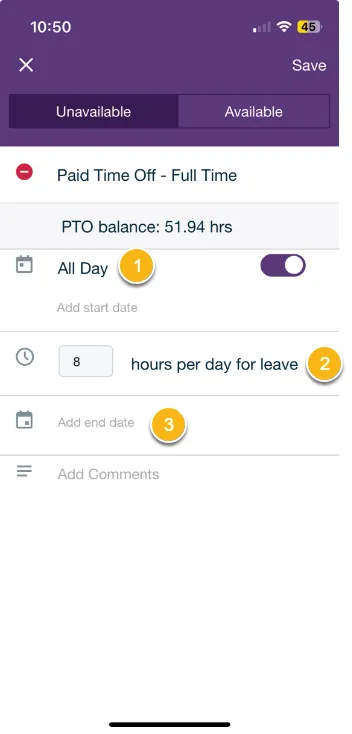
When you hit save, you’ll be returned to your list of existing availability and time off requests. Each one will be clearly marked to show its status.
For example, this person has an approved availability request but their time off request is still being considered:
Clicking on a request in your list will provide you with additional options to edit or delete the request.
Read your messages
You can read your TimeForge messages anytime using the Employee Mobile App! Here’s how to check your messages and stay up-to-date about your schedule.
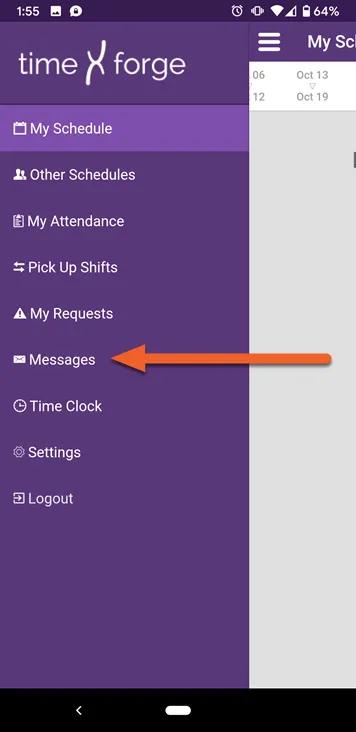
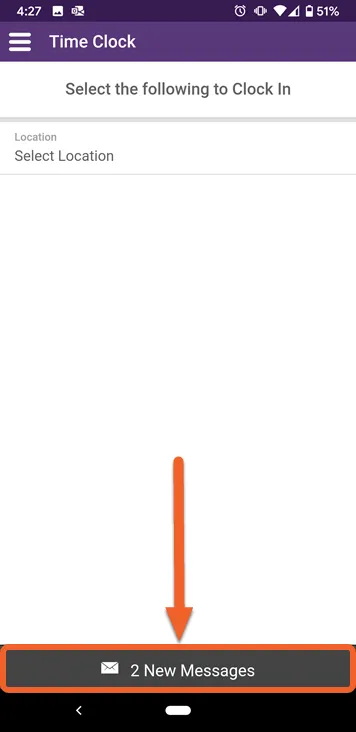
If you have new messages when you log in, you’ll also see a bar at the bottom of the screen, which you can tap to go straight to your messages:
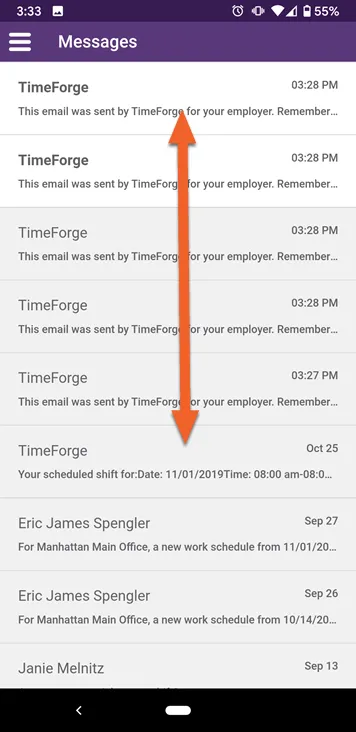
You can navigate through read and unread messages by swiping up and down.
- Messages in white are unread.
- Messages in gray are read.
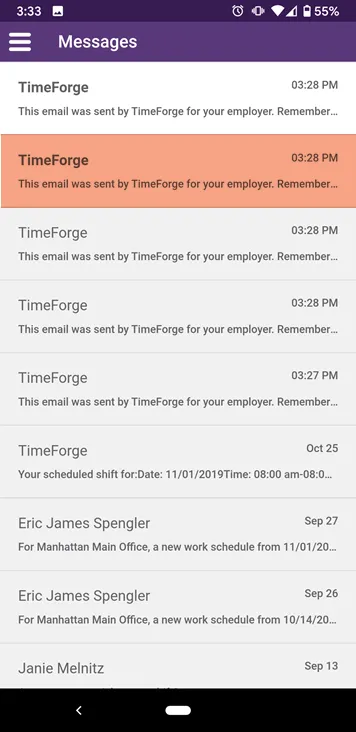
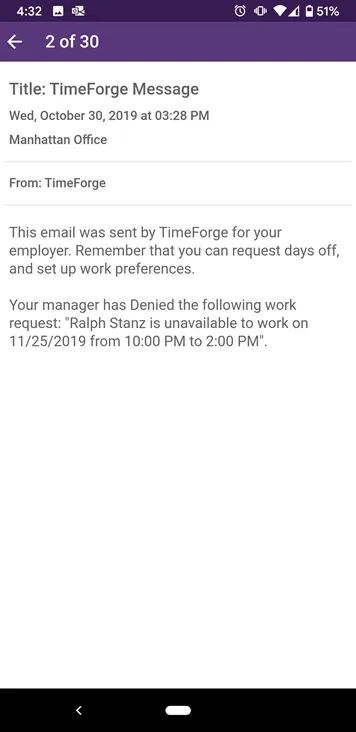
Here’s an example of a message indicating that a manager has reviewed an employee’s time off request:
Clock in and out
If clock-ins and clock-outs are enabled for mobile, you can use the Employee Mobile app to clock in, out, or even take breaks. Please note that some employers may not allow this feature or may restrict its use to certain IP addresses (such as a workplace IP), thus requiring employees to be on-site before they can clock in/out.
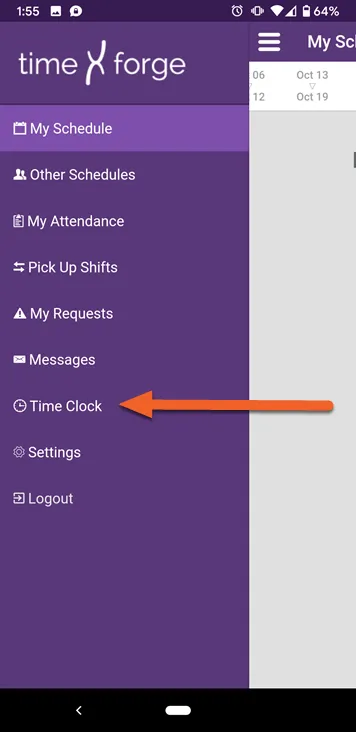
To clock in, select your Location (if you work at multiple locations), Department (if you work in multiple departments), and Position.
If mobile clock-ins are not allowed from your location, the app will inform you when you try to select it.
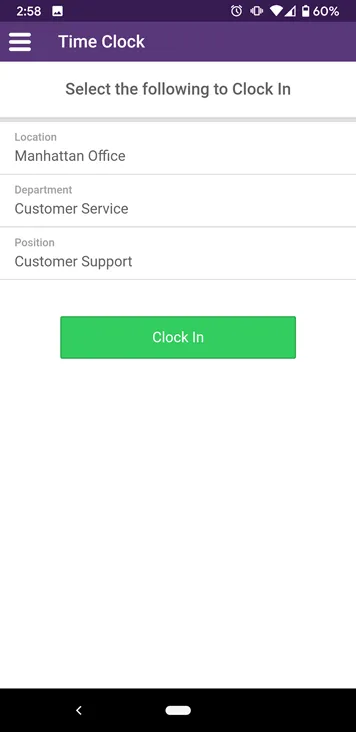
A Clock In button will become available once you’ve made the necessary selections. Tap this button to clock in.
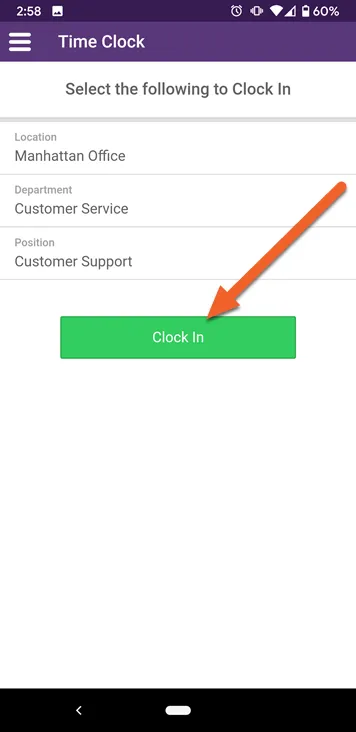
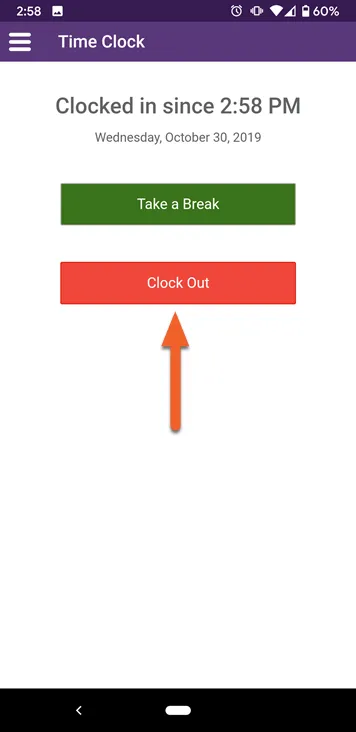
Clocking out is super easy. While you’re clocked in and not on break, simply tap the Clock Out button!
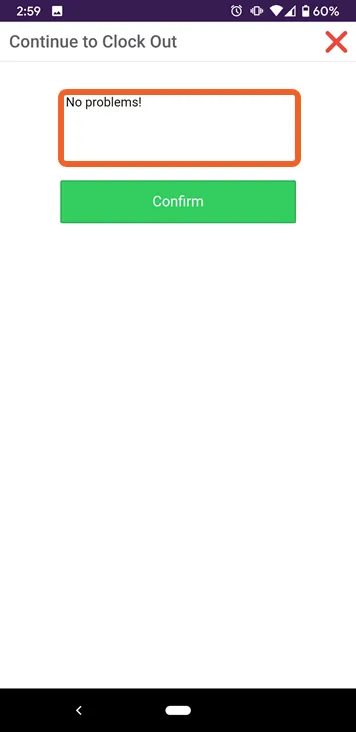
You will be given the option to add a note about your shift before you confirm your clock-out. Tap the box and use your on-screen keyboard to add a note about how the shift went.
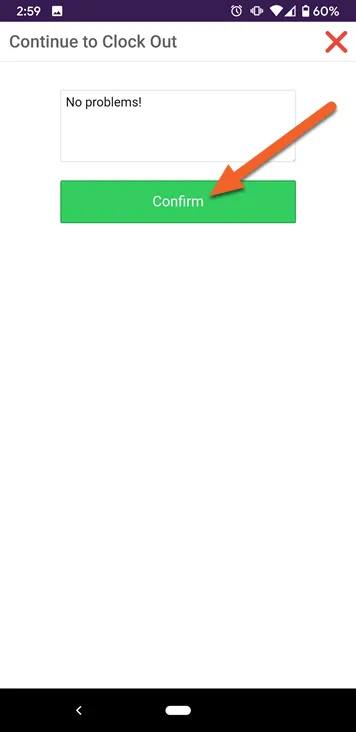
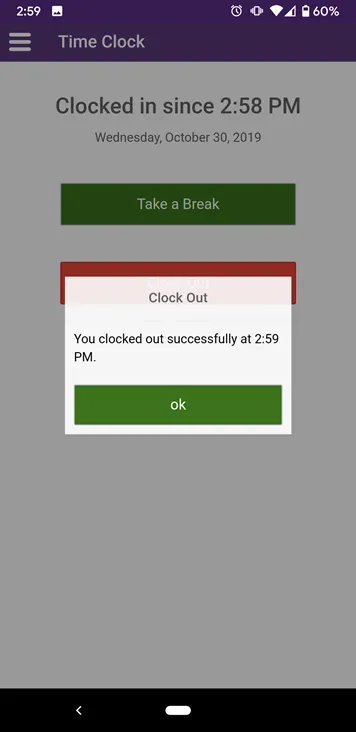
The app will inform you that you’ve successfully clocked out. You can now tap ok to return to the Time Clock screen.
Take a break
In addition to clocking in and out, you can also take breaks from the Time Clock page in the Employee Mobile App. It’s easy!
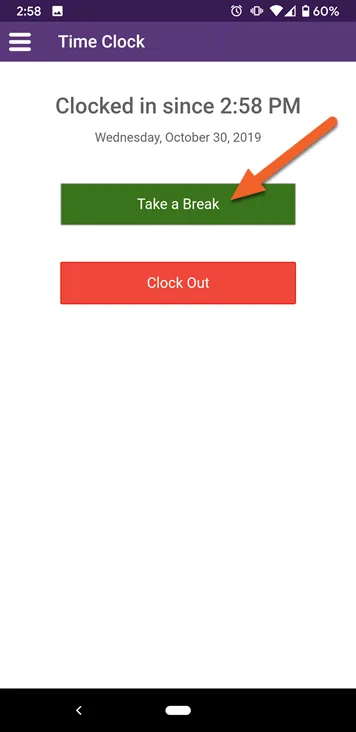
Once you’re clocked in, your Time Clock page will now show your clock-in status and a break button, if applicable.
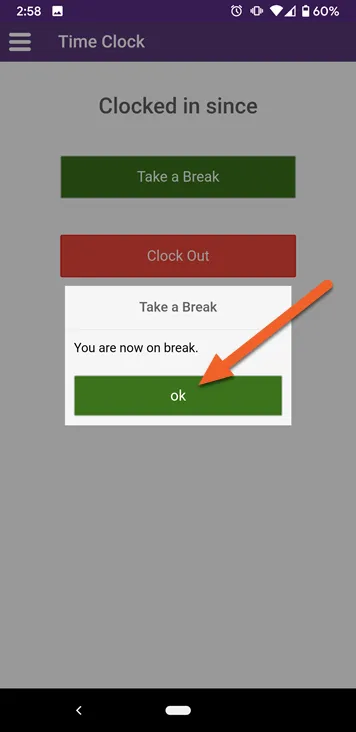
Tap the Take a Break button to begin your break.
The app will inform you that you are now on break. Click ok to return to the Time Clock screen.
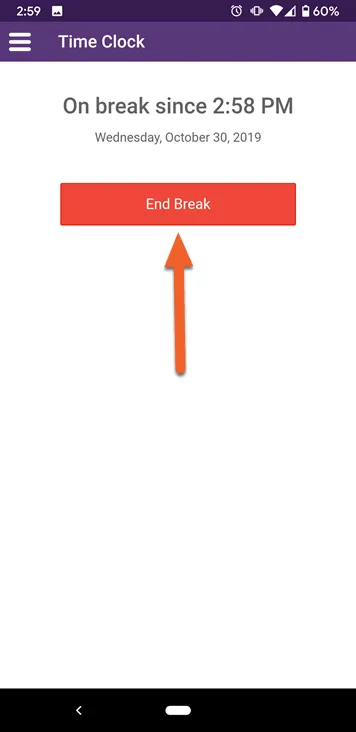
While you’re on break, the Time Clock screen will show you how long you’ve been on break and will display an End Break button. Simply tap this button to end your break.
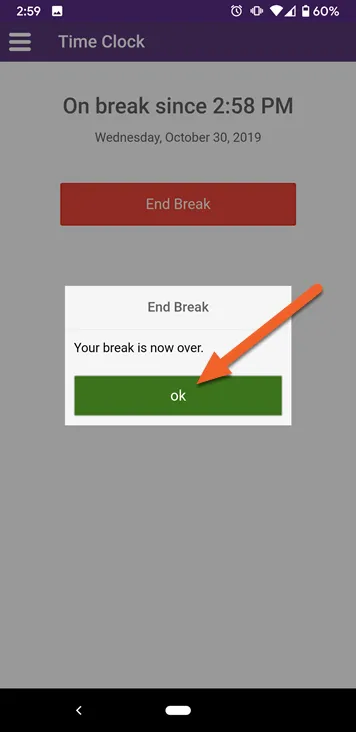
The app will inform you that your break is now over. Tap ok to return to the Time Clock screen.
Adjust the app settings
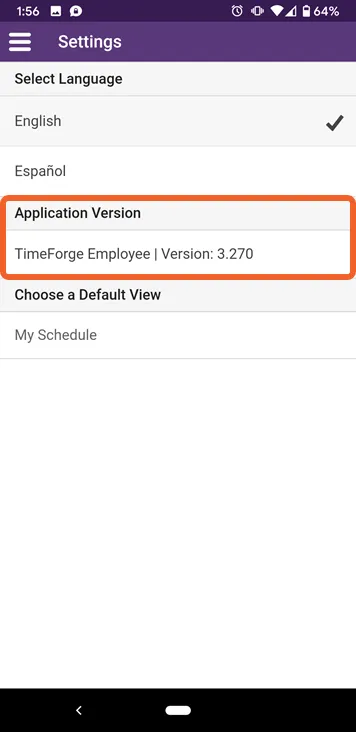
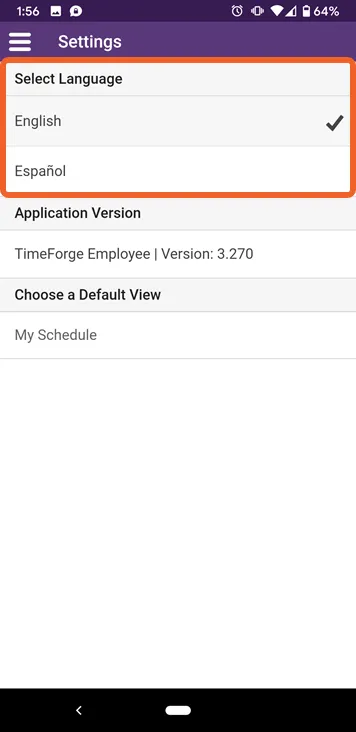
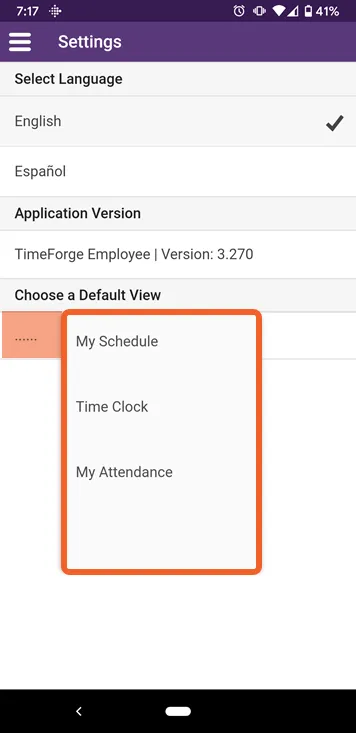
The settings page allows you to select which language to use throughout the TimeForge Employee Mobile app (English or Spanish) and to set your default page when you log in (can be set to My Schedule, My Attendance, or Time Clock).
Tap on a language option to switch to that language. The selected language will show a checkmark:
Tap the line beneath “Choose a Default View” to select from one of the available options (My Schedule, Time Clock, or My Attendance).
This shows the software version of the Employee App. There is nothing to select here, but if you have problems with the app, it may be useful to mention the version you’re using when you call Support.