Pick up a bid shift or transfer bid shift
Using the TimeForge Employee Mobile app, staff members can pick up Bid Shifts and Transfer Bid Shifts.
Bid Shifts are unassigned shifts that have been made available by management and which can be picked up by eligible employees. Depending on the rules set by management, the first person to bid on a shift may automatically with the bid – or your manager may prefer to select a winner manually. Either way, employees are not responsible for the shift until their bid has been approved.
Transfer Bid Shifts are just like normal bids, except they’re shared across store locations. When picking up a transfer bid shift, make sure to note the location address and give yourself plenty of time to arrive on-site for your shift.
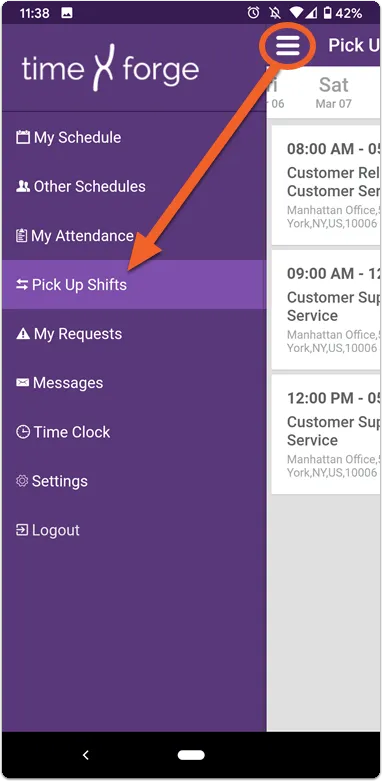
Select Pick Up Shifts from the side menu
Section titled “Select Pick Up Shifts from the side menu”Tap the three horizontal lines to open the navigation menu, then select Pick Up Shifts.
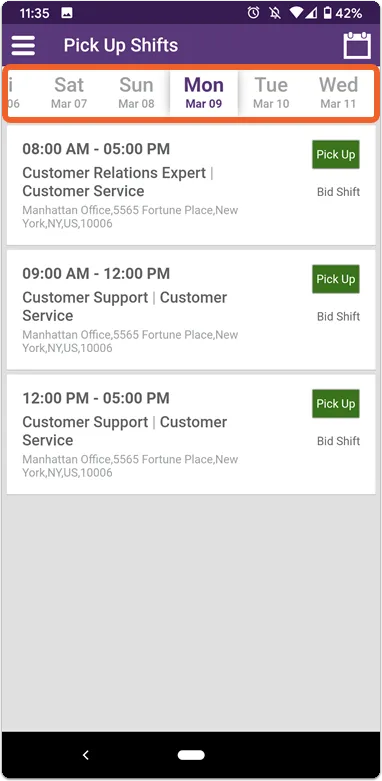
Find a shift with a date/time that works for you
Section titled “Find a shift with a date/time that works for you”By default, the app may show you the current date, but you can use the sliding date selector at the top to skip ahead and pick up shifts for next week, for example.
Important information
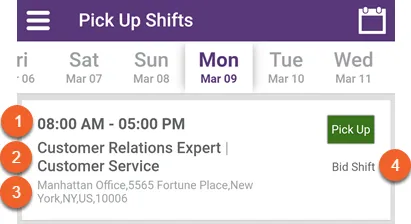
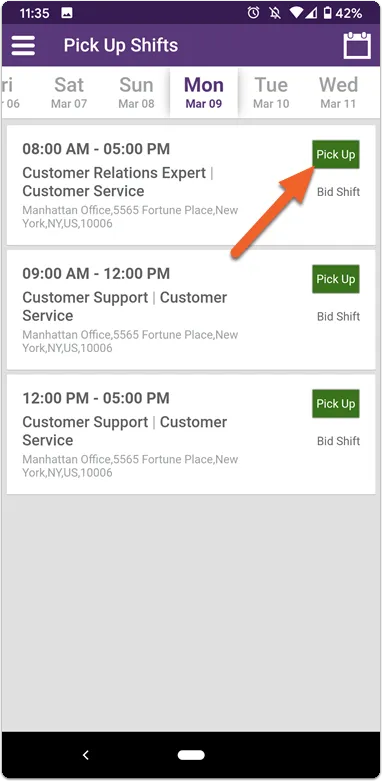
Section titled “Important information”Each entry for a given day will have important information about the shift, including:
- Start and end times
- Position and department
- Location (full address)
- What type of shift (e.g. bid, transfer) or who gave it up (in the case of a shift swap)
Tap the Pick Up button to bid on the shift
Section titled “Tap the Pick Up button to bid on the shift”To bid on a shift, tap the Pick Up button. Remember, you’re not responsible for a shift until your bid has been approved by management!
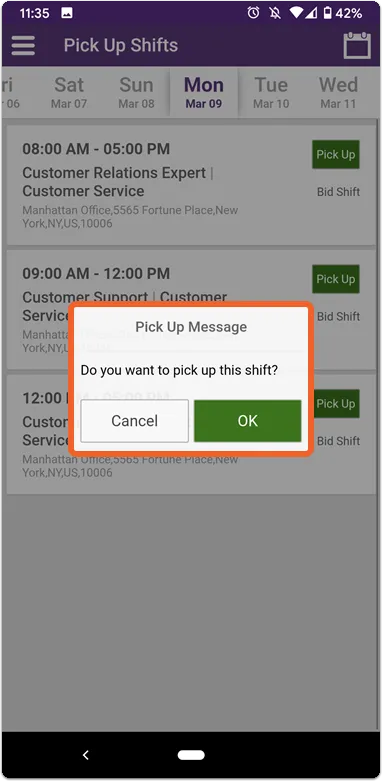
Click OK to confirm pick up
Section titled “Click OK to confirm pick up”A pop-up box will ask you to confirm your choice. Tap OK to proceed or Cancel to cancel your bid.