Clock in or out from the Today page
TimeForge Attendance is a powerful online time clock system that keeps track of when you clock in/out and when you take breaks. This makes it easier for management to review and approve your payroll hours. In addition to basic time punch information, TimeForge can also track your declared tips and mileage (e.g. if you’re a delivery driver). You can also enter notes about each shift, which can then be reviewed by your manager at a later date.
You can use the clock in/out feature on the Today page to start or end your shift or to take breaks. Clocking in/out can also be done from the Employee mobile app if your employer allows it.
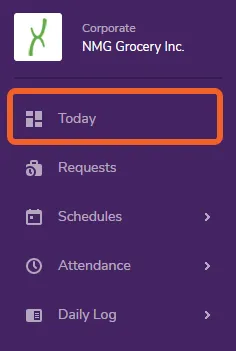
Log into TimeForge or, if you’re already logged in, click the Today button to visit the Today page
Section titled “Log into TimeForge or, if you’re already logged in, click the Today button to visit the Today page”Clock-ins and clock-outs are done on the Today page, which is typically the first page you see when you log into TimeForge.
Clock in
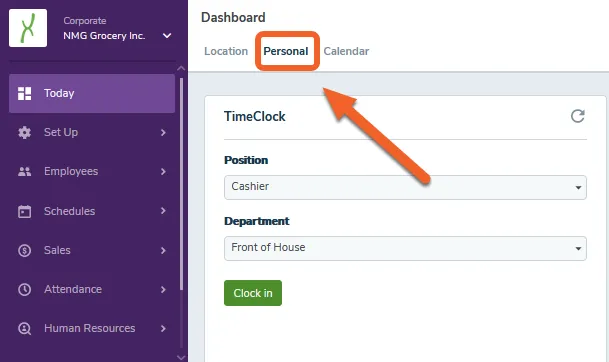
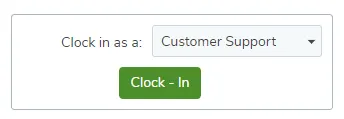
Section titled “Clock in”If you are on a computer which allows employees to clock in with TimeForge Attendance, you will see a Clock - In button. Click the button to clock yourself in for the selected Department and/or Position.
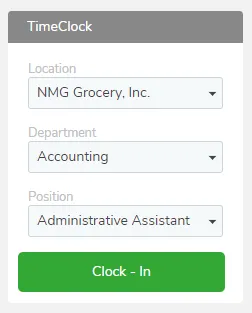
Depending on the clock in/out rules set up by your employer or manager, you may also notice that:
- Clocking in or out may require manager approval if you are too early or too late.
- Your clock in or out time may be rounded.
- You may only be able to clock in or out from specific computers or networks.
Clock out
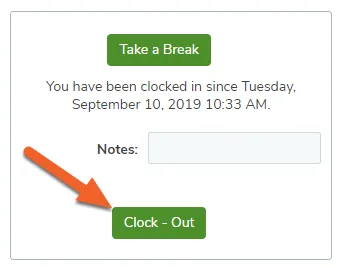
Section titled “Clock out”When you are ready to clock out of TimeForge Attendance, you should first enter any declared tips, mileage, or notes which are relevant to the shift, then click the Clock - Out button.