

Log in and navigate the app
The TimeForge Employee mobile app allows employees to view their schedule, attendance, and even swap shifts with each other, all from the convenience of a mobile phone or tablet.
This guide will teach you the ins and outs of using the app, including how to request time off directly from the app (a new feature introduced in 2019).
The app is available from both the Apple Store and Google Play Store for FREE!
Don't have the app yet? Here's how to get it.
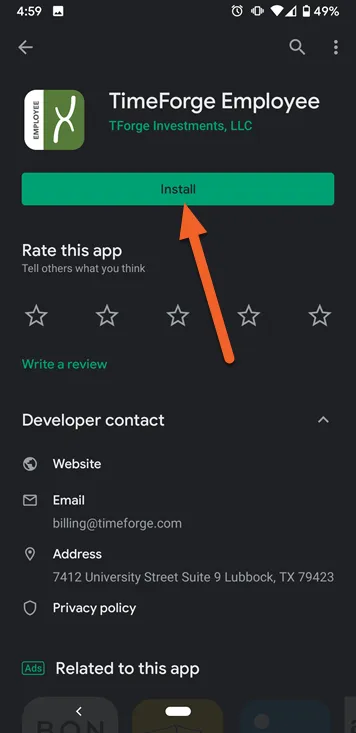
Search the Apple Store or Google Play store for the mobile app
Section titled “Search the Apple Store or Google Play store for the mobile app”- If you’re an iPhone or iPad user, open up the Apple Store on the device, OR if you’re using an Android device, go to the Google Play Store.
- Search for “TimeForge Employee” in the store. The app you are looking for should be the first result and should display a green TimeForge logo.
- Install the app.
Log into the app on your mobile device
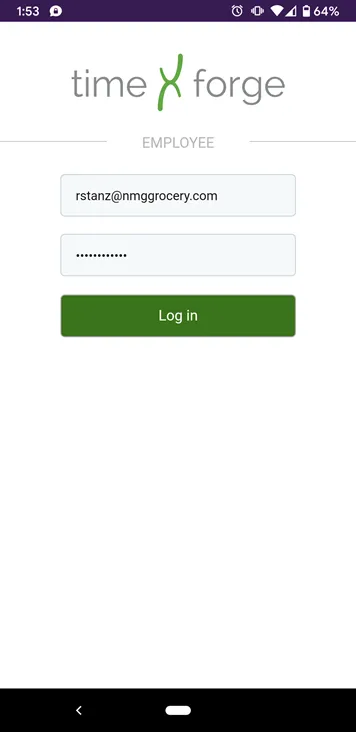
Section titled “Log into the app on your mobile device”To log in to the TimeForge Employee app, you will use the same username and password that you use for your TimeForge account when you log in from a browser.
If you do not have a username and password, you will need to contact your supervisor for assistance.
Click the menu icon to view the options
Section titled “Click the menu icon to view the options”Tap the menu icon in the upper left corner (three horizontal lines) to access the side menu.
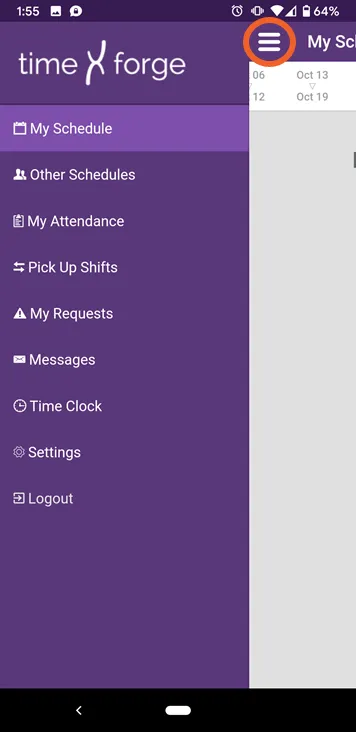
The pages on this app and their functions are as follows:
- My Schedule: View your work schedule and confirm or give up a shift.
- Other Schedules: View other employees’ schedules.
- My Attendance: View your attendance and hours worked.
- Pick Up Shifts: View shifts that have been given up by other employees and pick them up.
- My Requests: View your pending, approved and denied requests, as well as submit new ones.
- Messages: View your TimeForge messages.
- Time Clock: Clock in, clock out, and take a break.
- Settings: Adjust settings in the app, such as language.
- Logout: Log out and close the app.
To learn more about the features and functions of the app, keep reading!