Clock in and out
If clock-ins and clock-outs are enabled for mobile, you can use the Employee Mobile app to clock in, out, or even take breaks. Please note that some employers may not allow this feature or may restrict its use to certain IP addresses (such as a workplace IP), thus requiring employees to be on-site before they can clock in/out.
Select Time Clock from the side menu
Section titled “Select Time Clock from the side menu”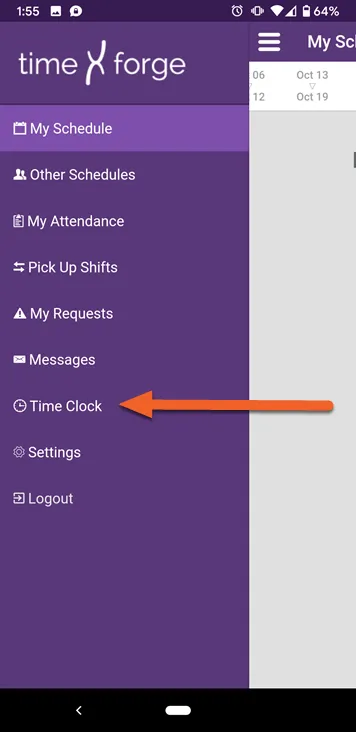
To clock in
Section titled “To clock in”Select your location, department, and position
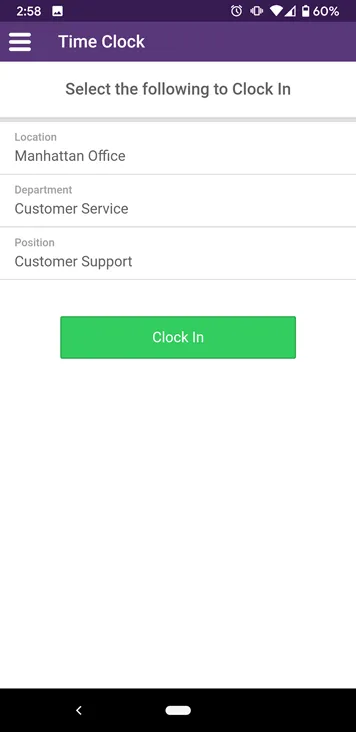
Section titled “Select your location, department, and position”To clock in, select your Location (if you work at multiple locations), Department (if you work in multiple departments), and Position.
If mobile clock-ins are not allowed from your location, the app will inform you when you try to select it.
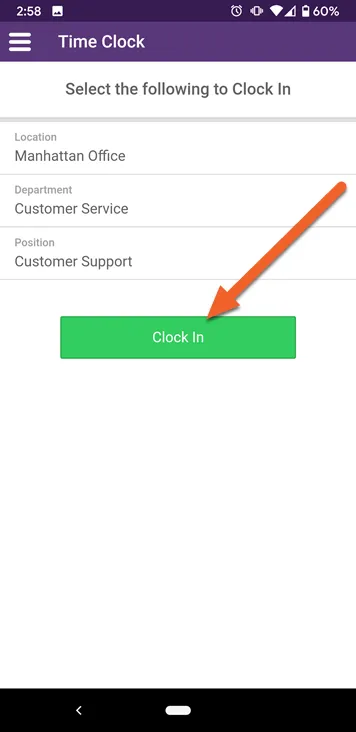
Tap the Clock In button
Section titled “Tap the Clock In button”A Clock In button will become available once you’ve made the necessary selections. Tap this button to clock in.
To clock out
Section titled “To clock out”Tap the Clock Out button
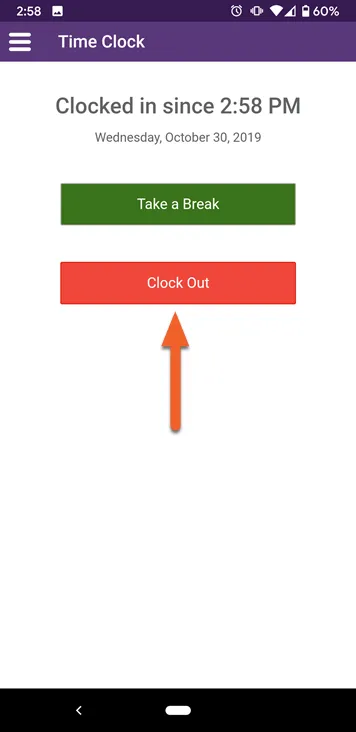
Section titled “Tap the Clock Out button”Clocking out is super easy. While you’re clocked in and not on break, simply tap the Clock Out button!
Add a note (optional)
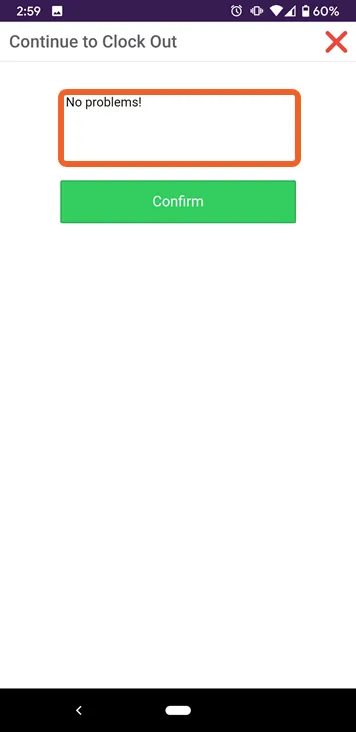
Section titled “Add a note (optional)”You will be given the option to add a note about your shift before you confirm your clock-out. Tap the box and use your on-screen keyboard to add a note about how the shift went.
Click Confirm to clock out
Section titled “Click Confirm to clock out”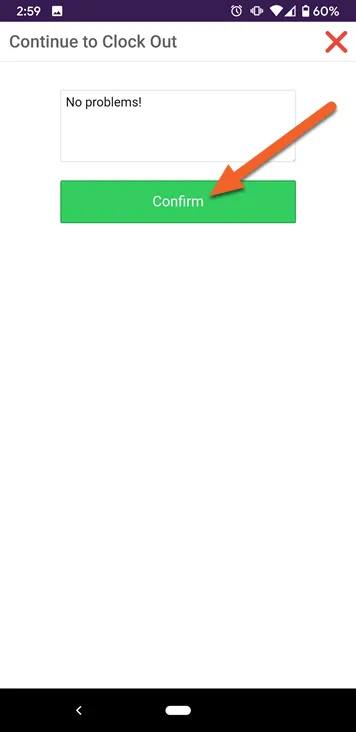
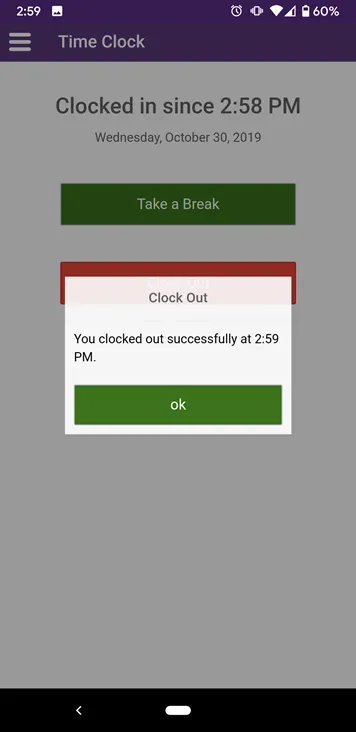
The app will inform you that you’ve successfully clocked out. You can now tap ok to return to the Time Clock screen.