

Enroll Employee Fingerprints on the Time Machine
In this guide, we’ll show you how to enroll employee fingerprints on the TimeForge Time Machine, our newest timeclock.
We recommend that you enroll at least 2 different fingerprints for each employee. (The system can take up to 3 per employee.) This is so that if the employee develops a callus or has a problem with one finger, they still have a backup option.
Please do not enroll with thumbprints, as thumbprints do not work very well.
How the Time Machine uses fingerprints
Sometimes, employees express concerns about having their fingers scanned. They need not worry!
Our timeclock never saves or stores their fingerprints in any way. For more information, see this explanation flyer. You can print it out and share it with your employees to help give them peace of mind.
Instructions for the Manager
Section titled “Instructions for the Manager”
Log into the timeclock
Section titled “Log into the timeclock”- Log in to the timeclock using your fingerprint on the scanning pad.
- Once you’re logged in, tap on the Manager icon at the bottom of the screen.
- On the Manager screen, tap the Register Fingerprints button.
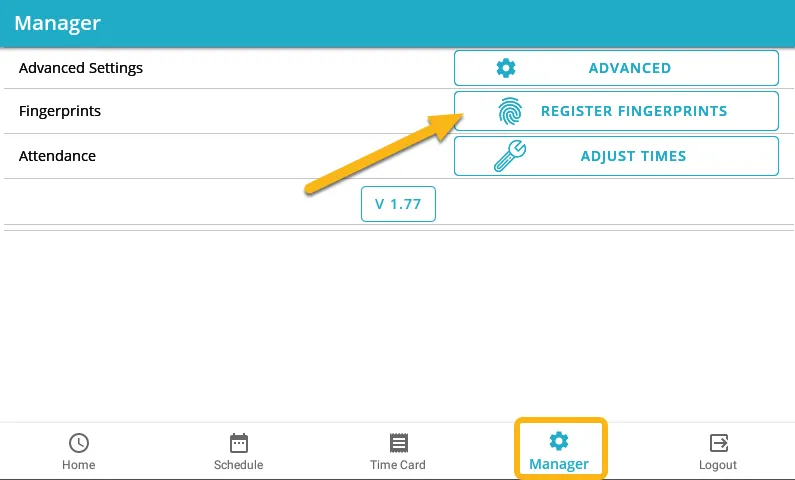
Select an employee to register on the time clock
Section titled “Select an employee to register on the time clock”Tap on the name of the employee you want to register. The timeclock will then prompt the employee read the notice shown below explaining the purpose scanning their fingerprint.
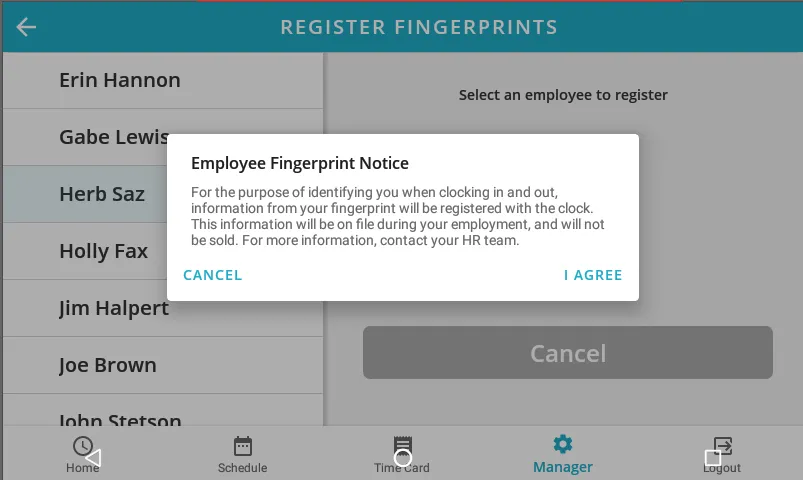
If the employee selects “I Agree” to the notice, they can proceed with registering their fingerprint. When an employee selects the “Cancel” option, the prompt closes and the employee does not proceed with scanning their fingerprint.
Have the employee place their finger on the scanning pad
Section titled “Have the employee place their finger on the scanning pad”Have the employee place one finger on the scanning pad for 3 different scans. You should see the fingerprint scanner flash each time the timeclock scans their fingerprint.
Once the timeclock is finished with all 3 scans, the screen should display the message shown below.
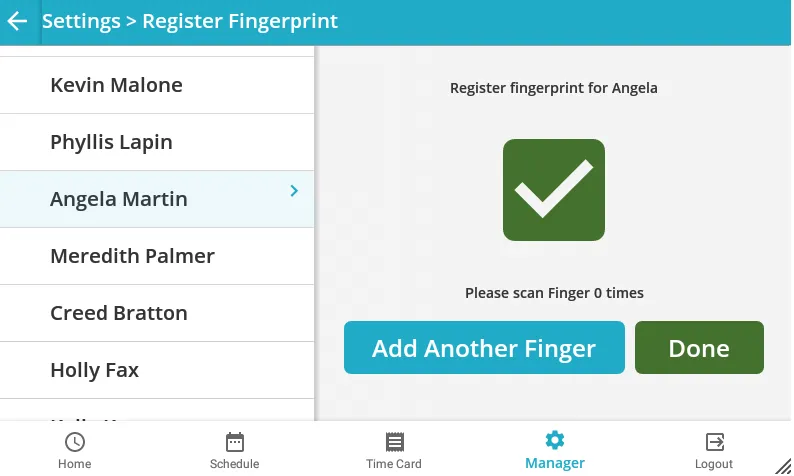
Tap ‘Add Another Finger’
Section titled “Tap ‘Add Another Finger’”Tap the Add Another Finger button to keep enrolling fingerprints.
You should enroll at least 2 per employee, but the system will accept up to 3. This will ensure that if anything happens to the employee’s preferred finger (such as a burn, callus, grime, cut, etc.), they will have a backup option.
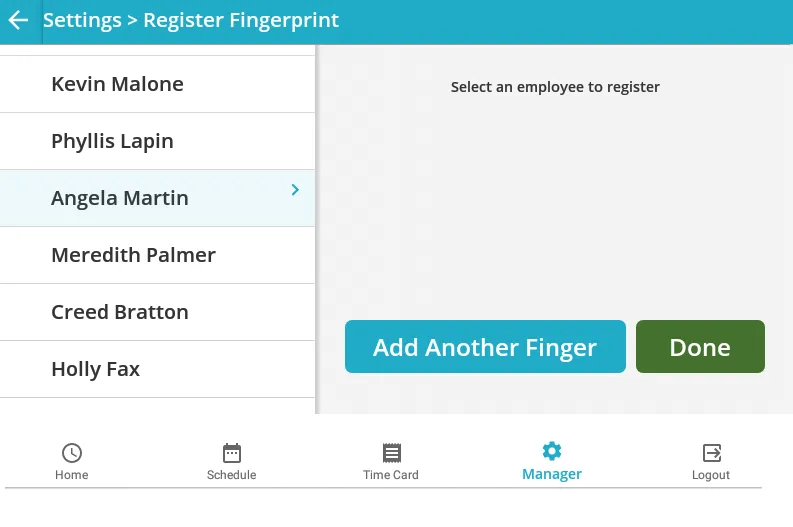
Continue enrolling fingerprints for employees
Section titled “Continue enrolling fingerprints for employees”Once you’re done enrolling fingerprint for the first employee, you then need to repeat the steps above for each employee you wish to register on the Time Machine.
If you have finished registering fingerprints, you can tap the Done button to return to the Settings page. That’s all there is to it!
Need Help?
Section titled “Need Help?”As always, if you need help or have any questions, please contact TimeForge Support. Our awesome support staff will be glad to answer any questions or help in any way they can.
Reach out to us by sending an email to support@timeforge.com or call 866-684-7191.