Log in using the M2SYS USB Fingerprint Scanner
Accessing TimeForge.com to view your work schedules and time card is very simple with the TimeForge Fingerprint Scanner, provided by M2SYS Accelerated Biometrics.
Follow these instructions to log in to TimeForge with the Fingerprint Scanner.
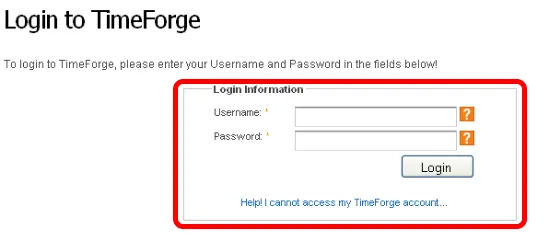
Go to TimeForge and then place your finger on the fingerprint scanner
Section titled “Go to TimeForge and then place your finger on the fingerprint scanner”Point your browser to app.timeforge.com, then place your finger on the biometric fingerprint scanner.
If your fingerprint is registered, TimeForge will automatically log you in, and take you to the Today page.
If your fingerprint cannot be found…
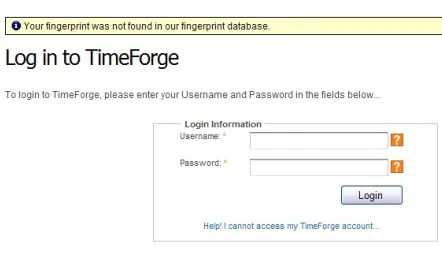
Section titled “If your fingerprint cannot be found…”If your fingerprint cannot be found, or the software was not able to recognize your fingerprint, you will see the error message below.
Please try to scan your fingerprint again, or if you are not registered yet, speak with your manager to register your fingerprint with TimeForge.