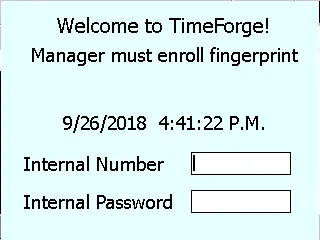
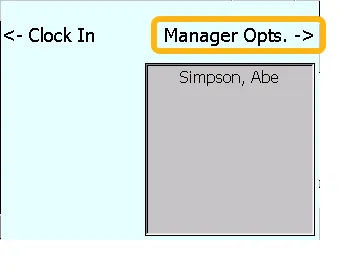
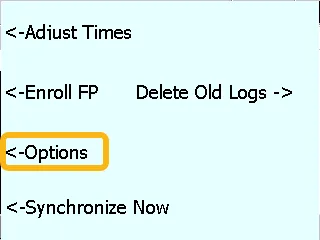
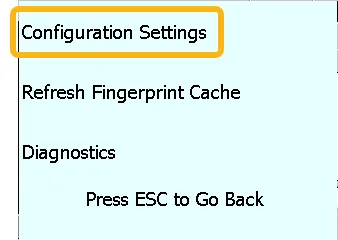
Knowing the IP address of the TimeClock is an important step when trying to diagnose or troubleshoot common issues. This guide will show you how to locate the IP address of the TimeClock.
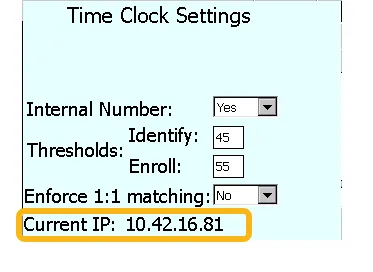
This will bring you to the TimeClock Settings screen. Look for Current IP toward the bottom: this is the IP address for the TimeClock.
To get back to the Welcome Screen, just push ESC until you see that screen.
Locate your computer's IP address
Locating your computer’s IP address may be useful for troubleshooting common problems with the TimeClock or for setting up the TimeClock on a network. To locate your computer’s IP address, follow the steps below.
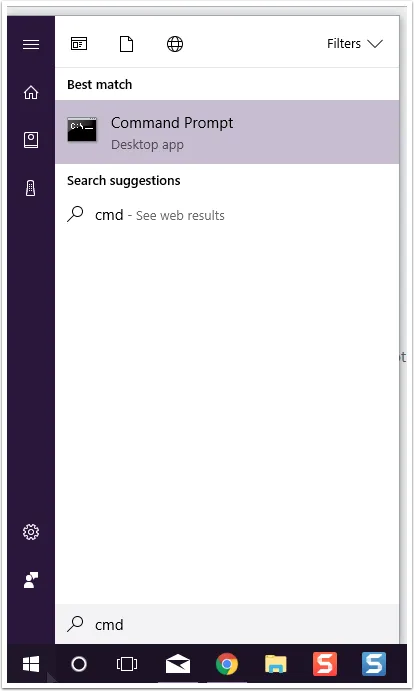
Hit the Windows button on your keyboard or click the Start Menu button
In later versions of Windows, e.g. Windows 10, you can simply start typing to perform a search – no need to look for a search box first! Windows will automatically show you possible matches as you type and will highlight the best one. If “Command Prompt” is highlighted, all you have to do is hit enter to start the program.
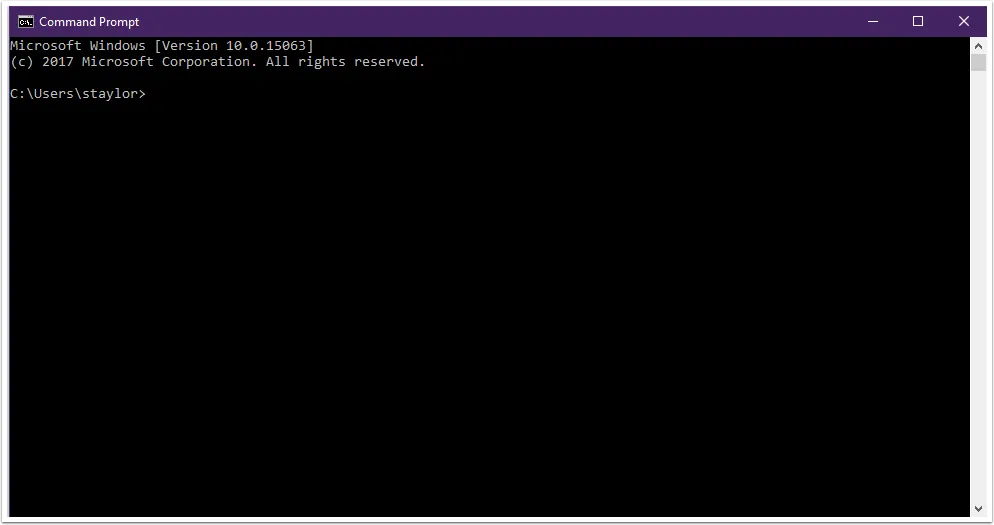
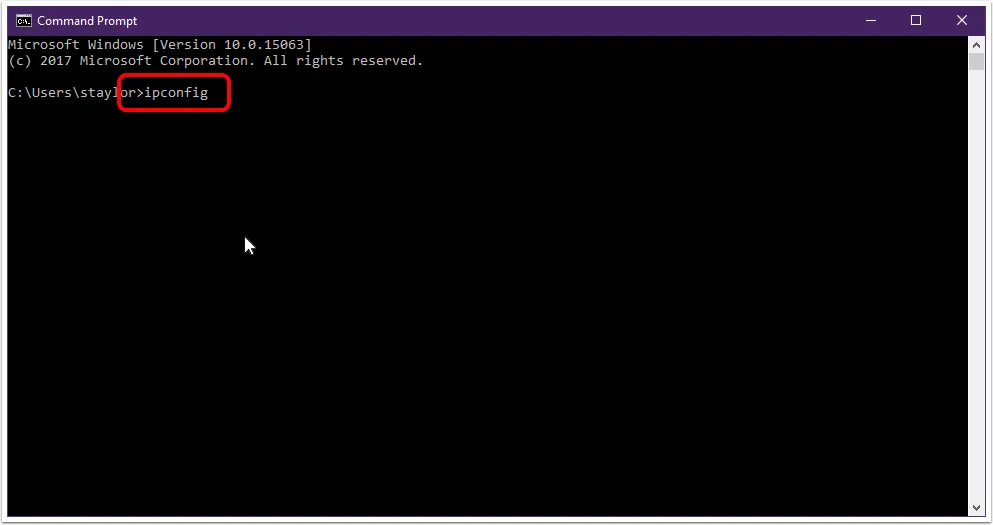
A command prompt will appear. It will look something like this:
What do I do if typing doesn't bring up a search bar?
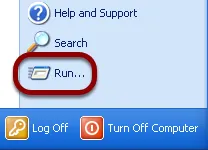
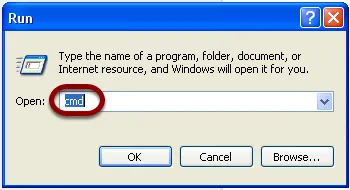
If you’re on an older version of windows, open the Start Menu
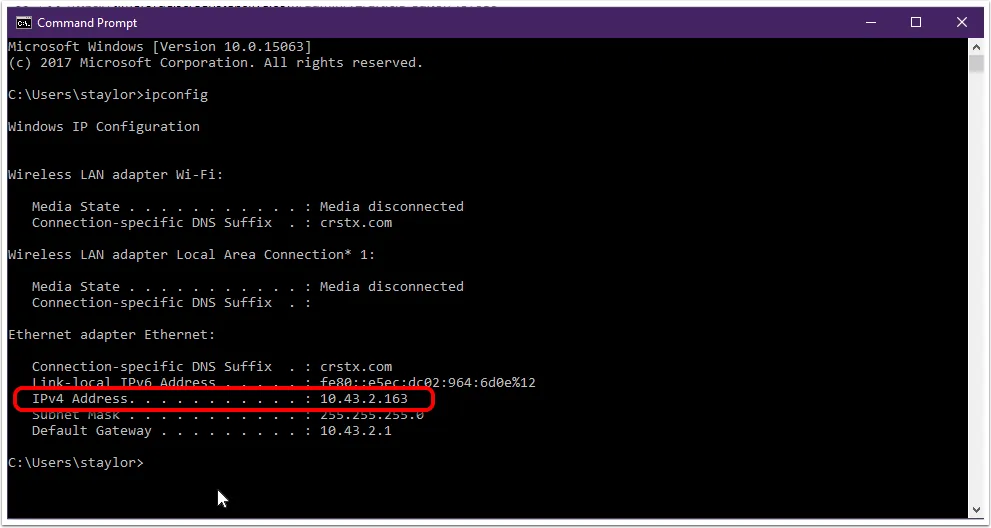
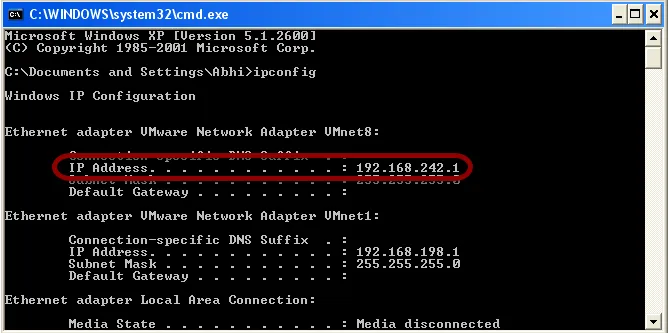
After ipconfig runs, look for the IP Address in the list (it will most likely be listed as IPv4 or IP Address). This the Internal IP Address for your computer. That’s all there is to it!
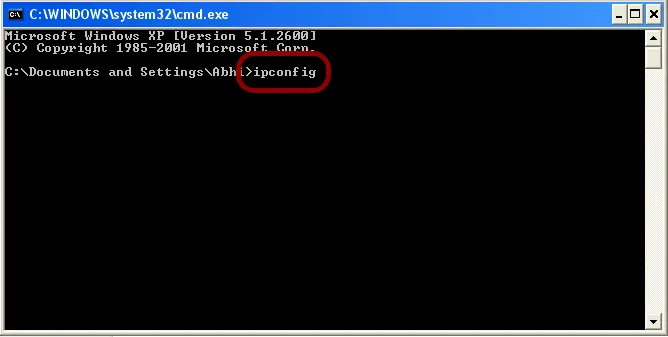
Show me an example from an older version of Windows
Check the translator and connector of the Biometric TimeClock
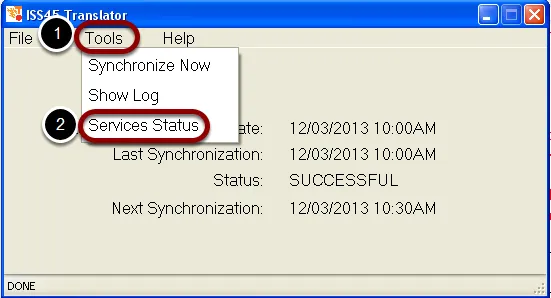
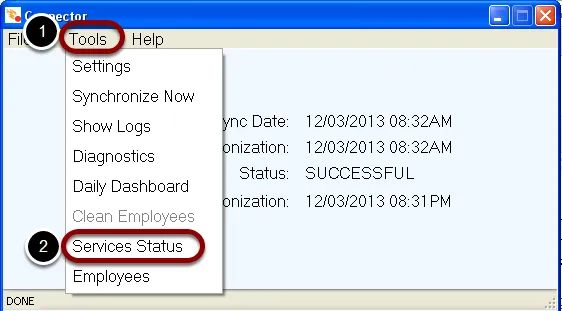
A common issue with TimeClocks, Fingerprint Scanners, Standalone Clocks occurs when they stop importing information in TimeForge. The issue arises when either the TimeForge Translator or Connector have been turned off or disabled. Follow these easy steps to get your TimeClock working again.
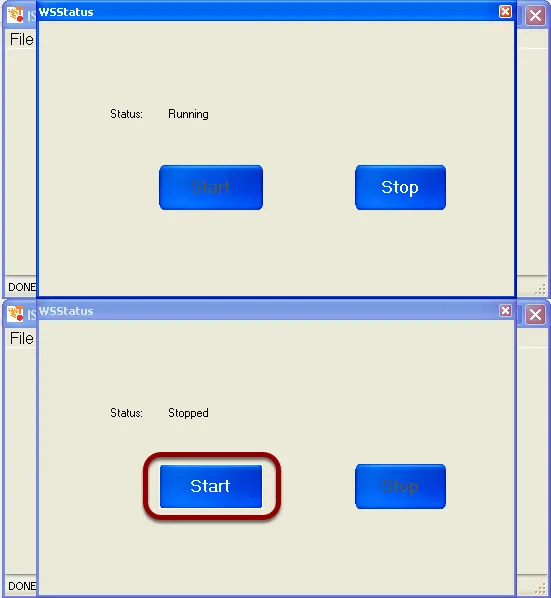
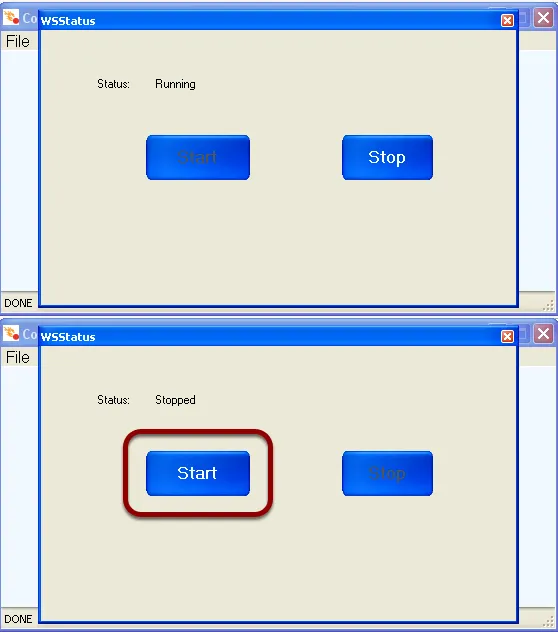
If the Translator is running you will see Status: Running. You can now close the window.
If the Translator is stopped, you will see Status: Stopped. In this case, you will need to click the Start to start the translator service. Once the status changes to Running, you may close the window and proceed to the next step.
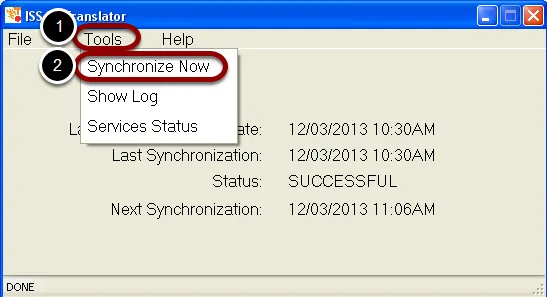
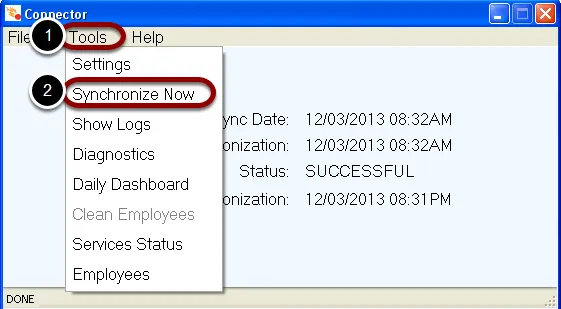
Once you have the Translator running, you will need to sync it to update the data in TimeForge. Click Tools again, then select SynchronizeNow from the dropdown menu. When the sync completes, you may close the window.
If the Connector is running you will see Status: Running. You can now close the window.
If the Connector is stopped, you will see Status: Stopped. In this case, you will need to click the Start to start the connector service. Once the status changes to Running, you may close the window and proceed to the next step.
Once you have the Connector running, you will need to sync it to update the data in TimeForge. Click Tools again, then select SynchronizeNow from the dropdown menu. When the sync completes, you may close the window.
Both the Translator and the Connector should now be properly syncing data with TimeForge, and your TimeClock should be operational.
I have one employee whose fingerprint never works. Why? How should they clock in?
This a common occurrence for stores with higher number of employees.