Enroll a fingerprint on the Biometric TimeClock
In order to use the Fingerprint Scanner on the Biometric TimeClock, you will need enroll your own fingerprint, as well your employees’ prints, in the TimeClock’s database. Afterward, your employees will be able to clock in/out with their fingerprints.
Log into the TimeClock
Section titled “Log into the TimeClock”Managers: you will need to put your fingerprint on the scanner to enroll a employee. If you are enrolling your own fingerprint for the first time, log in using your internal number and password first.
Go to Manager Options
Section titled “Go to Manager Options”Now click on Manager Options (F5) or if you’re on the BIOPAD, press the Manager Opts button.
Go to Enroll FP
Section titled “Go to Enroll FP”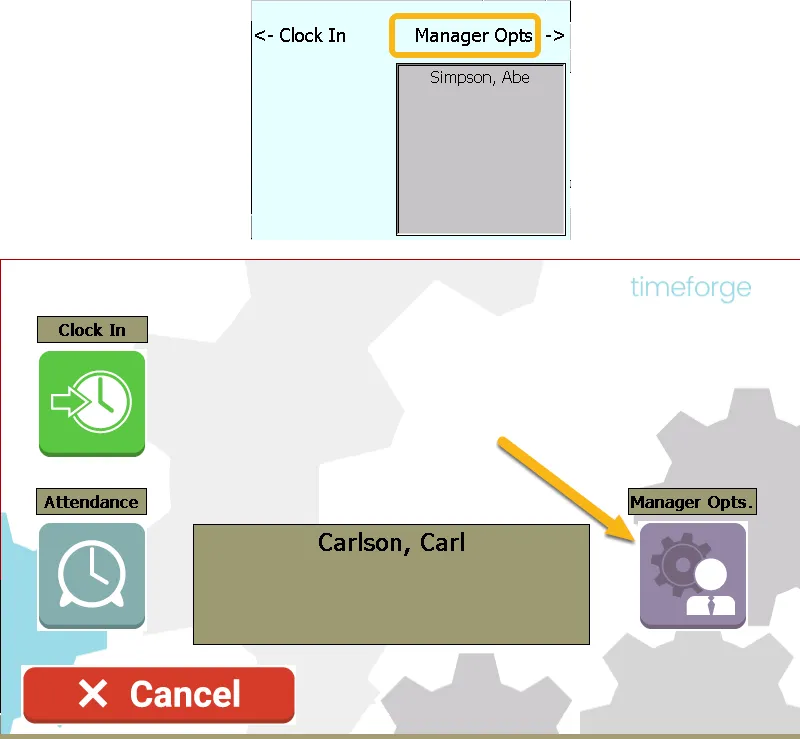
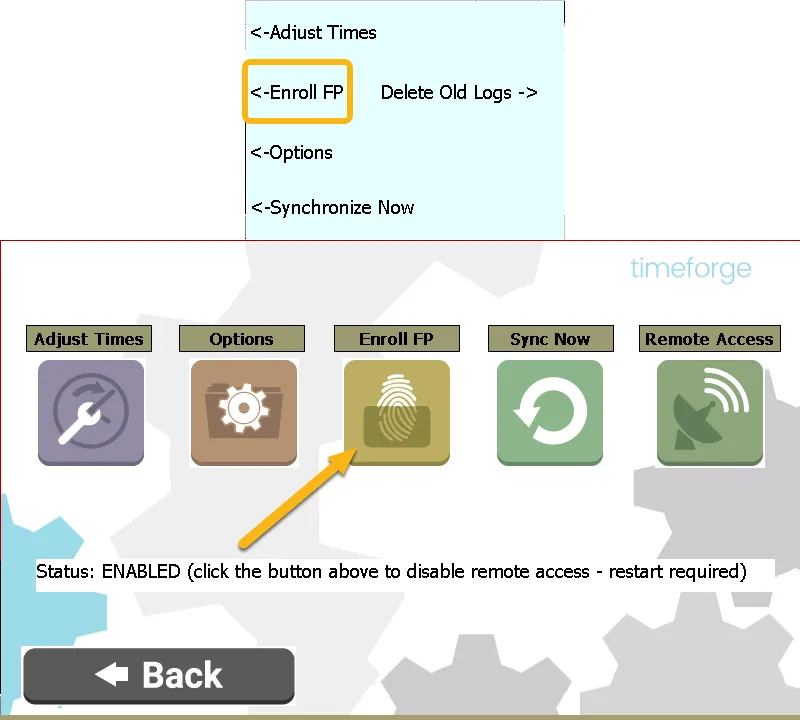
Now click or press on Enroll FP (F2 on an S900).
Find the employee (user)
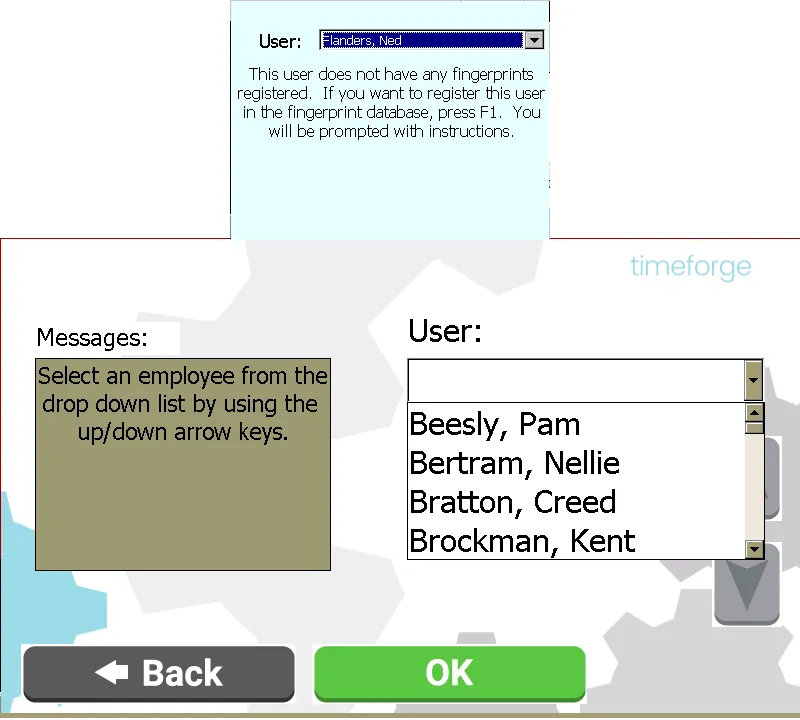
Section titled “Find the employee (user)”Find the name of the employee that you are enrolling. To search through the names, hit the down arrow button.
Enroll their fingerprint
Section titled “Enroll their fingerprint”Once you’ve found the employee, hit OK. Then push F1 if you’re on an S900. You will prompted to place a fingerprint on the scanner. Be sure to have the employee put their finger on the scanner. You can enroll any finger you want.
You will be prompt to place the same finger three times. If you get errors grabbing the fingerprint, simply clean the scanner screen and try again.
Test the fingerprint
Section titled “Test the fingerprint”After successfully enrolling a fingerprint, you can can hit ESC until you arrive back to the Welcome to TimeForge screen. Have the employee enter their internal number and place their finger on the scanner to ensure that they can successfully log in.