Locate your computer's IP address
Locating your computer’s IP address may be useful for troubleshooting common problems with the TimeClock or for setting up the TimeClock on a network. To locate your computer’s IP address, follow the steps below.
Hit the Windows button on your keyboard or click the Start Menu button
Section titled “Hit the Windows button on your keyboard or click the Start Menu button”This will bring up your start menu.
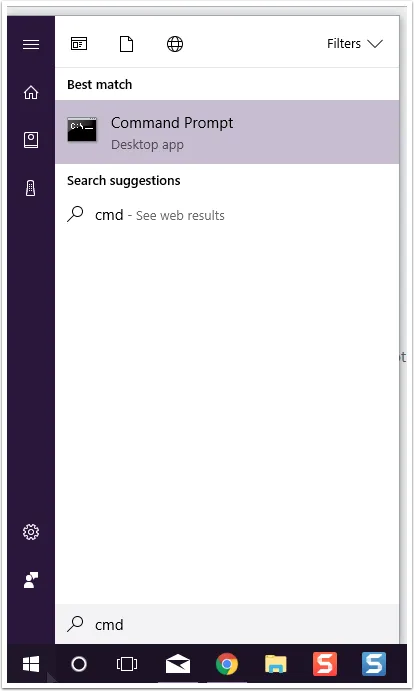
Type “cmd” to bring up a search box, then click “Command Prompt” in the results
Section titled “Type “cmd” to bring up a search box, then click “Command Prompt” in the results”In later versions of Windows, e.g. Windows 10, you can simply start typing to perform a search – no need to look for a search box first! Windows will automatically show you possible matches as you type and will highlight the best one. If “Command Prompt” is highlighted, all you have to do is hit enter to start the program.
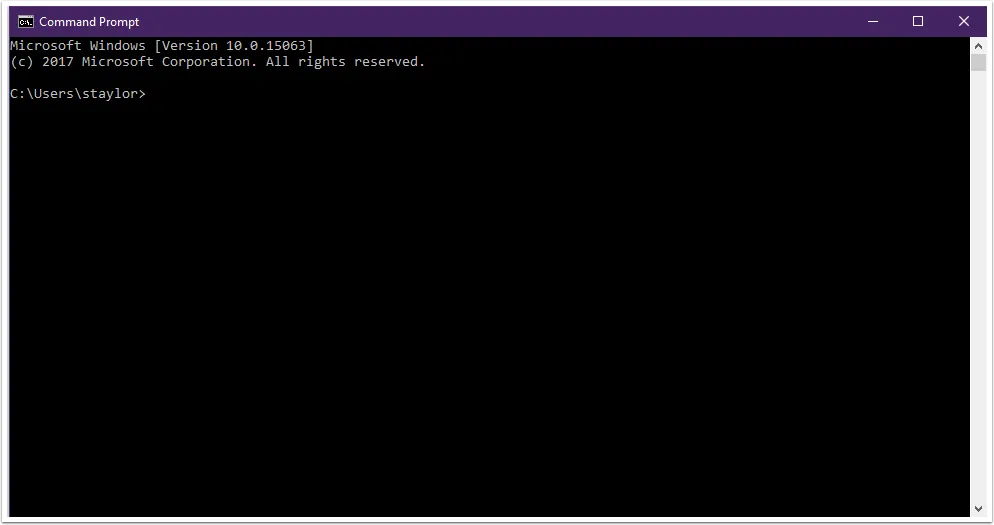
A command prompt will appear. It will look something like this:
What do I do if typing doesn't bring up a search bar?
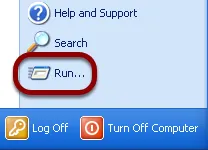
If you’re on an older version of windows, open the Start Menu
Section titled “If you’re on an older version of windows, open the Start Menu”Click on the Start menu. Then find the Run option and click on it.
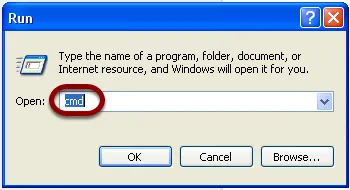
Run the Command Prompt
Section titled “Run the Command Prompt”After opening the Run Window, type in cmd and hit enter. This will bring up the Command Prompt.
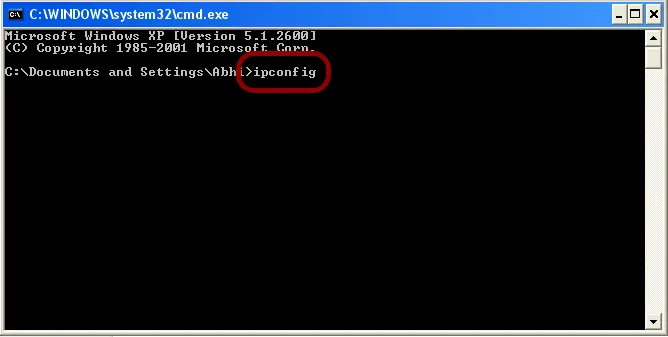
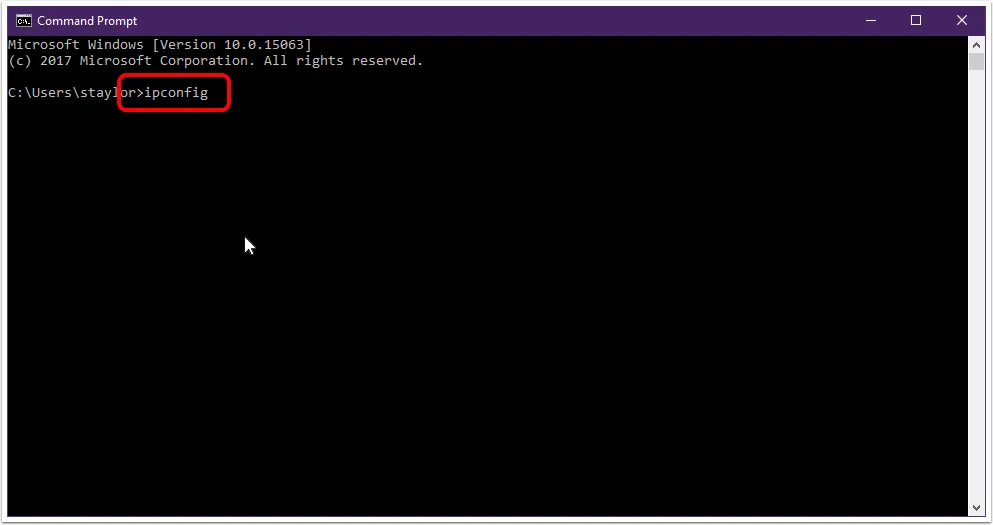
Type “ipconfig” into the Command Prompt
Section titled “Type “ipconfig” into the Command Prompt”When the Command Prompt window opens, type ipconfig and hit enter.
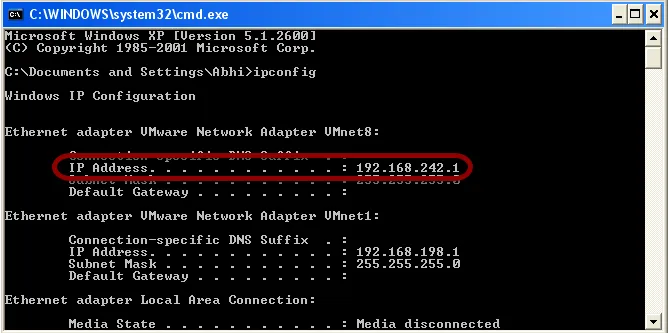
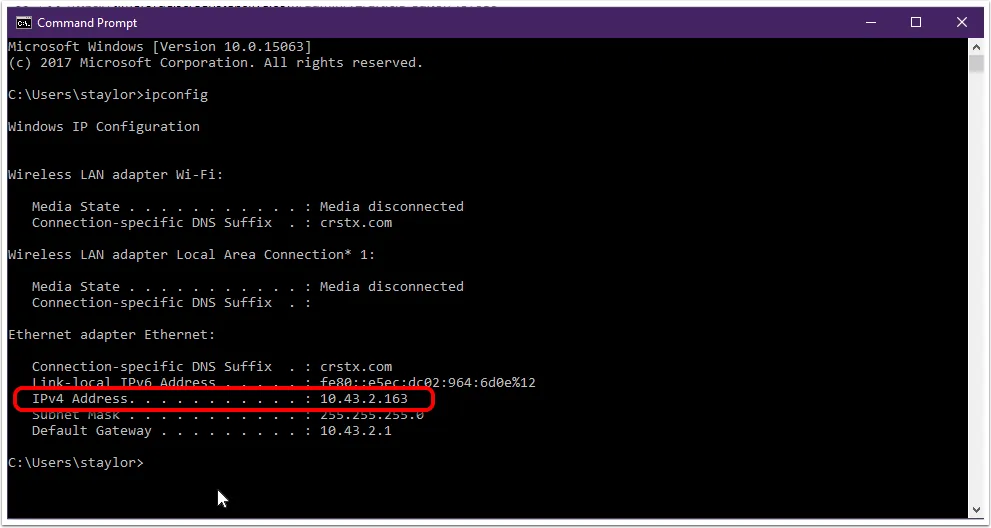
Locate the internal IP Address
Section titled “Locate the internal IP Address”After ipconfig runs, look for the IP Address in the list (it will most likely be listed as IPv4 or IP Address). This the Internal IP Address for your computer. That’s all there is to it!
Show me an example from an older version of Windows