TimeForge Guides

What's New

What's New › Software Updates

2026 Release Notes

New Features:

Improvements:

Fixes and Stability Updates:

New Features and Improvements:

Fixes and Stability Updates:

2025 Release Notes

Fixes and Stability Updates:

New Features and Improvements:

Fixes and Stability Updates:

New Features and Improvements:

New Features and Improvements:

New Features:

New Features:

Fixes and Improvements:

Fixes and Improvements:

New Features:

Improvements and Fixes:

New Features:

Improvements and Fixes:

2024 Release Notes

New features:

Improvements and fixes:

New features:

Improvements and fixes:

New features:

Improvements and fixes:

New features:

Improvements and fixes:

Improvements and fixes:

New features:

Improvements and fixes:

Improvements and fixes:

Improvements and fixes:

Improvements and fixes:

2023 Release Notes

Improvements and fixes:

Improvements and fixes to the Android timeclock:

Improvements and fixes:

New features:

2022 Release Notes

Improvements and Fixes:

New Features:

Improvements and Fixes:

New Features:

Improvements and Fixes:

Improvements and Fixes:

Improvements and Fixes:

Improvements and Fixes:

Improvements and Fixes:

2021 Release Notes

Improvements and Fixes:

Improvements and Fixes:

Improvements and Fixes:

Improvements and Fixes:

Improvements and Fixes:

New Feature:

Improvements and Fixes:

New Feature:

Improvements and Fixes:

Improvements and Fixes:

New Features:

Improvements and Fixes:

New Features:

Improvements and Fixes:

New Features:

Improvements and Fixes:

New Features:

2020 Release Notes

Deployment version 2002.2:

Release Notes | April 2020

Deployment versions 1911.1 and 2001.2:

  • We fixed a problem in our web service API that was preventing updates to pay rates when the submitted rate was zero.
  • We fixed an issue with the SPLH Template management feature that would sometimes create duplicate SPLH grids at the location level.
  • We made some performance improvements to the corporate level Send Message page for large corporations.
  • We improved audit logging for activities associated with bid shifts.
  • We improved performance for the Sales/Labor Analytics page.
  • We resolved an issue with holiday calendars and pay rules.
  • We resolved an issue that could occur when applying certain overtime rules.
  • We resolved an intermittent issue in our Applicant Tracking Platform where if a supervisor manually modified a job applicant’s submitted forms, the location tab (for assigning the applicant to other stores) wouldn’t display.
  • We resolved an authentication issue with the TimeForge web service API.
  • We made some adjustments to CPLH calcuations on the schedule page.
  • We added a feature that automatically assigns a Payroll ID to each employee.
  • We fixed an issue with the management of employee termination dates through the TimeForge API.
  • We updated the interface for improved management of scheduled reports.
  • We fixed a minor issue with the navigation menu on certain mobile devices.
  • We fixed an issue with the Setup Wizard that would sometimes prevent saving employee information.
  • We improved how bid shifts are handled in the TimeForge Employee mobile app.
  • We fixed an issue the would prevent certain types of messages from appearing in the TimeForge Employee mobile app.
  • We improved messages/notifications in the TimeForge Employee mobile app.
  • We expanded the functionality of the TimeForge API.
  • We added a “Three weeks out” option for predefined reporting periods.
  • We updated the TimeForge Sales API to prevent the submission of zero values sales data.
Release Notes | February 2020
  • Based on customer feedback, we added the ability to set date ranges on your labor % targets, and this feature allows you to import labor targets by date range for multiple stores at once - great for multi-location organizations with weekly or quarterly labor % targets.
  • We fixed an issue that would sometimes prevent scheduled breaks from saving.
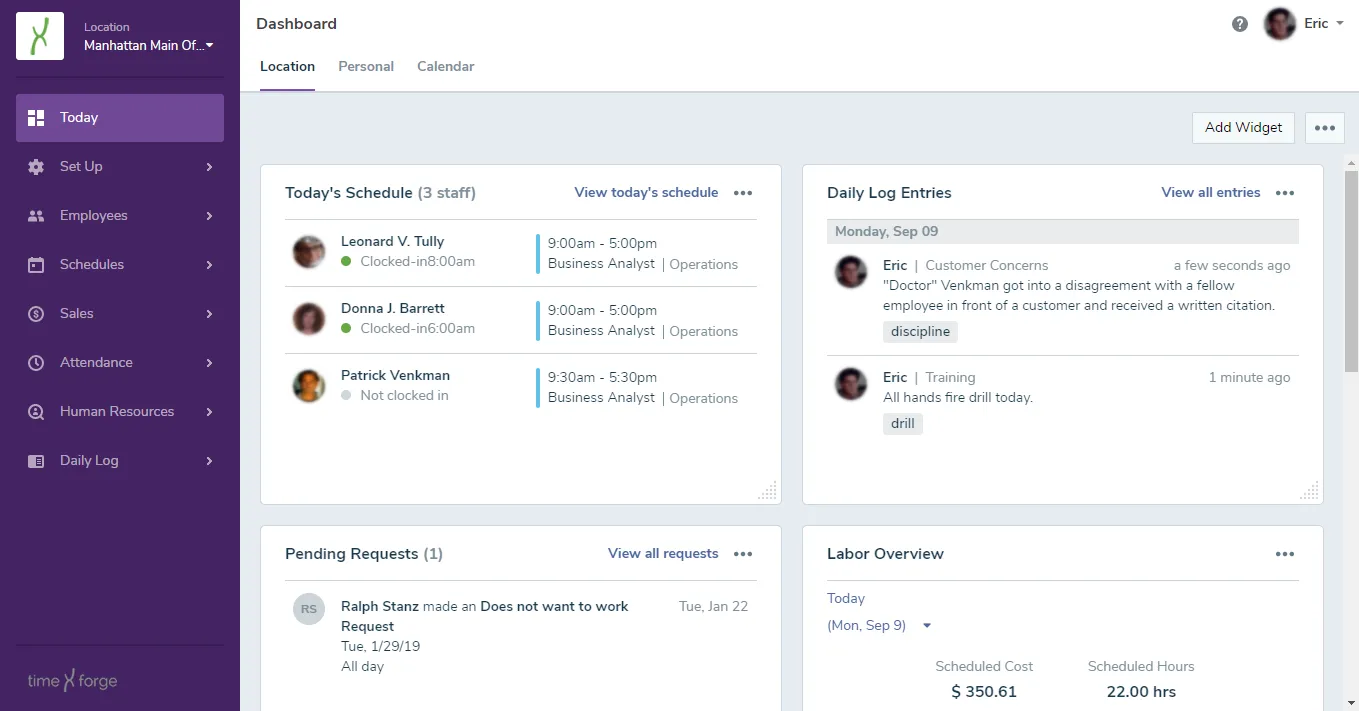
  • We improved the new Manager Dashboard widget called “Today’s Schedule”, based on customer feedback. The Print link has been updated to be more clear in its purpose; the pop-up module has been increased in size, the contents are more scrollable and more readable, and we fixed an issue with the position title display. We also adjusted the way the print configuration defaults.
  • We fixed an issue that would prevent saving the My Profile settings page in rare situations.
  • Based on customer feedback, we added a new Schedule widget to the manager dashboard. It’s similar to the “Today’s Schedule” widget, but restructures it in a better at-a-glance view.
  • Based on customer feedback, we added a “Labor Yesterday” widget to the new Manager Dashboard.
  • We made some minor UI improvements for managing scheduled reports.
  • We improved support for archiving unused positions.
  • Based on customer feedback, we added a new option to the breaks rules! Now, instead of choosing either (a) timeforge randomly create breaks that don’t overlap, or (b) TimeForge create breaks a certain number of hours into the shift, you now have the option for blended break offset - allowing you to have TimeForge make breaks that don’t overlap, but only within a certain range of time during the shift. This option will be a lifesaver for employers in California who struggle with the 5th hour rule.
  • Based on customer feedback, we updated the Weekly Labor widget to include the ability to look at future weeks’ labor.
Release Version 1909.1 | January 2020
  • Based on customer feedback, we created a solution to multi-store staffing variances. You now can configure Transfer Bid Shifts! Contact our support team to learn more, but the basics are that you can now make a bid shift at your store available to eligible employees who work at geographically nearby stores, even if the other employees have never worked at your store before. So, if you are a little short-staffed, but the store on the other side of town is a little overstaffed, you can work together to keep employees and customers happy! This new feature allows staff to earn extra hours at nearby stores without waiting for store managers to coordinate schedules, availability, etc. TimeForge coordinates it all for you!
  • Based on customer feedback, we have released a revolutionary new option in the sales forecasts. Now, instead of locking sales forecasts to avoid disruption in future schedule to sales metrics, you can allow forecasts to iteratively update, with notifications about what changed in sales-to-labor recommendations, suggestions about where to cut or increase labor, and real-time alerts about changes in predicted sales volumes.
  • We added the ability to control pay period unlocking by user or by role, via Security Templates. With this new function, you can allow, for example, all “Store Managers” to roll back pay periods for adjustments, but not allow any “Regional Trainers” to roll back pay periods for adjustments. Previously, this was only a per-location setting, rather than per-user-type.
  • We improved some of the tracking and functions around exceptions for No Lunch and Late Lunch.
  • We improved some of our revision tracking.
  • We fixed an issue on our new dashboard. Sometimes the widgets weren’t sticking to the spot you dragged them to when rearranging your dashboard.
  • We improved some back-end pieces to ensure schedules load really quickly.
  • We resolved an issue where sometimes, viewing other employee schedules was not properly displaying information.
  • We resolved an issue where the timezone wasn’t always saving properly for some non-US countries.
  • We resolved an issue where the iCal export was set to the wrong time zone, perpetually.
  • We resolved an issue for the Employee Today page, where recurring weekly requests had not been displaying properly.
  • We resolved an issue happening occasionally in our SAML integration configuration, where the settings weren’t always saving.
  • We resolved an issue where sometimes employee availability was not being honored when scheduling from a template.
  • We improved the way that location data is handled if a location gets deleted.
  • We made improvements to the task that calculates Holiday pay for employees who don’t work on the holiday.

2019 Release Notes

Release Version 1908.1 | October 2019

  • We fixed an issue that would sometimes prevent sales projections from appearing on the schedule list page.
  • We updated the logic for some automated employee emails to avoid sending password and password reset related messages for companies that are using single sign-on.
  • We fixed a problem with the progress indicator on several pages.
  • We fixed a problem with schedule templates that would sometimes save the incorrect date for overnight shifts.
  • We fixed a UI issue that was preventing some breaks from appearing on the schedule page weekly view.
  • We fixed an issue that would sometimes prevent a company logo or profile image from being successfully uploaded into TimeForge.
  • We made an improvement to the blended labor metrics initiative adjusted some incongruous wording on the Daily and Weekly views of the schedule.
  • We improved the way the clock in/out options work with one another.
  • We fixed an issue that would sometimes prevent the My Schedule page from loading.
  • We improved the way our FMS payroll export handles holiday pay.
  • We improved the back end of the new dashboards so that their widgets can be better maneuvered to fit more flexibly.
  • We added a new option for how attendance is allocated in relation to a store’s open and close times.
  • We added the ability to include Events in the schedule import. This will assist customers using the TimeForge Events module with integration of employee schedules with their in-house event planning suites.
  • We resolved an issue in the AutoScheduler where, in some accounts, with some specific configurations, the AutoScheduler was not giving appropriate priority to some employee min/max fields.
Release Version 1908.0 | September 2019

  • We implemented a CSV report that shows TimeForge forecasted and Manager scheduled hours and sales figures, by day, by department.
  • Labor threshold values can now be associated with date ranges.
  • We implemented the ability to forecast based on SPLH/CPLH at department level.
  • We added a new dashboard widget for managers to quickly update the current labor threshold value.
  • We wrapped up a project to allow blended labor-to-sales metrics for automated labor generation or for budget communication (or both). You no longer have to choose between productivity metrics (like sales-per-labor-hour) and budget metrics (like labor-to-sales percentage); with this new feature, you can blend the two metrics together into a unified labor hours number for managers to adhere to while scheduling.
  • We fixed an issue that was preventing breaks from being regenerated on templates.
  • We fixed a page load issue on the schedule templates list page.  The issue occurred in Internet Explorer only.
Release Versions 1907.1 and 1907.2 | September 2019

  • We fixed an issue that would sometimes prevent schedule templates from loading.
  • We fixed an issue that would prevent the clock out button from working on Clocked-in Employees page.
  • We refactored labor forecasting to improve performance.
  • We made improvements to the new password reset functionality.
  • We improved the Copy Templates dialog to prevent the accidental copying of too many templates.
  • We improved the drag/drop functionality on the schedule Weekly View.
  • We improved the load time of the templates page.
  • We fixed an issue where splitting breaks was causing some unexpected behavior in some instances.
  • We resolved an issue where special characters (!,$#\*, etc.) were causing some reports to throw errors sometimes.
  • We fixed an issue with the Status Report by Employee report that would prevent the report from running with certain criteria selected.
  • We fixed an issue that would sometimes prevent payroll approval.

  • We added a new feature to the employee Transfers tool, so that after an employee has been temporarily transferred to a new store from the schedule, they will automatically be removed from the temporary store assignment after they are no longer needed at the borrowing store.
Release Version 1906.2 | July 2019

  • We resolved an issue where some users who were locked out of particular features due to their security permissions could still see those restricted features in the navigation. No security concern amounted, as they were unable to interact with these items or see restricted data, but it’s best that restricted access just hide the feature entirely - as it now does. 
  • We resolved an intermittent issue where attendance records were duplicating.
  • We improved the way that HR documents are saved when downloaded from an employee profile. Instead of changing the filename, we now preserve the original filename the document had during upload. 
  • We added a widget to the (beta) manager dashboard that displays the number of employees per day who were in overtime.
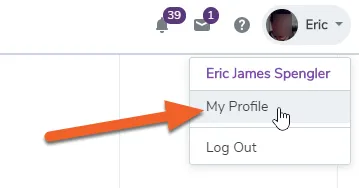
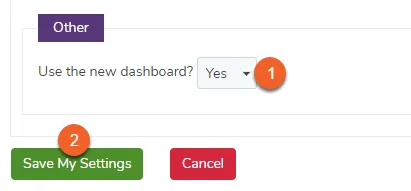
  • We made the new manager dashboards able to be turned on or off at the user level, so that customers can play with them at select stores before opting on for the whole company.  This feature can be enabled by visiting the My Profile page of the user.  Note, this user level setting will only appear if Angular pages have been enabled for the company in the Company Settings at the corporate level.  Currently, both settings are only visible to a TF admin.
  • We resolved an issue that prevented customers paying more than $999/month from updating their payment method.
  • We resolved an issue with the FMS with Holiday payroll export that would sometimes prevent the department payroll id from exporting.
  • We improved the way holiday hours calculate when an employee works multiple positions and a custom pay rule configuration is in place. 
  • We resolved an issue with holiday, overtime, and regular hours sometimes interacting strangely when configured a particular way with custom pay rules applied. 
  • We made a few improvements to the new settings page, which now uses Angular. 
  • We resolved an issue that prevented automatic redirects to new Angular pages.
  • We resolved an issue where adjusting the width of the employee list page would sometimes hide the “Show Terminated Employees” option.
  • We improved some facets of our new blended labor metrics tool, like how quickly the targets load. This tool will allow you to use both a productivity metric (like sales per labor hour) and a labor cost metric (like sales to labor percentage) when generating a schedule. Once this project is finished, you will no longer have to choose between productivity and budget numbers when communicating goals to your managers or building your schedules.
  • We are now tracking adjustments to an employee’s “Employee Type”, and these changes can be seen from the Audit Log. This should help identify any changes in employee permissions and where those changes originate.
  • We resolved an issue where the dates for “posted” and “last edit” were not displaying accurately when reviewing schedules in the Schedules page. Now the Posted and Last Edit dates display accurately.
  • The import utility now supports importing sales category threshold values.
Release Version 1905.2 | June 2019

  • We fixed an issue where a custom OT pay rule wasn’t calculating precisely.
  • We built a new option when users need to reset their password, allowing a link to reset.
  • We added a new widget to our new manager dashboard (beta) to allow weekly budget management.
  • We improved our photo and image upload tools to allow reduced image reformatting to fixed our pre-defined dimensions; allowing upload and then adjustment.
  • We updated the wording of a previously very confusing message that some users received after an error.
  • We added some more easy to manage options to allow us to better support forecasting configuration for advanced forecasting customers.
  • We improved the sorting, organization, look, and feel of our location, attendance, and break settings.
  • We resolved an issue where terminated administrators were displaying on attendance reports.
  • We helped a customer with an overtime calculation specific to their account configuration.
  • We improved the employee PTO payout process and interface.
  • We revisited some logic in our pay rules engine to ensure appropriate reasoning when multiple conflicting rules exist.
  • We made a new FMS report.
  • We fixed a report that wasn’t deducting breaks from scheduled shifts.
  • We resolved an issue where security settings were being ignored on a page that was rarely used.
  • We resolved an issue with the links inside the gantt chart on the Today page.
  • We resolved a long-standing issue where scheduled CSV reports from the corporate level were nonfunctional.
  • We fixed an issue where splitting breaks was causing some unexpected behavior.
  • We fixed an issue where no data was showing in the Weekly Budget widget if the Default Sales Category was set to Choose from the angular Sales Option page.
Release Version 1904.2 | May 2019

  • We fixed an issue where sometimes, in some accounts, the dashboard that shows real-time sales wouldn’t display.
  • We finished up the time clock widget for employees to clock in/out with, so that once the Widgets are live, this can be used to replace the old Employee Today Page clock UI.
  • We resolved an issue occurring in the mobile browser where the user would be clocked out if switching from desktop to mobile view.
  • We finished up the Calendar widget for the Beta Dashboard feature.
  • We fixed an issue where the scrollbar wasn’t displaying when using mobile view in a browser.
  • We improved the performance of a task that was taking a long time to run.
  • We fixed an issue where the employee list page randomly wasn’t loading.
  • We fixed an intermittent issue where an employee’s PTO hours weren’t being decremented from their accrual record.
  • We fixed an issue where the accounts using HR only were unable to add employee profiles.
  • We finished up the Today’s Schedule widget for the Beta Manager Dashboard.
  • We helped a customer migrate to a new HRIS.
  • After receiving customer feedback that many customers preferred to schedule only 1 week in advance, we added an option to our “no schedule is posted for the next 2 weeks” notification to allow a “no schedule is posted next week” option.
  • We fixed an issue where adding a second location to an account caused the new Angular settings page to fail to display.
Release Version 1904.1 | May 2019

  • We added some tracking for analytics so that we can use the data for prioritizing initiatives.
  • We updated the way that the pay frequency field updates between TimeForge and Ready Pay Online.
  • We resolved two issues that were introduced to the employee today page.
  • We improved the way our new datepickers work, so that the previous and next month’s dates are selectable without navigating.
  • We updated one of the last pieces of our migration from Spring2 to Spring4, where the scheduled reports were being run based on triggers that were on old architecture.
  • To ensure our implementation of Angular continues to go smoothly, we built out some functionality from our old (non-Angular) department page to the Angular version.
  • As part of a labor automation project, we updated our threshold import tool to resolve an outstanding issue in how much data you were allowed to import.
  • We fixed an issue with how forecasts were copied to projections.
  • We improved how we notify managers when someone’s pay rate gets updated. We were sending some false positives.
  • We updated the wording of the settings in the Company Settings page to be more user-friendly and straightforward.
  • We updated the wording of the settings in the Attendance Options pages to be more user-friendly and straightforward.
  • We updated the wording of the settings in the Sales Options pages to be more user-friendly and straightforward.
  • We investigated an attendance trigger that had not been migrated to Spring4 when we migrated the other triggers.
  • We fixed an issue in the new Angular version of the department view.
Release Version 1903.1 | April 2019

  • Improvements to new employee dashboard (currently in beta):
    • We added a widget to allow employees to see who else is scheduled.
    • We added a widget to allow employees to see other employees’ availabilities.
    • We added a widget to allow employees to see available shifts for swap / pick up.
  • Improvements to new manager dashboard (currently in beta):
    • We added a widget to allow managers to see a labor overview.
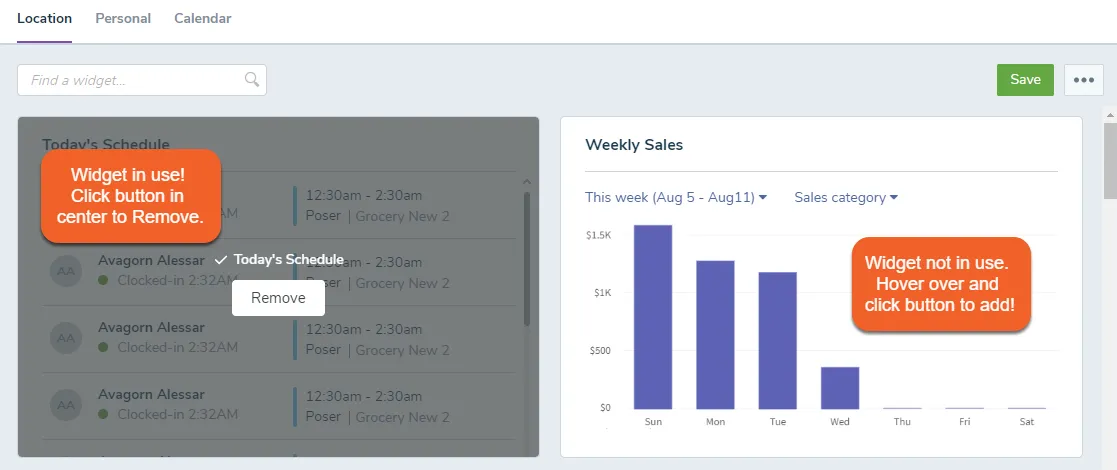
    • We allow add/remove widgets more cleanly now.
  • We helped resolve an hourly costing of salaried managers issue that was specific to a single customer’s preferences.
  • We improved some SAML logic for customers using TimeForge SSO (single sign on).
  • We resolved an intermittent issue where an employee’s vacation hours were not exported on a particular pay file if they had vacation hours during the pay cycle but no hours worked.
  • We made structural improvements to the TimeForge-Workday integration.
  • We finished the first version of the ReadyPay Online integration of employee data.
  • We improved a task that runs in the software which sends mail, like notifications, etc.
  • We resolved a display issue where we were showing some “corporate-level” settings when users were adding new locations (and should only see “location-level” settings).
  • We fixed a display issue where we were showing a comma where one wasn’t necessary.
  • We added a “week after next” to scheduled report date options, allowing customers who schedule 2 weeks in advance to schedule reports for their upcoming schedules.
Release Version 1902.1 | March 2019

  • Fixed an issue that prevented users from saving ShiftBuilder rules.
  • Attachments downloaded from employee and job applicant profiles should now use their original file names. No more multiples of viewApplicantDocument.pdf and viewEmployeeCertificationDocument.pdf!
  • We removed the Mobile Carrier dropdown menu under the employee profile, as it is no longer needed to send test text messages to users.
  • The location list on the corporate level Today Page should now consistently show all locations.
  • Fixed UI/responsiveness issues on the Corporate Hierarchy page. Widening the page should now also widen the tables.
  • Fixed an issue where PTO requests would fail to appear on the PTO approval screen for certain types of employees that have worked at multiple locations.
  • Fixed an issue with partial day PTO duration calculations that would sometimes occur when approving a request.
  • Fixed an issue where the Sales Report page would fail to load completely.
  • Fixed an issue with TimeClock mode that would allow users to click the clock in/out button multiple times, which could cause attendance calculation errors.
Release Version 1901.1 | February 2019

  • We pushed out the Colorado Overtime feature to support Colorado’s daily 12 hour = 1.5x rule.
  • We updated the pay rules engine to work more nicely with holiday calendars.
  • As part of our larger initiative to start supporting automated California meal and rest penalties, we added the meal penalty field to the Manage Attendance page. It had previously only been in Edit Attendance. This is our third baby step toward automated California meal penalty calculations! The rest of the features will be delivered before EOY.
  • As part of our larger initiative of simplifying pay calculations, we added our standard OT rules to be available options within our pay rules options.
  • We helped a customer update their sales per labor hour grids for automated labor generation based on budget goals.
  • We improved the way selecting groups of recipients by position works. Now, managers can send messages to any position groups that are in their departments, instead of only selecting other “Managers” from the position list.
  • We resolved a security flaw where if two users were conspiring, they could work together to enhance one another’s permissions.
  • We improved the tool that allows grouped user selection when choosing the data for running a report. A customer pointed out that it was hard to see that you could filter by position, so we made it more discoverable.
  • We did some custom development to update a compliance report we previously built for a customer.
  • Part of our larger front end update, we migrated our department page to use Angular.
  • We fixed an issue where the “All Staff Members” checkbox wasn’t working properly.
  • When an invoice got updated, the PDF with the invoice details wasn’t regenerating, so it was still displaying old data. The PDF now gets updated.
  • We improved an issue in report calculations where breaks were not being deducted from total durations.
  • We improved a security restriction that was too restrictive, so that now users with “Edit” permission to “Employees” can resend email verification for employee access.
  • We fixed an issue with how hour totals were calculated and displayed, as Weekly and Daily views were off.
  • We fixed an issue where the sales interval report wasn’t working.
  • We fixed a calculation oversight.
  • We got rid of a setting option that was obsolete because of our new navigation.
  • We improved several spelling and grammar mistakes throughout the application.
  • We added the employees averages report to the corporate level.
  • We added a filter page in our sign-up process to reduce the number of employees who create their own accounts instead of having their manager add them to the business.
Release Version 1812.1 | January 2019

  • New CBS integration allows TimeForge to sync sales data from CBS.

  • Some payment plans have been updated. Affected customers were personally notified and will see the change reflected on their next invoice. Details can be found on the Payment Options page under the Set Up tab.
  • Invoice format is now more transparent about how we bill and what dates are included.
  • We fixed an issue that was causing the Availability and Requests page to show incorrect date ranges.
  • Edit Attendance page now allows easy adjustments without having to worry about attendance with no department assigned.
  • Improved performance when loading schedule messages.
  • We removed the limit on the number of employees that could be exported from the Employee list.
  • The Employee list should now correctly sort by date, whether hire date, birthday date, date applied, etc.
  • Supervisors who have access to view employees’ wages should now be able to view their own scheduled costs in the daily/weekly/monthly schedule views.
  • Fixed an issue with the employee mobile clock-in and switch position feature that was causing duplicate clock-ins.
  • Employees removed from a position should no longer lose attendance hours associated with that position.
  • Files attached to Messages should now show filenames.
  • Changes to the department threshold grid should now save correctly.
  • Minor improvements to edit shift dialogue box from weekly/monthly view.
  • Ongoing fixes and improvements to TimeForge UI.

2018 Release Notes

Release Version 1809.1 | October 2018

  • Several pages that uses lists (for example, the Department and Position lists at the Corporate level) now include “Check All” checkboxes to select all items at once.
  • The Today Page for Managers now shows a row for the number of Open Shifts. Dates with open shifts will appear as links, allowing managers to quickly navigate to the schedule(s) for that date for easy review.
  • TimeForge now uses a sleeker and more modern style sheet across the application.

  • If a new employee’s account is enabled by email, their email address now becomes their default login/username.
  • TimeForge now reports the name of the invalid department when attempting to import sales data for a department that does not exist or has been disabled for sales imports.
  • When running Attendance reports, terminated employees should now display if the ‘All Staff Members’ box is checked.
  • The size of the text field for shift notes in Daily View has been increased to make it easier to write shift notes.
  • When distributing sales based on manager projections for the upcoming week, TimeForge should now properly backfill actual sales from the previous week in its calculations.
  • Fixed an issue that was causing some terminated employees to showing incorrect termination dates.
  • Fixed an issue that prevented saving a new department with employees and positions assigned to it. We also fixed an issue that was sometimes preventing managers from scheduling by department in monthly view.
  • We have removed some outdated help links and tutorials that were slowing down some pages, such as when adding a new schedule. All of our guides are now available here in our Knowledge Base!
Release Version 1808.1 | September 2018

  • We’ve been rolling out numerous tweaks to improve users’ experiences when viewing tables, swapping shifts, selecting TimeClock mode, editing attendance, and more! These fixes are intended to clean up any artifacts left over from the old menu and layout.
  • New customers are now required to set more complex passwords for their account (between 6 and 20 characters, by default).
  • Existing customers with multiple locations can enable password complexity enforcement by visiting the Security tab of their Company Settings page. This feature can be used to improve account security and can help ensure standard compliance across an entire corporation.
  • We’ve improved the performance of the Company Settings page, which should now load and save noticeably faster.
  • Tooltips on many setup pages now correctly line up with the text.
  • We’ve been rolling out more updates to bring the articles in our Knowledge Base up to speed. See Getting Started > Common Tasks.
Release Version 1806.2 | July 2018

  • You may have noticed that we’ve updated TimeForge with a fresh new menu and layout! In case you missed our announcements, you can read all about the changes here.

  • We’ve removed the confusing “Send Form to Employee” button from the employee profile under the Human Resources tab. This button actually sent an ACA form and was not tied to any other onboarding documents. (You can continue to send ACA forms from the ACA tab under Location settings.)
  • We’ve added an “Overlapping Requests” link to the Requests page to indicate when there are overlapping requests on the schedule. Clicking the link will reveal details about the overlapping requests for that date.
  • Fixed a cache issue that prevented re-syncing of Sales data in rare cases.
  • The “Resend Email Verification” button on the employee profile should now work reliably at the Corporate level.
  • Locations marked as Closed on certain days should now show as closed for those days when viewed at the Corporate level, too (rather than having hours from 12AM-12AM).
  • When reviewing SMS Messages and Viewed Messages, the message windows should now display the correct captions for each. (Previously, they were both titled Emailed Messages.)
Release Version 1805.2 | June 2018

  • ShiftBuilder Rule: Min/max with time. Allows you to specify the period of time for which the rule should apply, e.g. 8AM to 3PM. (The original min/max rule still uses the store’s open and close times.)
  • Report: Payroll Summary. Provides a summed total of hours for every pay type for every employee. Designed specifically to match the “TimeForge Payroll” export, for validation purposes.

  • Managers can no longer alter space-time (create a negative shift duration) by shortening a shift so that it ends during a break.
  • The internal number and password fields now only accept alphanumeric characters, much to the relief of TimeClocks, which get upset by squiggly lines and symbols.
  • When you change which fields/columns are shown in the Employee List, those changes are now saved for all eternity. Or at least until you change them again.
  • Job Posting descriptions greater than 10,000 characters can now be saved as templates. (We increased the arbitrary limit that was causing headaches for some HR personnel.)
  • We fixed an issue that occasionally caused a security warning to pop up while trying to upload an employee certification.
  • Modifications made to employee breaks should now include who made the change and when. Additionally, every single attendance modification should now come with a timestamp.
  • The location-based Availability tab no longer appears on the employee profile page when that page is viewed at the Corporate level.
  • Managers will now receive a notification, in the form of a schedule message, when they schedule an employee to work on a day for which the employee has an approved “Does not want to work” or “Unavailable to work” request.
  • Managers can no longer accidentally confuse themselves by creating multiple schedule templates with the same name.

[Archive] 2014 Release Notes

August 15, 2014

Hello, everyone!
We’re always trying to improve the TimeForge experience for all our users. That’s why we’re especially excited about our conversion of code, which we’ll be wrapping up in the next few weeks. Basically, we’ve been updating every line of our code (the “magic” behind the scenes of TimeForge) to make things run more seamlessly and efficiently. The code conversion should also boost the speed at which we can add new features. Although this process has been challenging, we’re nearing the end and are confident that all of our users will experience the benefits.
Here are a couple of other updates we’ve been working on.
Employee Attendance with All Payroll IDs Report
We’ve added a new employee attendance report that also shows every payroll ID. In addition to showing the start/end times, regular and overtime hours, and break times for employees, this report includes the payroll ID for each location, department, position, and employee. This report is great for managers and accounting teams who need a quick reference of  any particular payroll ID.

24 Hour Time on Reports
We’ve added a new personal setting in the “My settings” tab for managers. You can now choose a default setting for reports to display in 24 hour time as opposed to an AM/PM time format. Currently, this functionality exists for certain schedule reports, but we are working to add this to all reports including attendance and HR. Although this setting will change the default format, you can always quickly change between these two settings on the report configuration page while running a report.

June 27, 2014

Happy Friday, everyone!

Here are a couple of updates we’ve recently added that can help you get even more out of TimeForge.

Expiring Certifications Report

You can now run a report that will notify you of the date when an employee’s certifications will expire. This is great for staying on top of things like work permits and certifications (like CPR or Servsafe) so that you always know your employees are eligible to work.

Leave Type and Unavailable Alert

TimeForge now offers a couple of new notifications for when employees request time off. You can choose to be notified when an employee submits a request to use a leave type. You can also select to be notified when an employee submits an “unavailable” request (“does not want to work”, and “is unavailable to work”). This way, if managers only want to be informed when employees want to use sick time, PTO, or any other leave type, they won’t be receiving emails for simple “unavailable” requests.

June 7, 2014

Manager Email for PTO Approval

Managers who are allowed to approve PTO and other Leave Types are now able to receive email notifications that a time off request has been submitted from another manager. This way, if one manager wants to put in for time off, but company policy prohibits managers from approving their own PTO, another manager can be notified via email to approve/deny the request.

Attendance Reports for Deleted Departments

We’ve added the ability to view attendance from deleted departments. Now, if you had any attendance entries in a particular department that’s since been deleted, you’ll still have the option to choose that department when running a report. The deleted department will appear with an asterisk next to the department’s name. An example is given below where the deleted department is outlined in red.

Note: There must be attendance in the deleted department for it to be available on the report. Additionally, if departments don’t immediately appear for selection, first input a date range and departments will be available for you to choose. 

Attendance Notification and Breaks

 The option displayed below gives managers the ability to receive notifications when an employee is nearing their maximum weekly hours. This number is first based on the employee’s weekly maximum, and then on the weekly maximum for the location. For example, if your watching your part-time employee’s hours so that they don’t go over 29 hours in a week, which could affect your company in regards to Obamacare, you can set this option to alert you when they hit 28 hours so that you know to send them home.

This option now calculates breaks in real time. So, if your employee is on a paid break when they reach their 28th hour, you will still receive an alert that they are nearing their weekly maximum.

May 26, 2014

Invoices

We’ve added the functionality to view your TimeForge invoice as a PDF. This functionality also provides you with the ability to print your invoices. The information on the invoice includes the invoice number, TimeForge plan, reseller information, and payment options. You can easily access your invoices from the “Payment Options” page. Alternatively, if you have administrative access, you can simply find your invoices from the “Admin” page.

PTO and Leave Types

We’ve added new functionality to the PTO approval process. Now from the “Approval Managers” tab on the “Leave Types” page, access can be set for managers that allows for three different options. Managers can either:

  • approve everybody’s PTO including their own,
  • approve everybody’s PTO other than their own,
  • or not able to approve any PTO whatsoever.

Additionally, we’ve added a new way to create Leave Types.

This new concise view of the Leave Types allows you to quickly set-up and customize your Leave Types. First, you select your start and end days. So, if you want to accrue for the month, you could put the start day equal to 1 and the end day equal to 30. Alternatively, if you accrue for the year, you can put 1 for the start day, and set the end day equal to 365. You also select the carried amount (if they carry over a set amount of hours) or the carried percentage (if the carry over is a percentage instead of a set amount). Lastly, you designate how many hours are accrued for the period as well as the maximum number of hours that the employee can accrue.

Note: If used, these options will override the other options on the screen.  

New Reports

The “Daily Schedule, Attendance, and Hourly Sales Cheat Sheet” report allows you to keep track of your schedule, attendance, labor costs, and sales all in one document. With this report, you can see your labor variance and compare that to your hourly sales for any given day. So, if you want to quickly see your daily labor variance, find out who’s been consistently late, track labor costs, and keep an eye on your sales, you no longer have to shuffle a bunch of papers around or keep track of this information by yourself. TimeForge does it all for you.

The “Locations Flag Report,” can be very handy for businesses using multiple locations. This is a corporate report that summarizes and prints the settings at all locations in your business so that you can quickly identify anything that is set up differently.

Don’t forget, you can set up reports in TimeForge to automatically run and be sent to any email address!

Miscellaneous

  • Customers no longer have to enter daily sales percentages to save a sales category.
  • Manager mode now works with the mobile TimeClock app.
May 4, 2014

Happy Monday, ya’ll! Here’s a few things we’ve been doing at TimeForge to make your experience with us as smooth as possible.

Aloha POS Speed Boost
Previously, customers using the Aloha POS system would experience an occasional slight delay when pulling data into TimeForge. This issue was actually caused by the system looking for too much needless data that wasn’t useful for you. We’ve changed this information so that our Aloha integration can run quickly and smoothly for everyone.
Shift Ranking at Each Location
We’ve added the ability to have independent shift ranking options at each location. Before, if an employee worked at two different locations that used different shift ranking options (either allow or not allow), the system would default to allow rankings. Now, each location will be able to set their own rules in regards to employee shift ranking.
Miscellaneous

  • In both the department and weekly sales, we’ve change the interaction of the sales number. In the past, if the “total sales figure” was over 100, an alert would appear and have the user reconfigure the numbers so that they were exactly 100. Now, as long as your numbers aren’t over 100 by more than two decimal places, you’ll be able to keep those figures.
  • Manager projections can now be entered for future dates.
  • We’ve added 2 new countries to our set up options. Our customers can now select if they are from either the Cayman Islands, or the Turks and Caicos Islands when setting up their TimeForge accounts.
April 21, 2014

We’ve been working on some updates this past week to make your TimeForge experience even more enjoyable! Here’s what we’ve been up to.

OnPay Payroll Export

OnPay has been added to our list of available payroll exports. Alright!

Badge Reports for ISS45

The TimeForge “Badge Report,” which produces a note card sized scannable barcode, is now available to our customers who use the ISS45 POS. Now, you have the ability to pull employee information directly from your ISS45 POS into TimeForge, and create a scannable ID for any employee.
HR Documents Upload
For the TimeForge customers using Human Resources, the process to upload HR documents to TimeForge has been simplified. Now, your files are uploaded as soon as you select them so that you know your important documents will be saved.

 Coverage Sheet with Breaks

Our new report, “Coverage Sheet with Breaks” shows the scheduled shift for your employees as well as the actual time your employees took a break or lunch. The breaks and lunches show on the report in 15 minute intervals, so the entire day is covered. You can now quickly see if your employees are taking breaks at the right time and for an appropriate length of time.

Miscellaneous

  • The day of the week has been added to shift confirmations so that you don’t have to reference a calendar
  • Customers experiencing issues with the timeclock URL have now been resolved.
  • Customers who had problems with the Open/Bid shift total cost on the 7-Day Schedule report have now been fixed.
  • The “Create New Availability Request” page no longer displays hours if the request is all day.
April 10, 2014

We’re always working here at TimeForge to make sure you continually have the best  experience possible with your labor management. Here are some of the things we’ve been updating recently.

A New “Leave Type” Option.

You already know that leave policies (formerly leave types) in TimeForge automatically track how many hours employee’s accrue with things like PTO, vacation days, and sick leave. This new option gives you the ability to control when an employee can accrue a type of leave in respect to overtime. If you check this box, the employee will only be allowed to accrue hours during regular time–not during overtime shifts. If you change any settings, don’t forget to save!

Age Rules

Customers having trouble with the “Next” and “Cancel” buttons not appearing when setting up age rules are now fixed.
Keep an eye for more updates and feature additions in the next week!

[Archive] 2013 Release Notes

November 6, 2013

Pay Rate Report shows employees’ current and previous pay rates for fast comparison.

Sales Data can now show sales percentage and actual value based on projected sales at the same time.

Birthday Reminders allow managers to view current and next day employee birthdays.

Templates can now be made from any schedule length and shift configuration for complete customization.

Time Off Requests can now be limited to being made a maximum number of days in advance.

Pay Rate Changes can now automatically trigger an alert to be sent to selected managers.

Meal Penalties can now be designated within the schedule to avoid being counted as over-time.

Minimum Wage Report can be customized per location and allow managers to easily determine if combined wages and tips acquired by staff meet minimum wage requirements.

Holidays can now be designated as “working” or “non-working” with corresponding variances in pay.

Employee View now available to provide managers and supervisors with fast access to their own schedules.

We have also corrected some bugs and other oddities within TimeForge.

  • Terminated employees can no longer be messaged via the TimeForge internal messenger.
  • Notations are made to attendance when the time on the POS or biometric time clock is wrong (i.e.- If your POS system loses power and the time is reset to an earlier time while employees are clocked in. TimeForge will indicate the “clock in” and “clock out” times to be the same and will notify managers of the issues. The manager can then adjust the incorrect time and modify the attendance entries accordingly.)
April 8, 2013

We’ve had a few exciting updates go live this weekend!

  • Customers experiencing problems with double breaks are now fixed.
  • Customers experiencing problems with some reports incorrectly calculating holiday pay are now fixed.
  • When editing attendance, managers can now enter start and end times without a colon and without AM or PM.  Also, attendance can be entered in military/universal time.
  • When creating schedules in the weekly view, employees working more than their maximum number of hours or less than their minimum number of hours will appear in red.
  • Employees can now see their scheduled number of shifts and scheduled work hours for the week on the Today page.

Keep an eye on the app store for some exciting new mobile apps!

April 1, 2013

We’ve been busy busy busy here at TimeForge and a slew of small (and big) features have gone live over the past few weeks! 

We want to keep you in the loop so here’s a summary of them: 

Fixed issues:

  • Customers with double punch problems caused from multiple locations and overlapping attendance entries have been fixed.
  • Many internal improvements have been made to speed up the site (yay!).
  • Sales reports are getting fast…faster…blazing fast!!
  • Some sales related errors on the corporate today page have been resolved.
  • Scheduling Lite no longer includes terminated staff in its count of users.

New features:

  • TimeForge now supports inbound text messages in regards to shift confirmations.  Employees can respond to shift reminder texts with “confirm” or “conf” to confirm the shift and TimeForge wills end back a text saying that shift is confirmed.
  • We have enabled “random” pay periods when exporting payroll.
  • We have made holiday calculations separate of overtime so that holiday pay occurs before overtime pay.
  • Our mobile manager app is now available in the Apple store as well as the Android store!  The app now includes weather and sales metrics for the day.
  • TimeForge introduces Applicant Tracking to help you better manage applicants during the employee hire process.
  • TimeForge introduces the Call To Clock In feature, allowing employees to clock in via phone.

[Archive] 2012 Release Notes

May 29, 2012

Busy, busy developers… Here’s what they’ve been working on!

  • Some TimeForge users needed the capability to set weekly costs that divide evenly across shifts. Now they can.
  • New forecasting algorithm was only doing one day, it now does 90 days.
  • New average of variance algorithm available - does some cool stuff!
  • Sales issue is being resolved. The cause was a non-obvious presentation of data to the user.
  • Uploading of employee images now works in all browsers.
  • PTO was not calculating correctly for a customer, this has been resolved.
  • Disappearing event column when some events were scheduled for one customer. This is resolved.
  • Shift swap issue was reported and resolved.
  • Upload documents tool now works across browsers.
  • Location-level reports now run on the individual location’s time zone.
  • Surepayroll format has been updated (old)
  • Speed for specific customers running on older versions of IE has been improved.
May 13, 2012

This is what we’ve been working on:
**
Request number 1281 (ShiftBuilder™ Improvement)**
The issue: In some instances, the coverage that the ShiftBuilder™ generates based on Sales or ShiftBuilder™ rules has employees coming in for less time than the minimum duration defined by the user. Basically, the ShiftBuilder™ wants to maintain the coverage necessary, but can’t also follow the user-defined rules that prevent it from scheduling an employee to only come in for 30 minutes or an hour - so it was deciding to “call in” an employee for a short shift (break the minimum duration rule), rather than operate short-handed.
The fix: The ShiftBuilder™ can now follow both the “minimum duration” rules and the “minimum coverage” rules - now it just combines any short shifts to create larger shifts.

Request number 1289 (Link Beyond Allowance)
The issue: A user had access to a link that he was locked out of.
The fix: That link has now been modified to ensure allowance compliance.

Request number 1284 (New Sales Report)
The issue: A user with several locations needed a new report for their sales data.
The fix: We built him a new report! Sales and Labor Comparison 2

Request number 1293 (Auto-Clock Out at Department Level)
The issue: A user was concerned about the effectiveness of the Auto-Clock Out feature. It wasn’t working for them.
The fix: The options needed to be set at the department level, and they hadn’t been. When using departments, many of the Attendance Options are department-specific, so they need set for each department.

Request number 1294 (Aloha Tips v. Gratuity)
The issue: A user needed a differentiation between gratuity and tips, and that wasn’t supported by the TimeForge Aloha translator they had installed.
The fix: Now, when using Aloha Translator 2.5.2, gratuity can be separated out from the regular tips.

Request number 1301 (AM/PM Calculation in Attendance)
The issue: There was an issue with the Attendance calculations with shifts spanning noon or midnight, if the account has Events, and the shift is tied to an Event.
The fix: Some new queries are showing up to look for miscalculations and prevent this issue. (The software now has a “fail-safe” that’s sole purpose is to find miscalculations if they occur)

Request number 770 (New Availability Reports)
The issue: We had several requests for new availability reports!
The fix: We added them! They are available in your account - go check them out!

Other items:
A potential fix to solve the QuickBooks integration name issue has been done.
Some bulk editing fixes have been completed.
New weather polling is being done by weather underground. We now retain the highs and lows for the day, as well as precipitation. This was added for our customers in industries with sales affected directly by weather conditions.
An issue for emailing schedule reminders has been fixed.

April 30, 2012

Request number 1274 (Switch between Daily and Weekly View)
The issue: The Scheduler wouldn’t let you switch out of your default view if there were no shifts on the schedule, so if you were just starting to build a schedule from scratch, you couldn’t switch to any other Schedule Views until you added a shift!
The fix: The developers modified this to allow you to go wherever you want to, regardless of whether your schedule has any shifts in it!

Request number 1276 (PTO in Payroll Export)
The issue: There was an unexpected issue with paid time off, where the PTO would be approved but wasn’t showing up in the payroll export.
The fix: The developers got the issue sorted out and now PTO displays appropriately in the payroll export.
Request number 1278 (Enforcement Overrides)
The issue: Manager overrides on schedule enforcement required a username and password at the website level, which can take a few extra seconds to enter if they are long.
The fix: Now, managers can use internal numbers and passwords to do overrides. These are each 4 digits long, and are numbers so they are faster to enter than a username. For example, a username (like “themostawesomemanagerever”) and a password (like “mydogsnameisfluffy1980”) takes longer to type than an internal id (like “2233”) and a password (like “1980”).
Request number 1279 (Sage File Export)
The issue: The Sage export needed double-checked.
The fix: The developers double-checked it!
Request number 1280 (Choose Employee in Edit Attendance)
The issue: When setting the employee in the “Edit Attendance” page, TimeForge was defaulting to the Corporate Owner.
The fix: TimeForge doesn’t default to the corporate owner anymore!
Request number 1285 (Change Department During Shift)
The issue: While an employee was still clocked in, Manager or Supervisors (whoever has the permissions) were unable to change which department that employee was clocked into until after they clocked out.
The fix: Now users with the correct permissions can change which department the employee is clocked into while that employee is still clocked in.
Request number 1275 (Weighted Averages)
The issue: We have been working fiercely to add more functionality to TimeForge’s Sales Forecasting!
The fix: We now have implemented a Weighted Averages feature to the Sales Forecasting tool.

Request number 1226 (Quickbooks)
The issue: The Quickbooks integration wasn’t working as it should.
The fix: The Quickbooks integration now works with the new QB SDK versions 11 and 12!

Other items:
Reports are now emailed out based on the timezone for the location and/or corporation

April 20, 2012

Here’s what we’ve been working on:
Request number 1270 (Importing Sales)
The issue: When importing sales, TimeForge was not importing the first row because that is usually the header row. This was causing the import tool to exclude one row of sales for a user who does not include a header row.
The fix: The software now determines whether a header row is present so sales are not missed.
Request number 1260 (On-Screen Keyboard)
The issue: The on-screen keyboard was not available for users when declaring tips, so they were forced to use a keyboard or declare their tips via a manager at a later time.
The fix: The on-screen keyboard is now available to users for declaring tips.
Request number 1254 (ShiftBuilder)
The issue: The date or day in the ShiftBuilder required scrolling, which was inconvenient.
The fix: The ShiftBuilder date or day is now available without scrolling.
Request number 1249 (Corporate On-Screen Keyboard Settings)
The issue: The on-screen keyboard is awesome, but one of our users needed more options to be available at the corporate level, so that the settings applied globally.
The fix: The on-screen keyboard’s settings can now be set globally from the corporate level. Options include a full keyboard, a 10-key keyboard, or no keyboard.
Request number 1248 (Attendance Options for Departments)
The issue: Some users who use TimeForge Departments need employees to be clocked into their “default” departments automatically, while others need their employees to be “unassigned” while clocking in, for managers to “assign” correctly later.
The fix: There is a new setting inside of the Attendance Options which allows each location to decide how employees are added, be it to the employee’s default department, or as “unassigned”. We can also notify managers of employees who are “unassigned” to make sure these employees are properly “assigned” to correct departments so that payroll is processed properly.
Request number 1247 (Future Sales)
The issue: Some TimeForge users, like caterers know their actual sales in advance, but TimeForge would not allow actual sales to be entered for the future, as most industries do not have the ability to know their future actual sales!
The fix: Actual sales can now be entered in for the future.
Request number 1246 (Edits when Switched User)
The issue: When making edits while switched into another user’s account, TimeForge’s audits were recording the wrong person as making the edits.
The fix: TimeForge now properly records the actual person making the edits, rather than the person who had been “switched into”. So, a user can’t switch into another user’s account to make it look like someone else made the edit.
Request number 1239 (ADP Double Overtime)
The issue: The TimeForge ADP payroll export did not support double overtime as a separate column. This is a necessity for TimeForge users in California.
The fix: When exporting overtime and double overtime to ADP, there is a new column with the double overtime, for proper payroll processing.
Request number 1238 (Mobile Attendance Costs)
The issue: The attendance costs were not rounding properly on the TimeForge Mobile App.
The fix: They do now!
Request number 1237 (Sales Forecasting)
The issue: One of our users is finding that his Sales Forecasting is not what he expected.
The fix: TimeForge needs more data to make an accurate forecast. We are building a Restaurant Manager POS Sales Integration to ensure that more Sales data can be pulled into TimeForge.
Request number 1217 (Per Shift Costs)
The issue: Employee pay rates were not calculating correctly when the employee’s pay was “per shift” and was using the TimeClock.
The fix:  Costs are now calculating correctly when a user sets the cost to be “per shift” and uses the time clock.
Other items we solved:
Text message reminders for shifts now have the date on them.
When clicking on “Show employees at the location”, managers can change any employee for any department, even those that they do not belong to.

April 9, 2012

Here’s what we’ve been working on for this version:
Request number 1207 (Canadian Providers)
The issue: We didn’t support enough Canadian cell service providers, so some Canadian customers’ employees were unable to receive text message notifications.
The fix: We now support some new SMS and text message carriers for Canada, including Fido.
Request number 1213 (California Double Overtime)
The issue: Because our reports don’t have a separate field for double overtime, it appeared to not be calculated correctly. It was calculating correctly, just not being displayed separately from the regular overtime (1.5x or “time and a half”). This generally only affects users in California.
The fix: No fix was necessary, because it was calculating correctly. However, the developers are looking into reports to determine if an alternative is going to be necessary to prevent overtime confusion.
Request number 1218 (Location Cost)
The issue: One of our users has a POS integration, and the installer in this integration does not have a value set, causing the account to not calculate the location cost.
The fix: We set a value on that user’s installer.
Request number 1222 (Daily View Pop-Up)
The issue: The Daily View pop-up was not always calculating the correct number of shifts per employee for the schedule, depending on the start day of the week.
The fix: The Daily View pop-up calculates the number of shifts correctly now, regardless of the start day of the schedule.
Request number 1225 (Forecasting Improvements)

  • On the Sales Categories page, we now show the last time that the TimeForge system forecast was run, and you can request to “Reforecast”, forcing the software to re-run the forecasts for that location within the next several minutes (20 - 30 minutes).
  • A new field for the sales category allows you to determine how much data is needed to do an “accurate” forecast. This is currently defaulted to 1 year.
  • A new sales option allows you to forecast 24 hours per day, or to forecast only the open hours.

Request number 1227 (Printing Hours)
The issue: Some users need to print overtime and regular Attendance hours.
The fix: Now you can print overtime and regular Attendance hours when these are moused over.
Request number 1230 (SurePayroll Export)
The issue: The SurePayroll export stopped working.
The fix: The SurePayroll export works again!

April 6, 2012

What we’ve been working on for this update: A much faster Daily View, Weekly View, and Today Page.  Should load in around 2 - 4 seconds in most cases.

Request number 1152 (Attendance Copied)
The issue: When copying an employee’s scheduled shifts into their attendance (this is used for employees who don’t need to clock in, but their pay should be calculated in attendance costs), there was an issue while copying them nightly.
The fix: “Copied” Attendance entries work fine now, with no known issues!

Request number 1155 (New Upload Tool)
The issue: We needed a newer upload tool for uploading data.
The fix: Jose, Daniel, and Rodrigo built a beautiful data upload tool.

Request number 1155 (Scheduled Reports)
The issue: When scheduling reports to be automatically emailed to you, the subject line was ambiguous, so if you had several reports scheduled, you had no way of knowing which report you were opening until you opened it!
The fix: The name of the report is in the subject line of the email!

Request number 1204 (Admin Termination)
The issue: Occasionally, the account holder in TimeForge (the one who signed up for the account/ receives the “payment notification” emails) would terminate himself. If an account holder is terminated (this could only be done by the account holder), the account is no longer considered active, and all other employees would be unable to access the account – because there was no “accountable” person for the account.
The fix: If you are the account holder, you cannot terminate yourself. You must first give someone else the “account holder” responsibility, then you can terminate yourself.

Request number 1205 (IP Recording)
The issue: Some users would like to know from which IP addresses users who modify attendance are doing the modifying. Basically, if a user (who has been granted permission to modify attendance) is modifying attendance entries for an employee, management wants to know which IP address the user is modifying from – whether the “modifying” user is making changes from home or work, etc.
The fix: TimeForge now records the IP address of any changes made to attendance for auditing.

Request number 1210 (Department Payroll Approval)
The issue: Some users with departments were approving payroll with shifts that had no departments assigned to them. This can  hinder payroll processing, depending on which payroll provider and export method you use.
The fix: You cannot approve payroll if you have departments and there are shifts that aren’t assigned to a department. Additionally, there are alerts on the Today page if this is the case.

Request number 1211 (POS Positions Sync)
The issue: Some POS systems were taking longer than we’d like to synchronize. This was caused by some tiny things that could be improved, like syncing all positions instead of just syncing the positions that have changed since the last sync. (If nothing has changed, there’s no reason to look for changes, right?)
The fix: Some of the POS systems can sync only the positions that have changed – making the sync faster!

Request number 1212 (POS Employees Sync)
The issue: Just like Request 1211, some POS systems were taking longer than we’d like to synchronize. This was caused by some tiny things that could be improved, like syncing all employees instead of just syncing the employees that have changed since the last sync. (If nothing has changed, there’s no reason to look for changes, right?)
The fix: Some of the POS systems can sync only the employees that have changed – making the sync faster!

Other items that we worked on:
Some customers were finding that when they tried to save Attendance Options, the page was “locking up” because of Bid Shift email settings. This should be resolved with a much faster sending of data on our end. When we say much faster, we mean TimeForge went from about 10 hours to send out Bid Shift emails, to less than 30 minutes to send these out!
SurePayroll export should be working again!

March 30, 2012

What we’ve been working on for this update:
Request number 1203 (Locked Out User Issue)
The issue: A user’s employee was locked out of being able to log in!
The fix: We figured out how to let him modify his credentials and log in.
Request number 1202 (Alerts)
The issue: Alerts weren’t specific enough for users with POS integration.
The fix: Alerts with a POS are more specific (telling the user which schedule and/or template and/or location that users are still active, when they cannot be terminated).
Request number 1201 (ADP “Don’t Export” Option)
The issue: A user needed the option to not export the hourly rate to ADP, because managers were updating the hourly rate in ADP and not in TimeForge – causing TimeForge’s hourly rate to be out of date, but override the changes made in ADP, reverting the hourly rate in ADP back to the “not-updated” rate in TimeForge. It was a “who wears the pay rate pants” issue between TimeForge and ADP.
The fix: TimeForge added an option for that user to not export the hourly rate to ADP, letting ADP be the “master record” without TimeForge overriding it with every export.
Request number 1200 (T-Mobile)
The issue: There were some weird things happening when TimeForge sent text messages to T-Mobile users.
The fix: It’s fixed!
Request number 1198 (Emails)
The issue: A user added two employees and they were unable to log in using their email addresses – the same method that all other employees were logging in.
The fix: We set these users up with usernames and password, and that worked for one of them. The other one is Request number 1203 (also solved)!
Request numbers 1196 and 1197 (SurePayroll)
The issue: The TimeForge SurePayroll export was having some issues. It was formatted as “Employee work hours per shift” per line, instead of “Employee work hours per period” per line, and it was re-formatting hours into “1 digit” when opened in “spreadsheet” reader programs instead of text viewer programs.
The fix: The SurePayroll format is now two digits and formatted so that the export works seamlessly.
Request number 1192 (Modified Punch Report)
The issue: A user needed a report of only “Modified Punches” (only those Attendance entries that have been changed after they were entered) to compare to their HR documents and files for record-keeping.
The fix: We built the report!
Request number 1191 (Syncing)
The issue: Syncing employees and positions to TimeForge was taking about 12 minutes for some users!
The fix: It now takes less than 1 minute!
Request number 994 (Emergency Contact Report)
The issue: A user needed a report of emergency contacts for their employees.
The fix: We built the report!
Request number 1134 (Terminated Staff)
The issue: Terminated staff were being displayed in the pop-ups when looking at preferences.
The fix: Terminated staff aren’t displayed there anymore – they are “hidden” like they are supposed to be.
And:
Some significant speed improvements around the application… the Daily View now loads in around 2 - 5 seconds for just about any schedule (much faster for most users). The Today page and Corporate Today page now load a bit faster (using our roll-up tables).

March 20, 2012

It’s been a while … there’s a LOT here!
Request number 1162, 1178, and 1189 (Shift Range Rules)
The issue: A user needed the ability to enter ranges of sales data into the ShiftBuilder.
The fix: You can now use the Shift Builder with ranges of sales.  IE, from 100 - 150 in sales, I need 3 employees.  This rule is exclusive of all other rules.
Request number 1188 (Double Employees in Bid Shifts)
The issue: Individual employees were showing up as having bid multiple times for the same shift.
The fix: We fixed it! Employees can only bid on a shift once now.
Request number 1184 (Position Needed to Clock In)
The issue: A user’s employee was unable to clock in.
The fix: We added a position to that employee. Employees without positions assigned to them cannot clock in because TimeForge doesn’t know “what” they are clocking in as.
Request number 1175 (Monthly View Last Day)
The issue: There was a bug where last day of the month was sometimes not showing up for users who were scheduling my month.
The fix: The last day of every month shows up in the Monthly View of the schedule now!
Request number 1174 (Shifts)
The issue: One of our users wasn’t able to find some shifts.
The fix: Unfortunately, we couldn’t fix it, because we were unable to reproduce the problem.
Request number 1105 (Text Messages)
The issue: Text messages that were sent were ridiculous and often “cropped” by text providers, because the TimeForge introduction words were so excruciatingly verbose!
The fix: We took away all of that unnecessary stuff, so now your text message looks pretty awesome.
Request numbers 1170 and 1166 (TimeClock Sync)
The issue: Two of our users’ TimeClocks weren’t syncing to TimeForge like they were supposed to.
The fix: The TimeClocks didn’t have a way to send the attendance information for reasons unique to those users. We fixed it for both of them.
Request numbers 1150 and 1161 (Daily View Chart in IE and Chrome)
The issue: The chart in the Daily View of the Schedule was not lining up with the shifts when viewing it in Internet Explorer or Chrome.
The fix: The chart lines up with the shifts now, and we found that the issue also affected Templates, and fixed it there too.
Request number 1160 (Scheduling Events by Employee)
The issue: One of our users was able to get an employee who doesn’t have the right HR certifications scheduled to an event that requires specific HR certifications.  It was only happening if you were scheduling by employee instead of by position.
The fix: HR Certification rules now apply, regardless of how you sort your shifts.
Request number 1151 (View Preference for Employees)
The issue: We had added the ability for users to set a preference as to which Schedule View (Daily or Weekly) they wanted to set as a default. Employees were also given this option, even though they can’t access the schedule in the same way managers could (IE they had a setting that didn’t do anything for them).
The fix: We took this unnecessary preference setting away from employees.
Request number 1142 (Department ID’s)
The issue: A user needed to have multiple departments with the same department ID’s.
The fix: TimeForge now allows that.
Request number 1119 (Aloha “NOPRINT”)
The issue: In Aloha, there is a field called “NOPRINT” which, if set on a position, marks the position as salaried, rather than hourly.
The fix: Well, now we know!
Request numbers 978, 1010, and 1120 (Multi-site Specific Overtime!)
The issue: This was a long time coming.  Some users needed to be able to select only specific sites to be considered when calculating overtime. Why?  Because if some of the sites are seasonal, overtime may not need to be calculated.
The fix: You can now decide which sites are considered when looking at overtime, and which are not.  For example, if Sarah gets overtime everywhere, then all of the sites she works needs to have overtime set (either 1.5, 2.0, or CA OT).  However, if she only gets overtime at the “50th Street” location, then the other locations can have their overtime turned off (inside of the Set Up -> Settings).
Request number 1102 (Overtime Reports Include Today)
The issue: Overtime reports were including “today” twice (once as a schedule, once as attendance).
The fix: The reports now only include the attendance (not schedule) for today.  Also, a new overtime report that shows only hours is now available.
Request number 1117 (Speed Improvements on Sales Reports)
The issue: Some of the Sales reports were taking 3 to 5 minutes to run!
The fix: We’ve whittled those Sales reports down to take less than 30 seconds. This is the first step in a series of speed improvements.
Request number 1066 (Hiding Zeros)
The issue: Two Sales reports were listing zeros in the row, even if the whole row was nothing but zeros.
The fix: Now, those two reports will hide zeros on the row, if the whole row is zeros… These reports are “Sales Breakdown by Date and Department” and “Daily Sales Breakdown by Date and Department”.
What's New › New Feature Guides

New menu layout with side navigation

We’re excited to introduce our fresh new layout! This quick guide will show you how to use the new side menu and top menu features, which are designed to give you more vertical space and make it easier than ever to navigate TimeForge.

The new layout is so intuitive and easy to use, you’ll be an expert in no time.

Click on a “tab” to open up a list of sub-pages

Section titled “Click on a “tab” to open up a list of sub-pages”

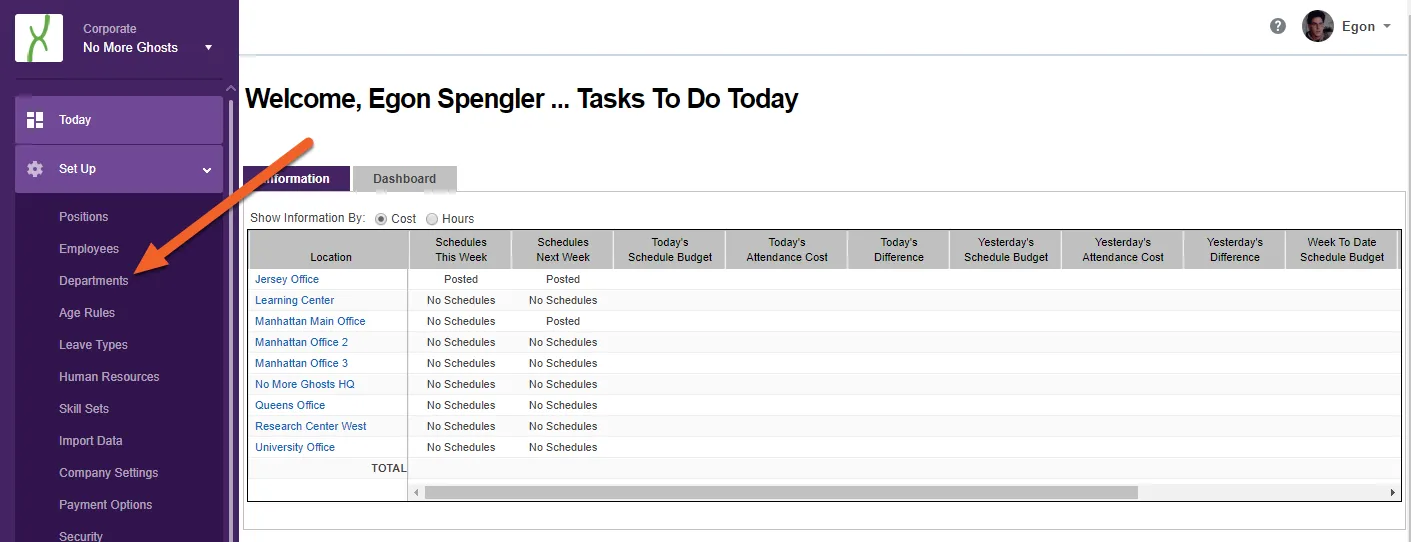
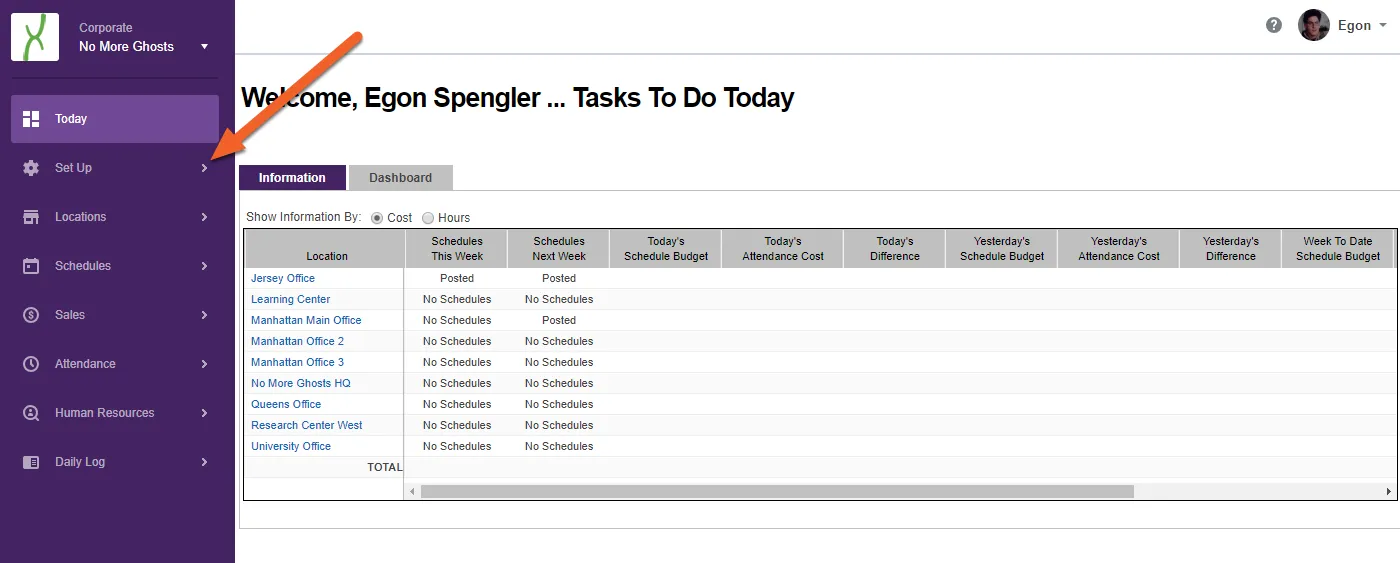
Let’s get started! We’ve logged into TimeForge and are currently viewing the Corporate Today page.

The > next to a tab name means it can be opened to show its contents. For example, let’s open the Set Up tab:

Click on a “tab” to open up a list of sub-pages

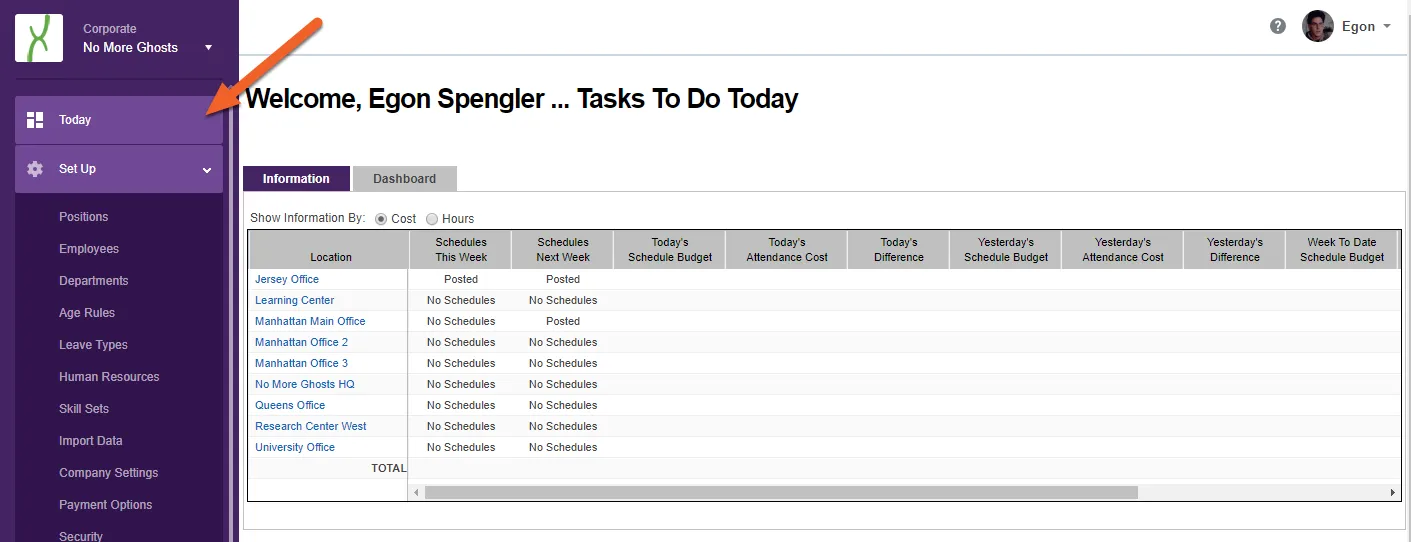
Your current tab will always be highlighted in the list. Any open tabs will also be highlighted. In this example, our current tab is the Today tab, and our open tab is the Set Up tab.

Click on a “tab” to open up a list of sub-pages

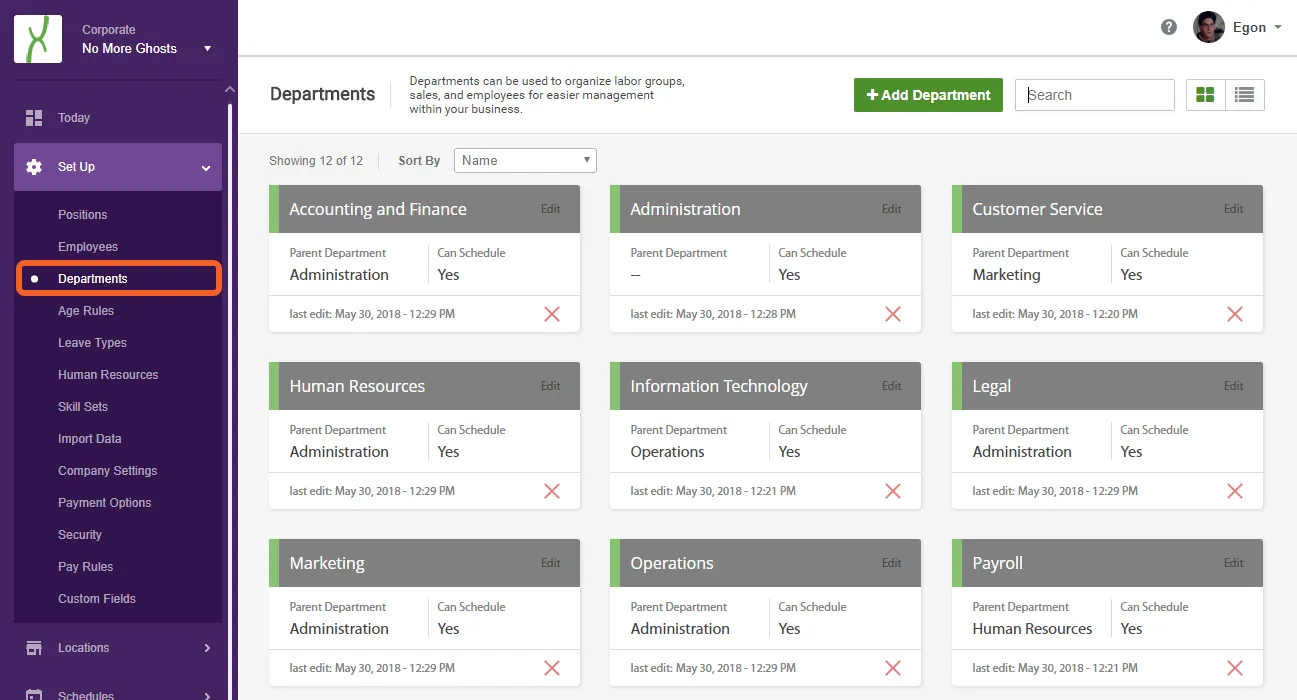
Let’s click on the Departments link under Set Up to view our Departments page:

Click on a page name to view that page

Notice how the current page name has a dot beside it, and the text is bright white. This ensures that you always know what page you’re on in a sub-menu.

Click on a page name to view that page

Hide or expand the left side navigation menu

Section titled “Hide or expand the left side navigation menu”

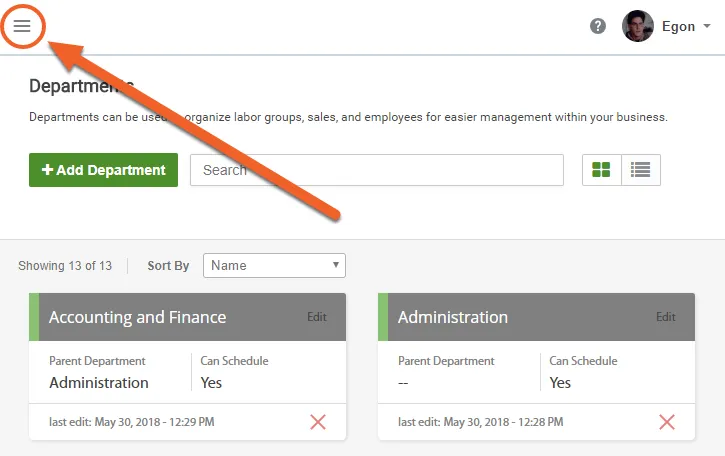
If you’re on a small screen, such as a smartphone or tablet, the left side navigation menu will hide by default but will always be accessible using the three-bar menu.

Hide or expand the left side navigation menu

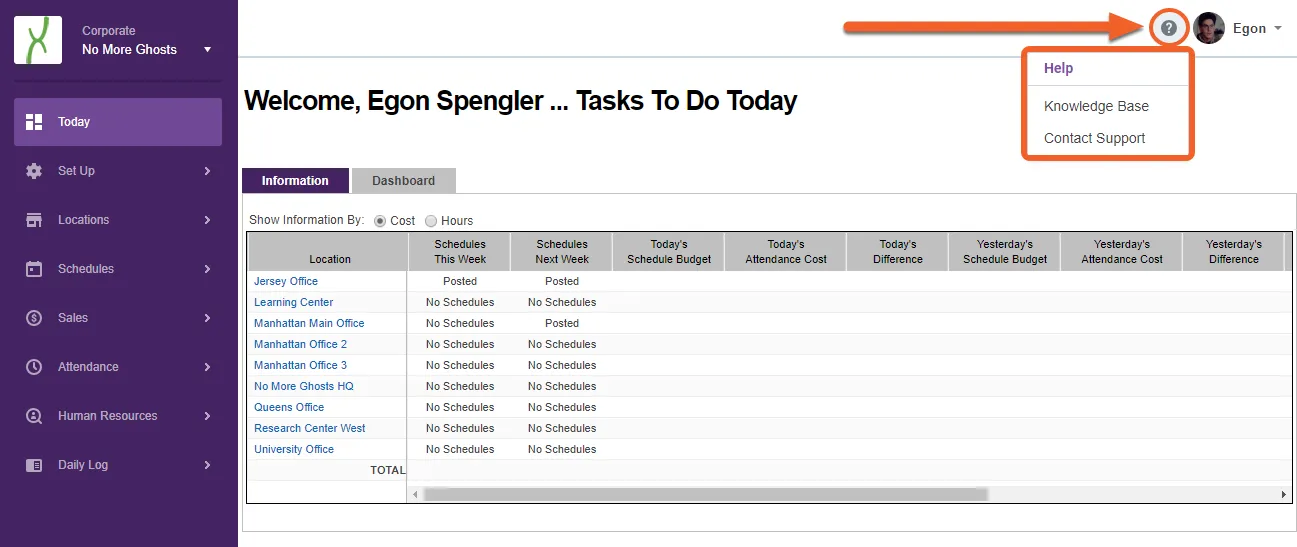
Contact Support will open up a new support ticket. Knowledge Base will open up our new knowledge base, which is where this guide resides.

Click the ? to get help from any page

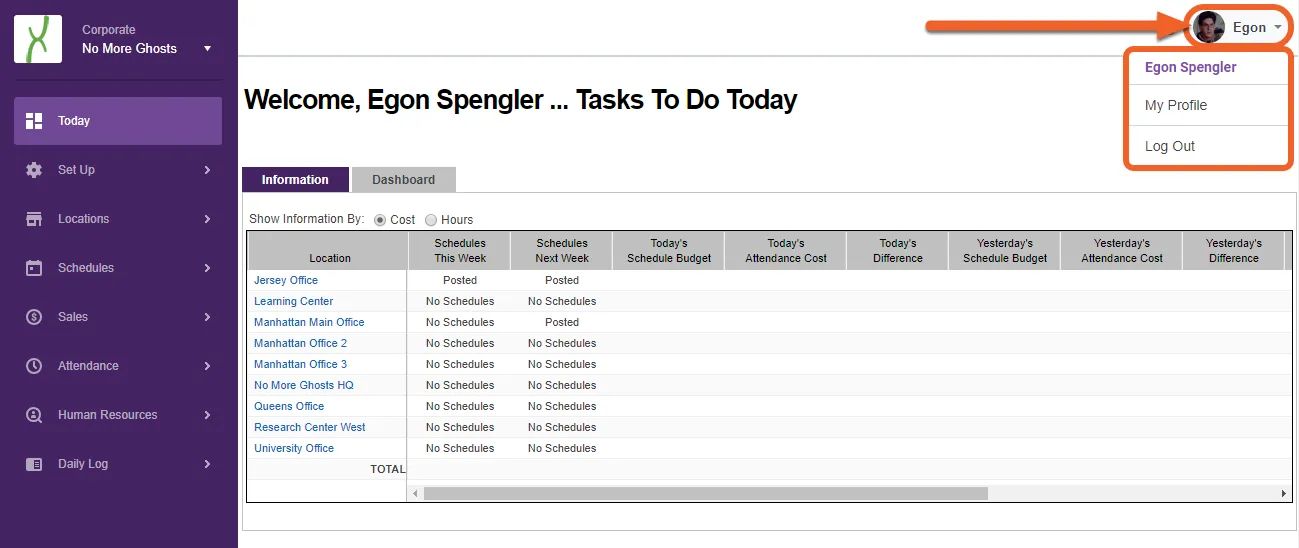
Click your name/picture to open up the profile menu

Section titled “Click your name/picture to open up the profile menu”

Clicking on your name or picture will open up your personal menu. My Profile will take you to your profile page, where you can change your contact info, password, or alerts settings. Log Out will log you out.

Click your name/picture to open up the profile menu

That’s all there is to it!

Enable PTO payout requests

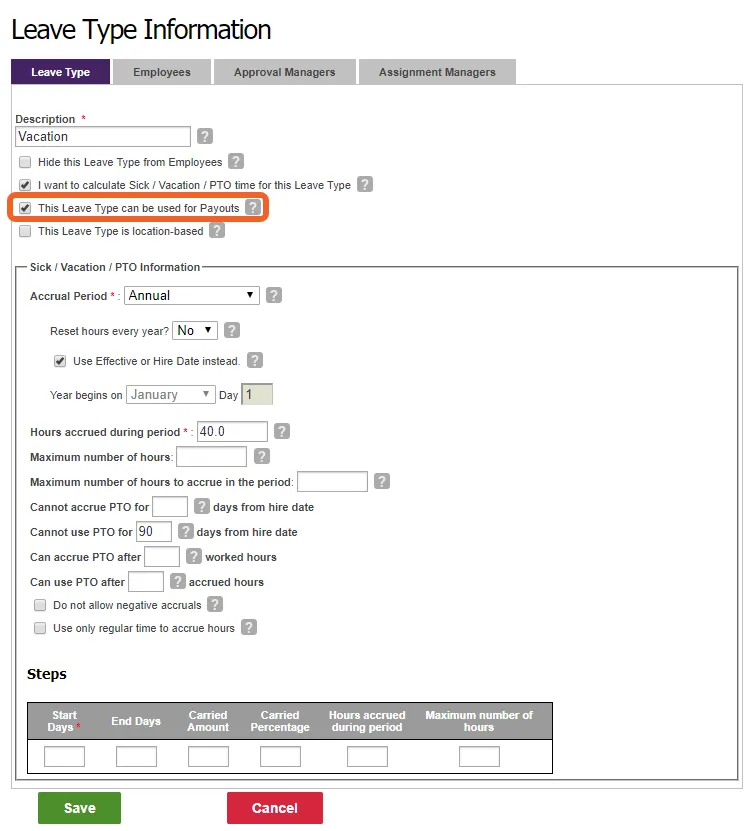
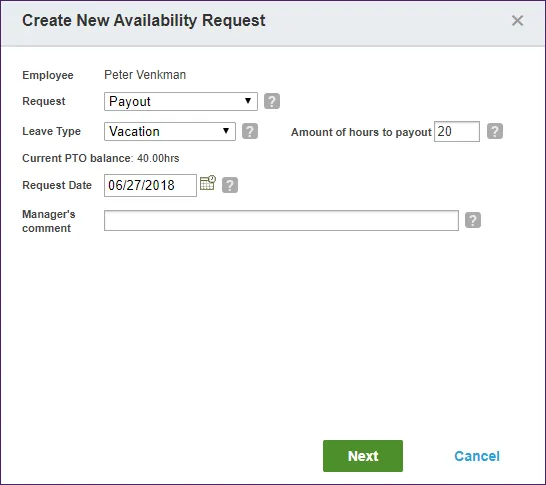
TimeForge now allows you to turn on PTO payouts for Leave Types of your choosing. When turned on for a Leave Type, employees and managers can make requests to “cash out” all or part of their PTO balance for that Leave Type.

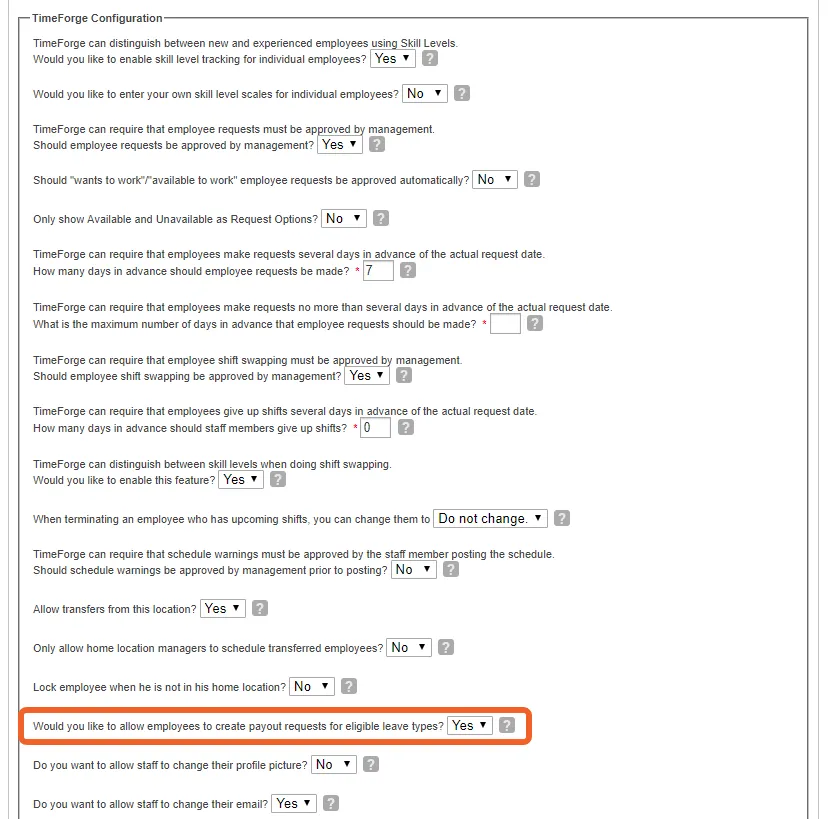
PTO payouts must be enabled on a per-location basis for non-hidden Leave Types in order for employees to make requests and can only be enabled for Leave Types that track accrual. If your company does not allow negative accruals in TimeForge, then the employee must have a positive accrual balance to request a PTO payout.

Allow PTO payouts for a specific type of leave

Section titled “Allow PTO payouts for a specific type of leave”

From the Corporate level, navigate to Leave Types under the Set Up tab, then select the Leave Type you’d like to enable PTO payouts for.

Under the Leave Type options, check the box that reads “This Leave Type can be used for Payouts.” Click Save to save your changes.

This will enable PTO payouts for this Leave Type but only if the employee works at a location for which PTO payouts have been enabled. To enable PTO payouts for your location, proceed to the next step.

Allow PTO payouts for a specific type of leave

To enable PTO payouts for a location, navigate to your Location settings and find the option that reads “Would you like to allow employees to create payout requests for eligible leave types?” Select Yes, then scroll down and click Save to save your changes.

Enable PTO payouts for a location

In order to receive a PTO payout, the employee (or their manager) must make a request under Availability and Requests and select “Payout” as the request type. They need to select the Leave Type to be paid out, as well as the number of hours.

Request a PTO payout

The submitted request will appear on the availability and requests page:

Request a PTO payout

A PTO payout request must be approved by an Approval Manager before the balance can be distributed via payroll. The “used” PTO amount will be reflected on the next payroll export.

Getting to Know Your Dashboard (Today Page)

The new TimeForge dashboard makes it easy to view at-a-glance information, such as upcoming schedules, pending availability requests, clocked-in staff, shift swaps, daily log entries, and reports – all in one location on your Today page!

This guide will give you a brief tour of the new dashboard and its features.

Help me enable the new dashboard!

If you don’t see the link to Use new dashboard, just navigate to your profile:

My Profile | TimeForge - Google Chrome

Select Yes to use the new dashboard, then Save:

My Profile | TimeForge - Google Chrome

That’s all there is to it!

With the new dashboard enabled, your Today page will feature tabs for Personal information, a full-page Calendar with filtering options, and, if you’re a manager, a special Location dashboard.

Welcome to your new Today Page!

As an employee, you can:

  1. Arrange your dashboard how you want. Add, remove, resize, and arrange widgets to suit your needs.
  2. View your calendar to visualize your scheduled shifts for the month.

As a manager, you can:

  1. Arrange your dashboard how you want. Add, remove, resize, and arrange widgets to suit your needs.
  2. Easily view the information you want for your business, and quickly switch to your personal dashboard to view what is important to you, like your messages.

To switch between dashboard tabs, simply click on a tab header at the top of the page! Your current tab will always be highlighted compared to the others.

Switch between dashboard tabs

To add a new widget, click the Add Widget button in the upper right.

Add, remove, or reset widgets

You’ll see all the available widgets. All the ones you’re already using will be grayed out with a checkmark and a Remove button. Hover over any other widget to see a button to add it to your dashboard, then click the Save button in the upper right to save your changes and return to your dashboard.

Add, remove, or reset widgets

To remove a single widget, click the more menu (…) in the upper right corner of that widget, then select Remove. You can always re-add a widget if you change your mind!

Add, remove, or reset widgets

You can reset your dashboard to the default configuration anytime. Simply click the more menu (…) in the upper right and select Reset Dashboard.

Add, remove, or reset widgets

To rearrange, click the top of the widget, then drag and drop.

Rearrange widgets

The following widgets are available to employees using the Personal dashboard:

The following widgets are available to managers through the Location dashboard:

The Calendar tab shows important schedule information.

Calendar

Click the More (…) menu in the upper right for filtering options

Section titled “Click the More (…) menu in the upper right for filtering options”

Click each filter option to toggle it on (checkmark) or off (no checkmark). Options include attendance, schedule, availability and requests, HR types, and daily log entries!

Click the More (…) menu in the upper right for filtering options

Automated Meal and Rest Penalties

California mandates that employees who work a certain number of hours without a rest period or without a meal period are eligible to be paid extra, but there are different thresholds and rules that dictate what counts as a meal or rest penalty, respectively. Fortunately, TimeForge makes it easy to automate the tracking and compensation of both meal and rest penalties.

Note - this isn’t just important for California. Other states have adopted non-standard meal and rest policies too.

This article will show you how to configure TimeForge to automate meal and rest penalties so that your business can remain compliant.

TimeForge can reference breaks rules, exception rules, and pay rules to automatically add regular pay (usually set to 1 hour) to an employee’s time card when they fail to take a scheduled meal period, or if their attended meal period is less than the allowed duration (i.e. 30 minutes). This hour is coded with a meal penalty pay code (not straight time). Similar logic can be applied for rest periods (e.g. 10 minutes) as configured. This functionality does not reference waivers. This functionality is configurable by location or company-wide.

Manual overrides to system-generated meal penalties are possible for managers and supervisors with the appropriate security templates.

The following must be set or enabled in TimeForge:

Let’s start by configuring TimeForge to automatically identify and apply penalties when meal and rest exceptions occur.

If you need assistance getting meal penalties enabled, our support desk is also always ready to help.

Under the location’s Attendance Options, scroll down to Calculations and select Yes to include meal penalties as regular time. This will ensure that employees are compensated for a missed lunch in the form of a regular paid hour.

Timeforge - Google Chrome

Next, scroll down to Exceptions and select Yes to enable meal penalties and rest break penalties.

Selecting Yes will provide configuration options for each. These options should be configured as per your state’s laws regarding missed breaks and meals and the maximum number of penalties that can be applied in a day. Always be sure to consult your legal team for guidance on applicable state and local guidelines or wage orders.

Timeforge - Google Chrome

Just below the Exceptions settings, you’ll see a few additional options for late lunch and no lunch. Make sure these are set correctly, as well:

Timeforge - Google Chrome

All penalties are assessed in real-time and when correctly configured to enforce unpaid break duration on meal periods to 30 minutes, should almost completely eliminate meal penalties due to short meals.

View meal penalties and exceptions under Manage Attendance

Section titled “View meal penalties and exceptions under Manage Attendance”

When a manager or supervisor navigates to Manage Attendance and views an employee’s attendance entry, they can see (near the bottom of the record) whether any exceptions or penalties have been applied to that shift:

Watch ‘Touch base meal penalties’ | Microsoft Stream - Google Chrome

So in this case, two regular hours have been counted toward meal penalties for this employee’s shift.