

New menu layout with side navigation
We’re excited to introduce our fresh new layout! This quick guide will show you how to use the new side menu and top menu features, which are designed to give you more vertical space and make it easier than ever to navigate TimeForge.
The new layout is so intuitive and easy to use, you’ll be an expert in no time.
Using the new side menu
Section titled “Using the new side menu”
Click on a “tab” to open up a list of sub-pages
Section titled “Click on a “tab” to open up a list of sub-pages”Let’s get started! We’ve logged into TimeForge and are currently viewing the Corporate Today page.
The > next to a tab name means it can be opened to show its contents. For example, let’s open the Set Up tab:
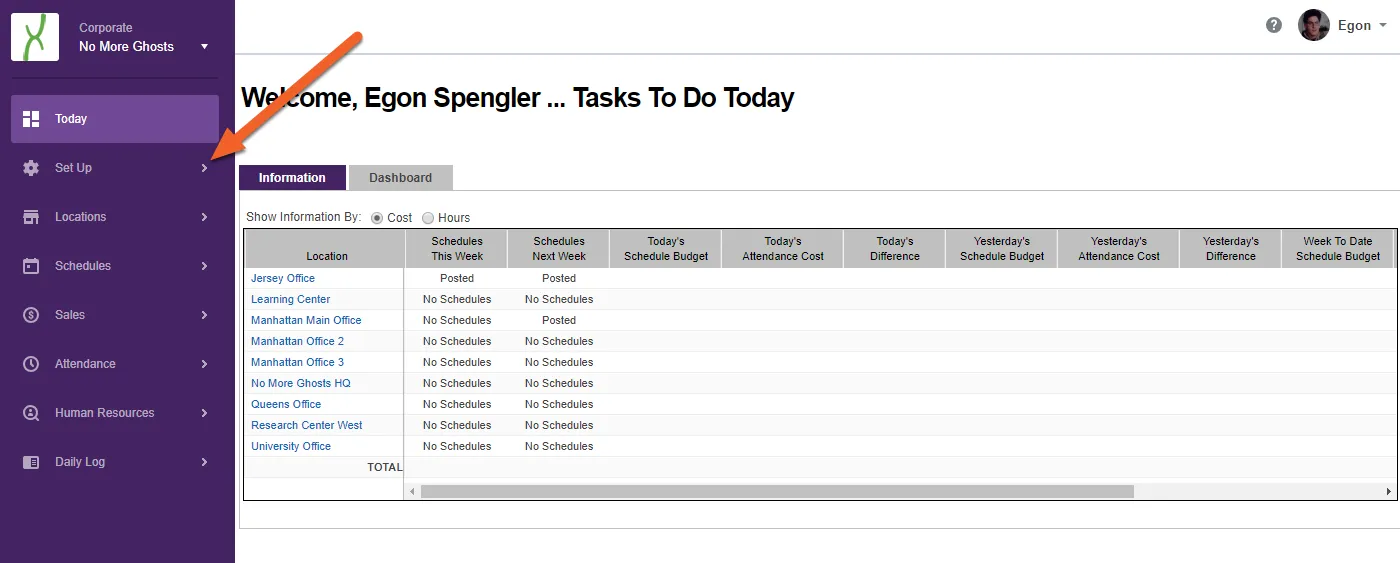
Your current tab will always be highlighted in the list. Any open tabs will also be highlighted. In this example, our current tab is the Today tab, and our open tab is the Set Up tab.
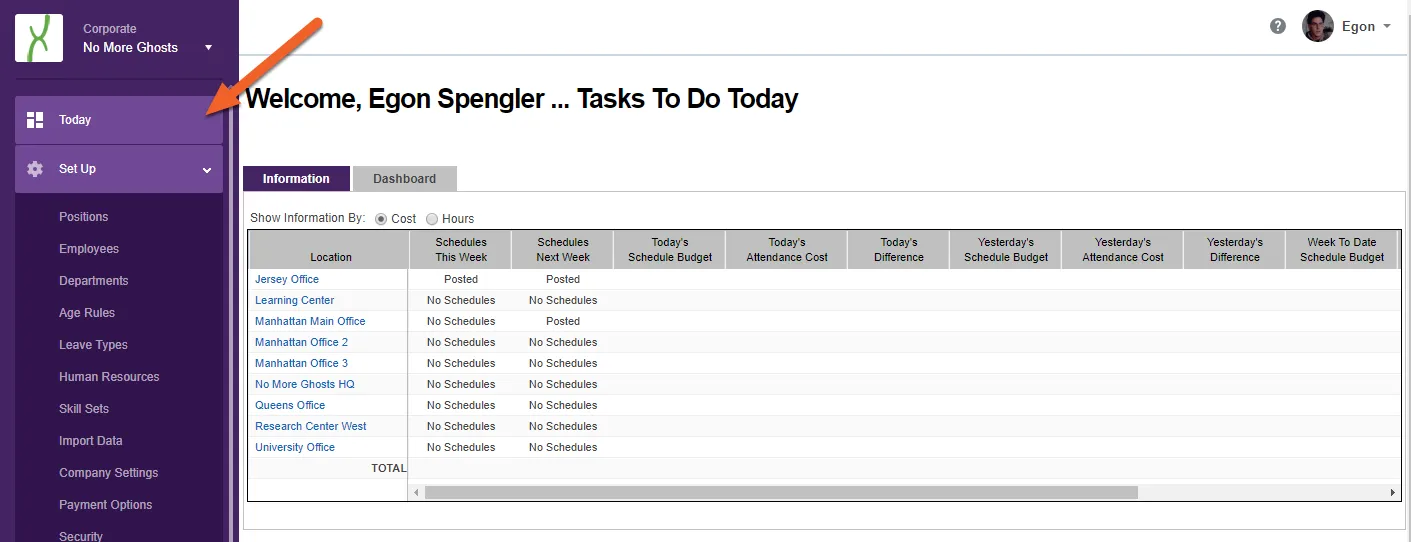
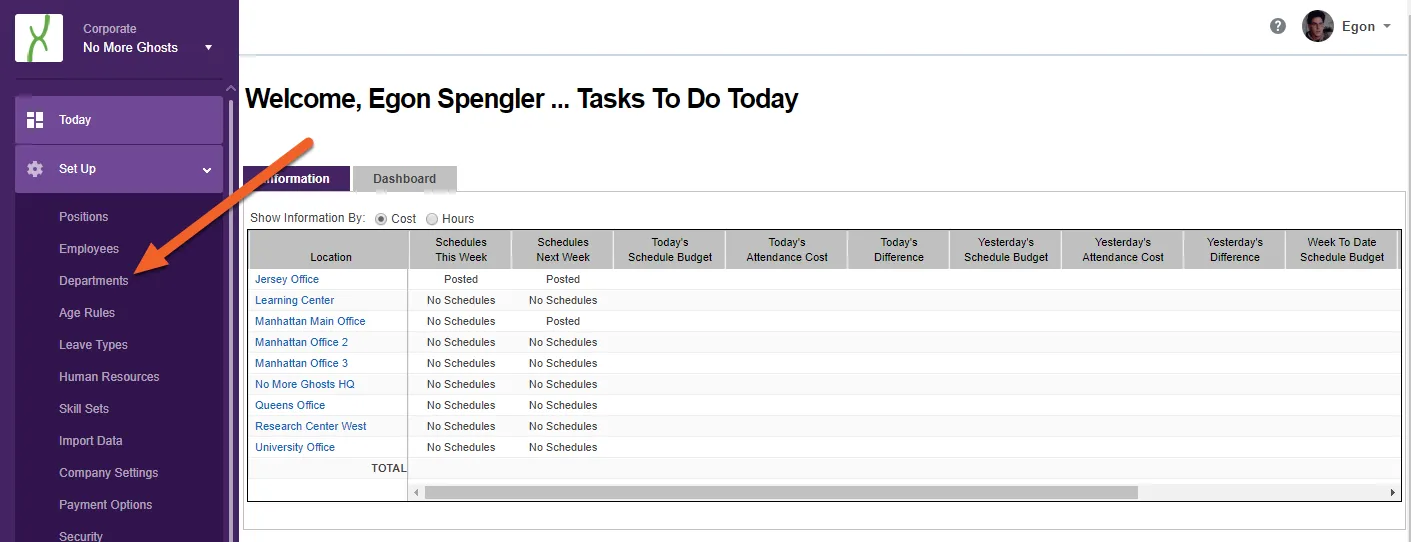
Click on a page name to view that page
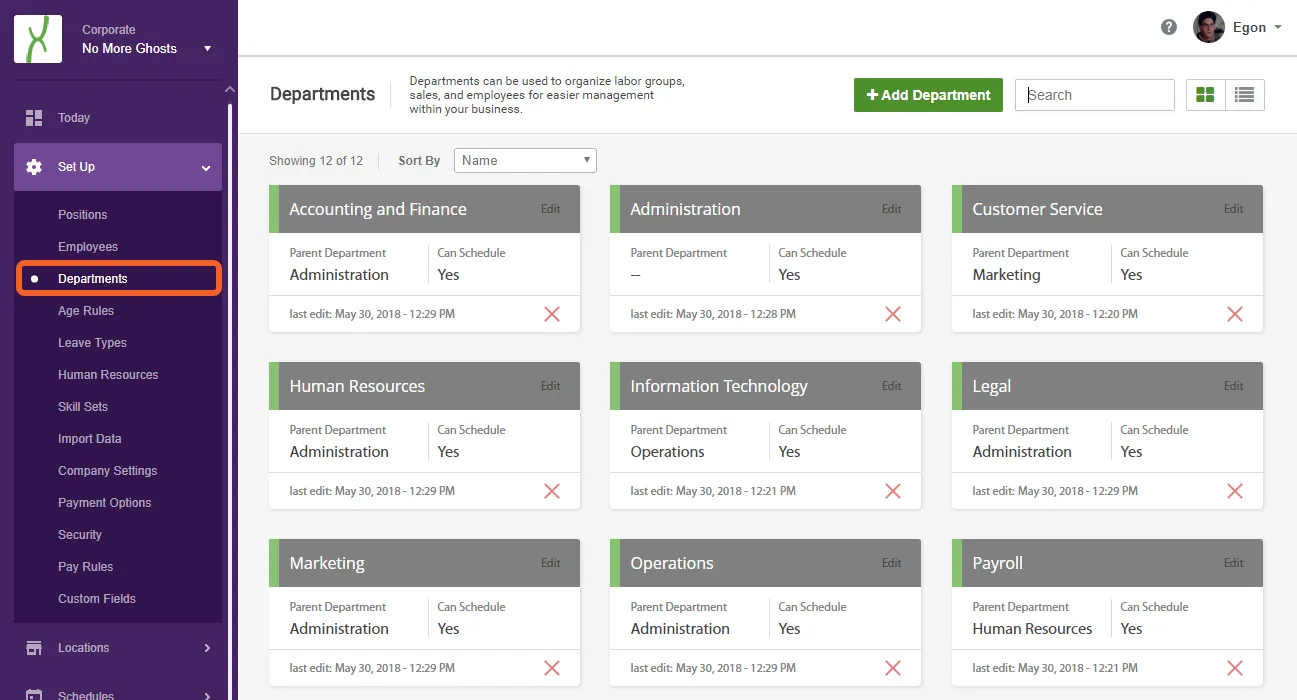
Section titled “Click on a page name to view that page”Let’s click on the Departments link under Set Up to view our Departments page:
Notice how the current page name has a dot beside it, and the text is bright white. This ensures that you always know what page you’re on in a sub-menu.
Hide or expand the left side navigation menu
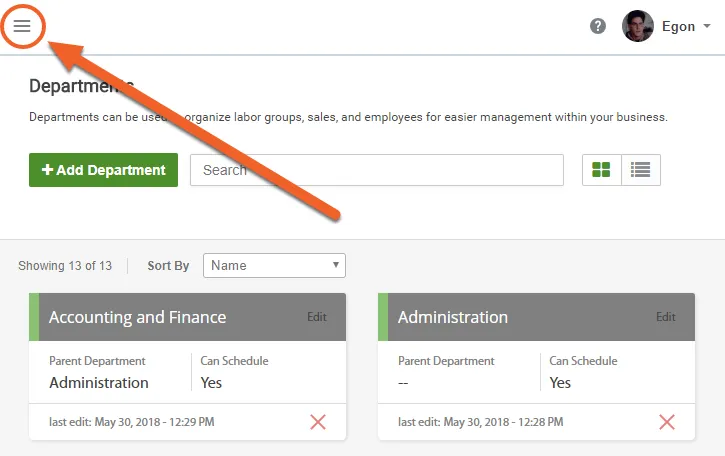
Section titled “Hide or expand the left side navigation menu”If you’re on a small screen, such as a smartphone or tablet, the left side navigation menu will hide by default but will always be accessible using the three-bar menu.
Using the top menu
Section titled “Using the top menu”
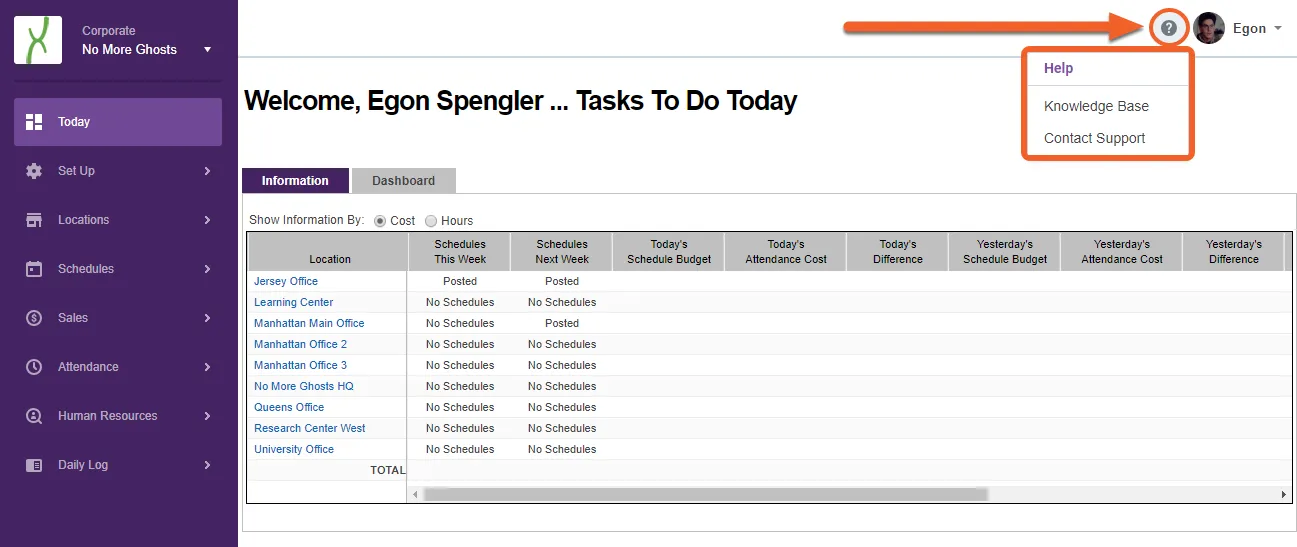
Click the ? to get help from any page
Section titled “Click the ? to get help from any page”Contact Support will open up a new support ticket. Knowledge Base will open up our new knowledge base, which is where this guide resides.
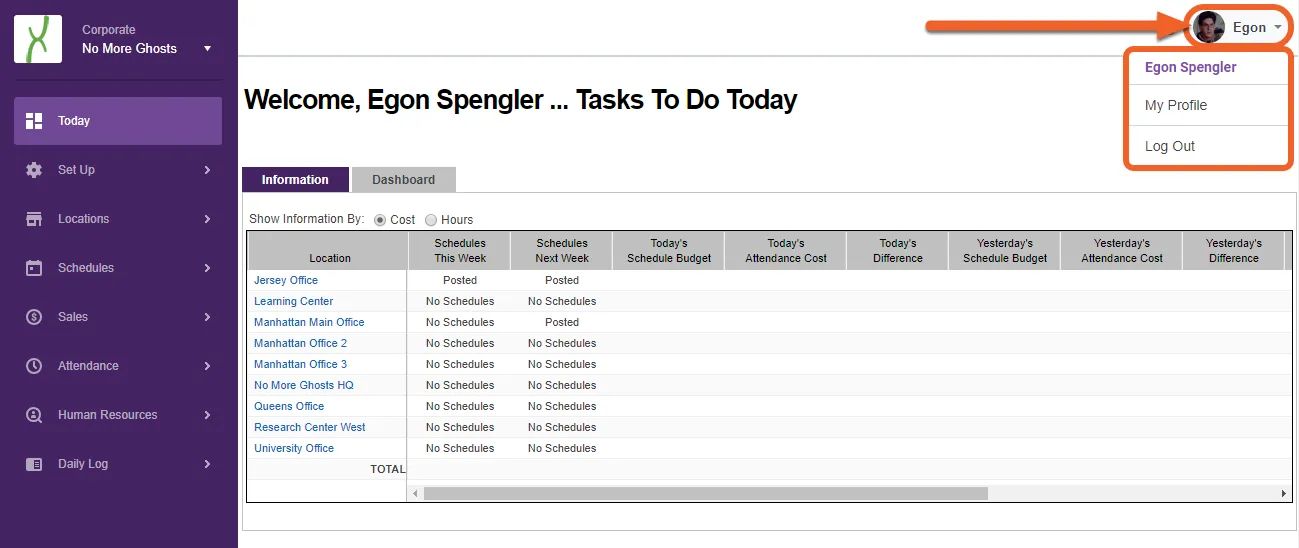
Click your name/picture to open up the profile menu
Section titled “Click your name/picture to open up the profile menu”Clicking on your name or picture will open up your personal menu. My Profile will take you to your profile page, where you can change your contact info, password, or alerts settings. Log Out will log you out.
That’s all there is to it!