Change your payment method
At TimeForge, we truly appreciate the relationships we have with our customers. Thank you for your continued patronage, and please feel free to contact us if you ever have any questions, need any new features, or just want to talk about how cool TimeForge is!
Follow the steps below to change your payment method.
Go to the Corporate level
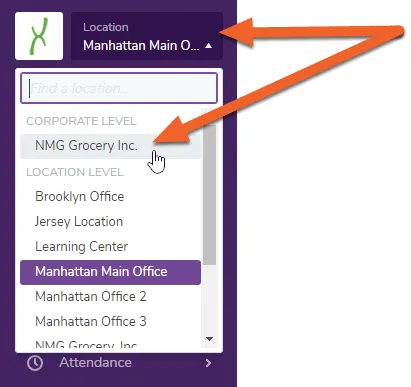
Section titled “Go to the Corporate level”If you have more than one location, you’ll need to switch to the Corporate level. Simply click on the drop down arrow in the top left corner of the screen, then click on the name of your business at the top, under the “Corporate Level” heading.
Navigate to Payment Options under the Set Up tab
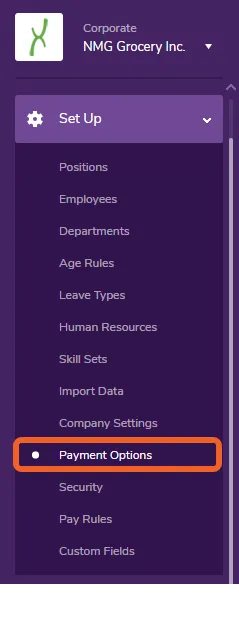
Section titled “Navigate to Payment Options under the Set Up tab”Open the Set Up tab, then select Payment Options from the sub-menu.
First Time Setup Only
Section titled “First Time Setup Only”
Choose your plan
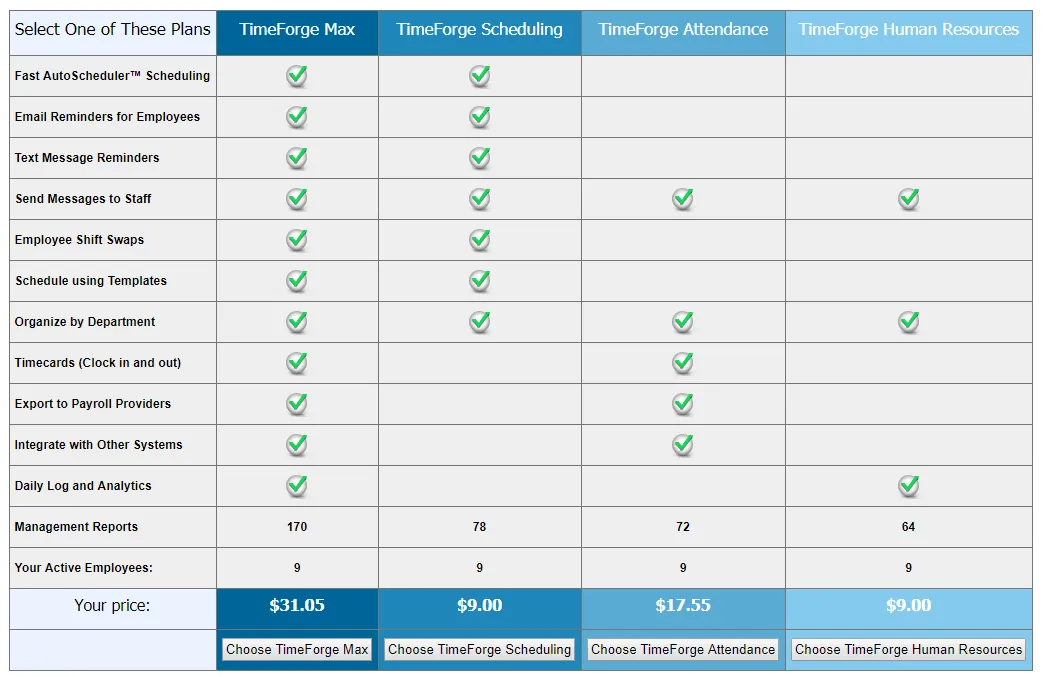
Section titled “Choose your plan”If this is your first time entering a payment method, you will be prompted to select a plan. Choose one of the available options to continue.
Fill our your credit card information
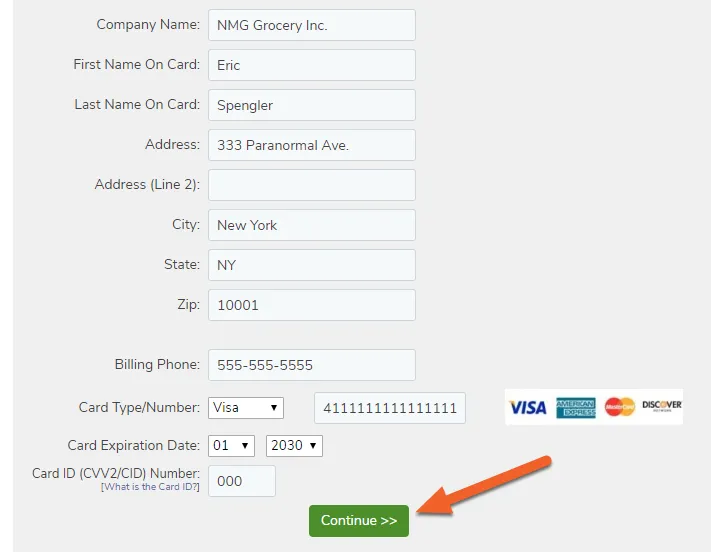
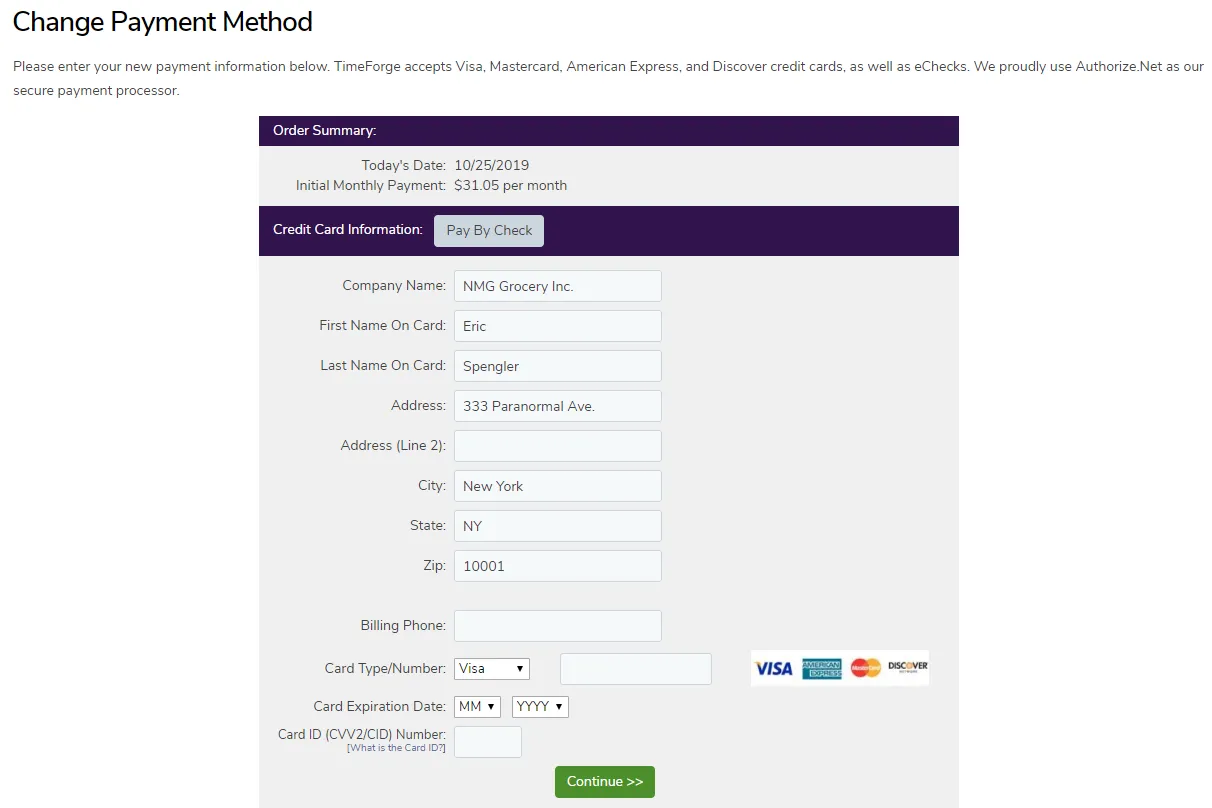
Section titled “Fill our your credit card information”The form will automatically fill in your company name and address if you’ve already provided these under your Company settings. Otherwise, you can enter this information now or make changes to what’s there.
Enter your payment information, then click Continue >> to apply your changes.
Updating your Payment Method
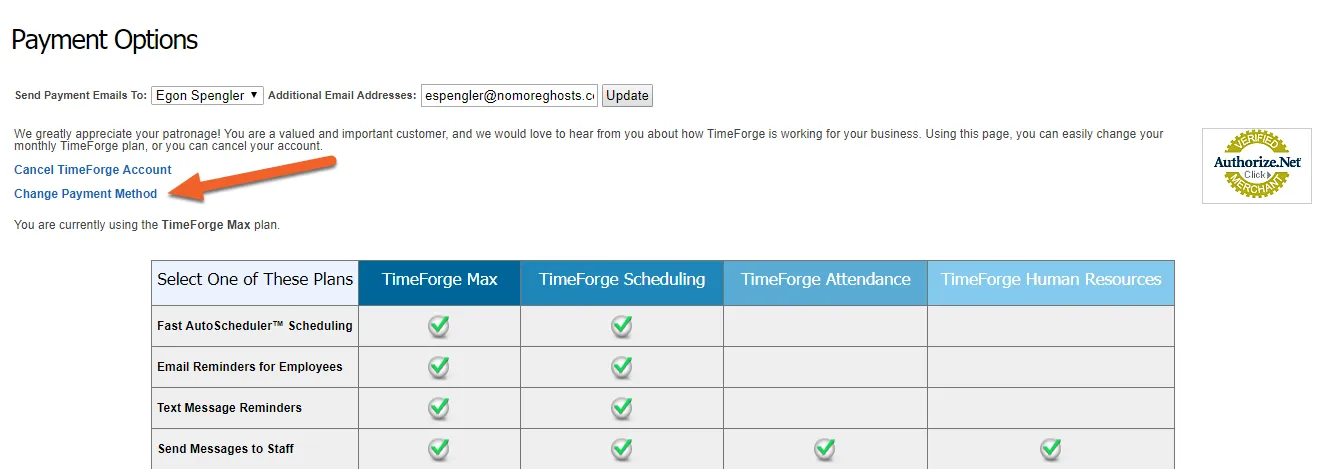
Section titled “Updating your Payment Method”Just need to update your credit card information? No problem! Click the Change Payment Method link in the top left corner of the screen, then enter your credit card information.
Be sure to click Continue >> to apply your changes.