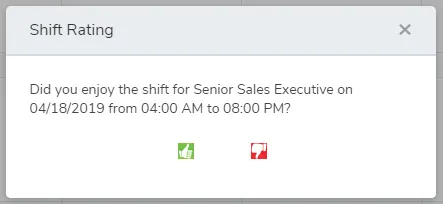
What are shift satisfactions?
Shift satisfactions are “thumbs up” and “thumbs down” rankings for shifts! To track shift satisfactions in TimeForge, you’ll first need to enable the rate/rank feature.
Enable the “rate/rank” feature to track shift satisfactions.
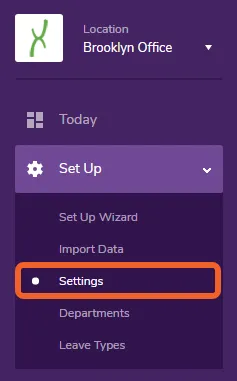
Section titled “Enable the “rate/rank” feature to track shift satisfactions.”From the Location level, open the Set Up tab and select Settings.
Scroll down to the option that reads ‘Do you want to enable staff members to rate/rank their shifts?’
Section titled “Scroll down to the option that reads ‘Do you want to enable staff members to rate/rank their shifts?’”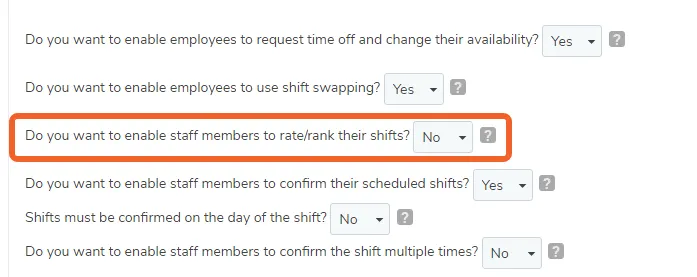
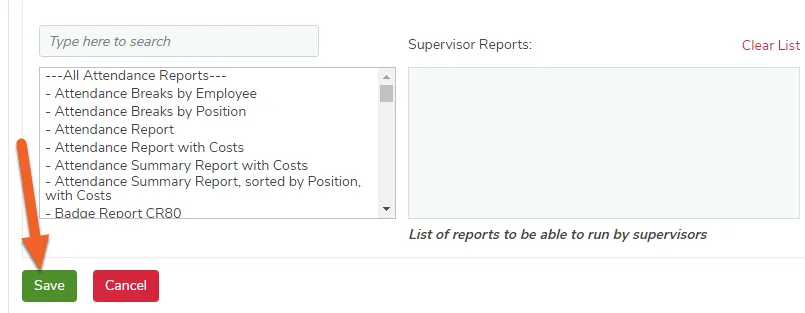
Select Yes, then scroll down and Save your changes
Section titled “Select Yes, then scroll down and Save your changes”
Let your employees know they can now rate/rank their shifts!
Section titled “Let your employees know they can now rate/rank their shifts!”If this feature is enabled, after employees have worked a shift, a Rate link will appear on the shift on their Today page calendar / monthly schedule.
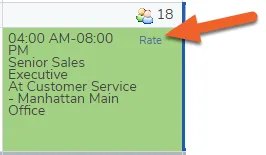
The rankings are “thumbs up” and “thumbs down”
Section titled “The rankings are “thumbs up” and “thumbs down””Employees can click the appropriate icon, depending on how the shift went. This allows management to view trends in shift satisfaction, to identify potential problems, or give due praise!