TimeForge Guides

Login and Password Help

Log into TimeForge

TimeForge makes managers’ lives easier by providing simple solutions to the difficult aspects of labor management. For employees, this also means painless access to work schedules, time cards, and other great features.

TimeForge is easy to use, and whether you’re a manager or an employee, logging into your account only takes a couple clicks!

To log in on the web, point your favorite browser to https://timeforge.com.

In the upper right, you’ll see a link that reads, “Log into TimeForge.” Click this link to be taken to the TimeForge login page.

Enter your username and password, then hit enter

Section titled “Enter your username and password, then hit enter”

Enter your TimeForge Username and Password, then either click the Log In button or simply press enter on your keyboard. It’s as easy as 1-2-3.
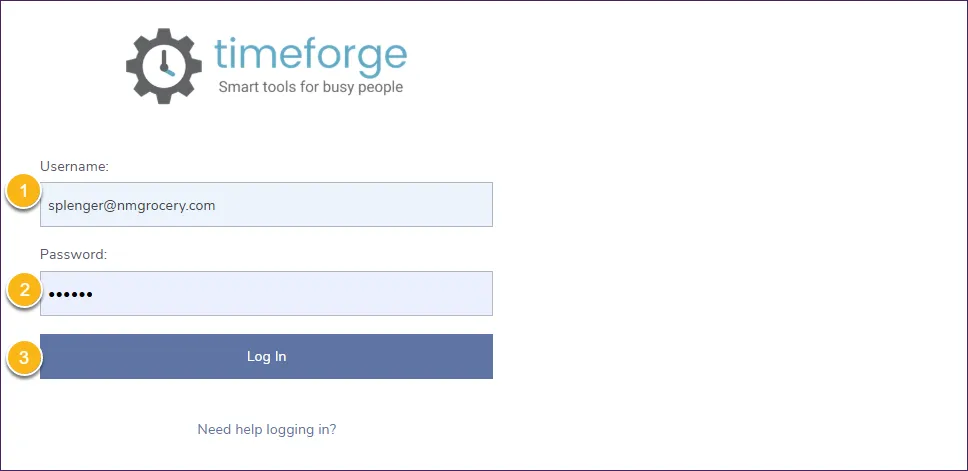
Enter your username and password, then hit enter

Enjoy how easy TimeForge makes labor management!

Section titled “Enjoy how easy TimeForge makes labor management!”

That’s it! You’re now in TimeForge. If you’re a manager, you can begin creating schedules or tracking attendance, or doing whatever else you need to do to ensure your company operates efficiently.
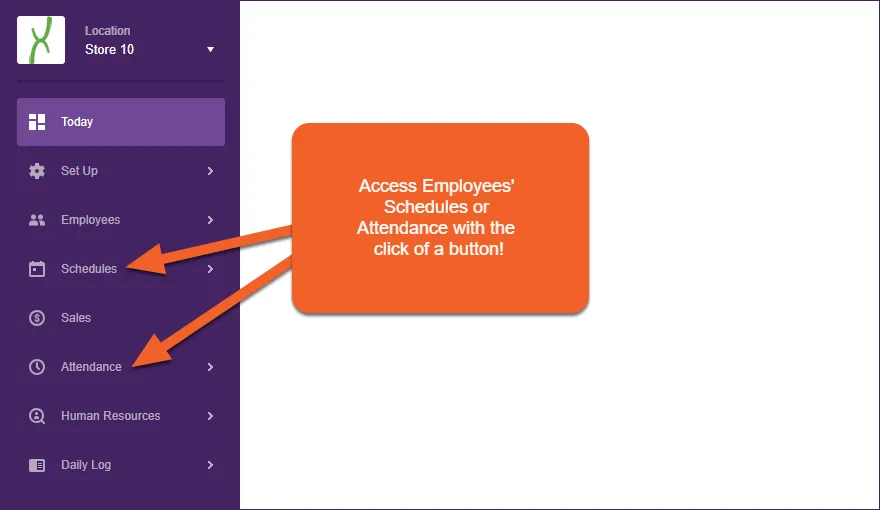
Enjoy how easy TimeForge makes labor management!

No problem! If you’re an employee, your username is most likely your email address, but your manager may have set you up with a custom username. If you’re not sure, check with your manager first.

If you need help, contact your manager or reach out to our friendly Support Team.
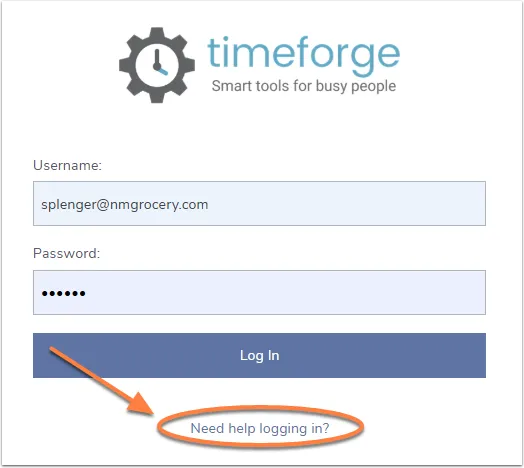
Reset your password when you can't log in

TimeForge has a quick and easy password reset utility that allows you to reset your password anytime as long as you have an email address associated with your account. This method replaces the old password reset option that required employees to remember a secret question and answer.

Section titled “From the login page, click the “Need help logging in?” link”

Navigate to the login page, then click the link directly under the Log In button to begin.

From the login page, click the “Need help logging in?” link

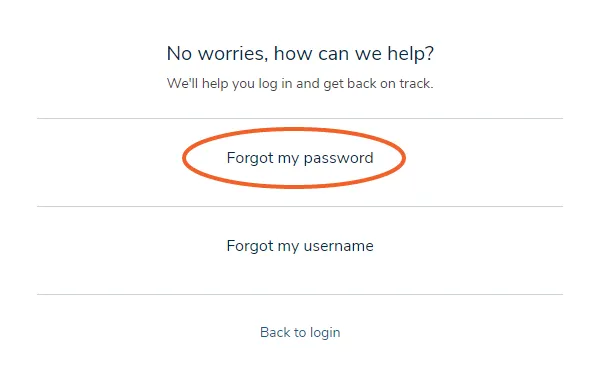
Click ‘Forgot my password’

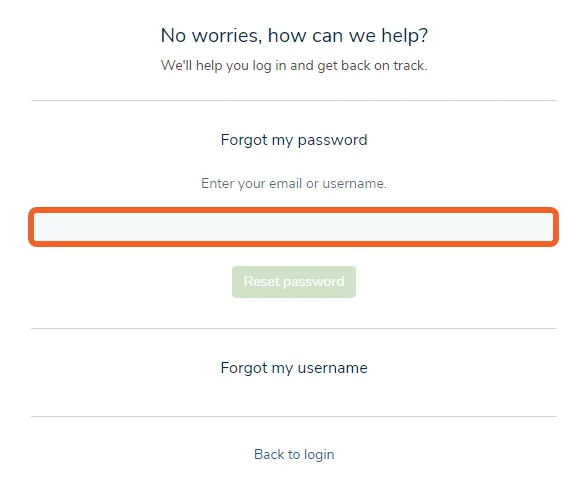
Enter your email or username

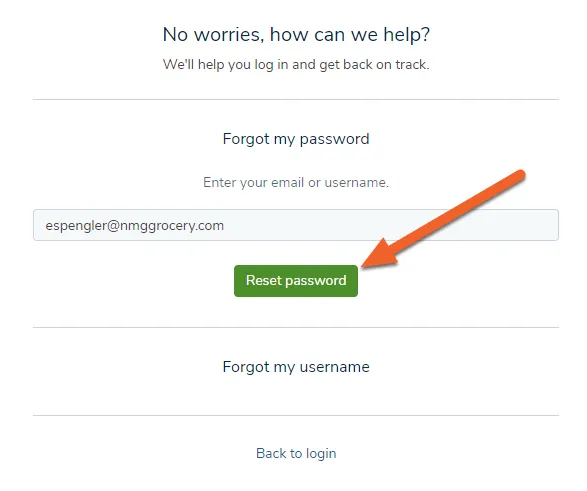
Click the ‘Reset password’ button

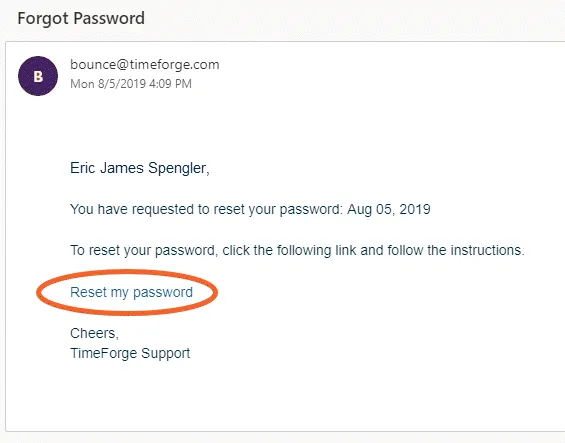
An email with a reset password link will be sent to the email address associated with your TimeForge account. Follow the instructions to reset your password.

Click the ‘Reset password’ button

Once you’ve reset your password, you’ll be taken back to the login page. Use your new password to log in!

Reset your password from your profile page

You can reset your password anytime from your Profile page in TimeForge. This guide will show you how.

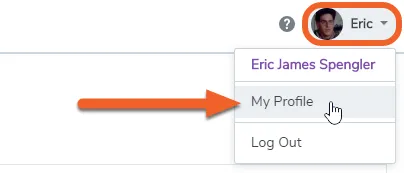
While logged in, click on your name in the upper right corner of the screen, then select My Profile.

Navigate to your personal profile

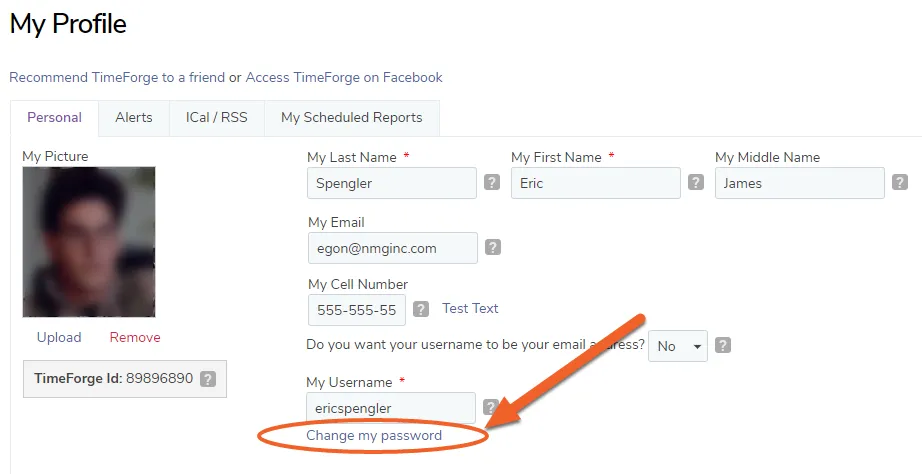
You’ll find the link near the middle of your profile.

Click the “Change my password” link

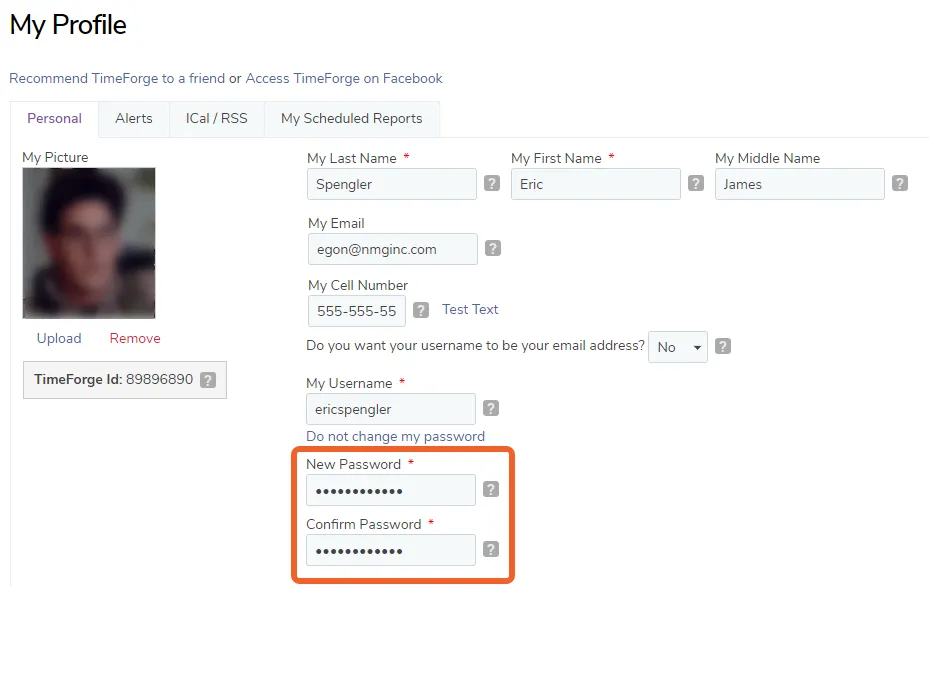
In the text fields that appear, enter and confirm your new password.

Enter your new password twice

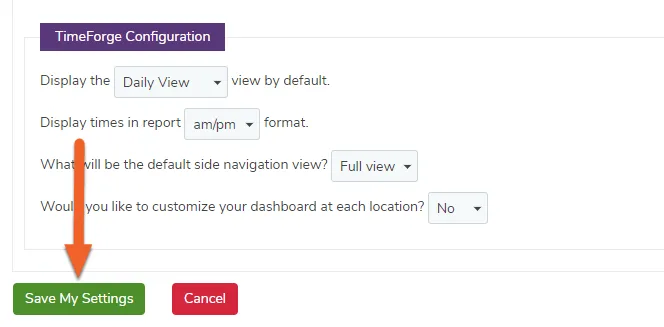
Click the save button to save your new password

Section titled “Click the save button to save your new password”

Click the save button to save your new password

The system will inform you if your settings are saved successfully.

Set up a secret question and answer

A secret question and answer allows you to reset your password anytime, which is super handy if you ever lose or forget it. To set up your secret question and answer, head on over to your Profile page in TimeForge.

While logged in, click on your name in the upper right corner of the screen, then select My Profile.

Navigate to your personal profile

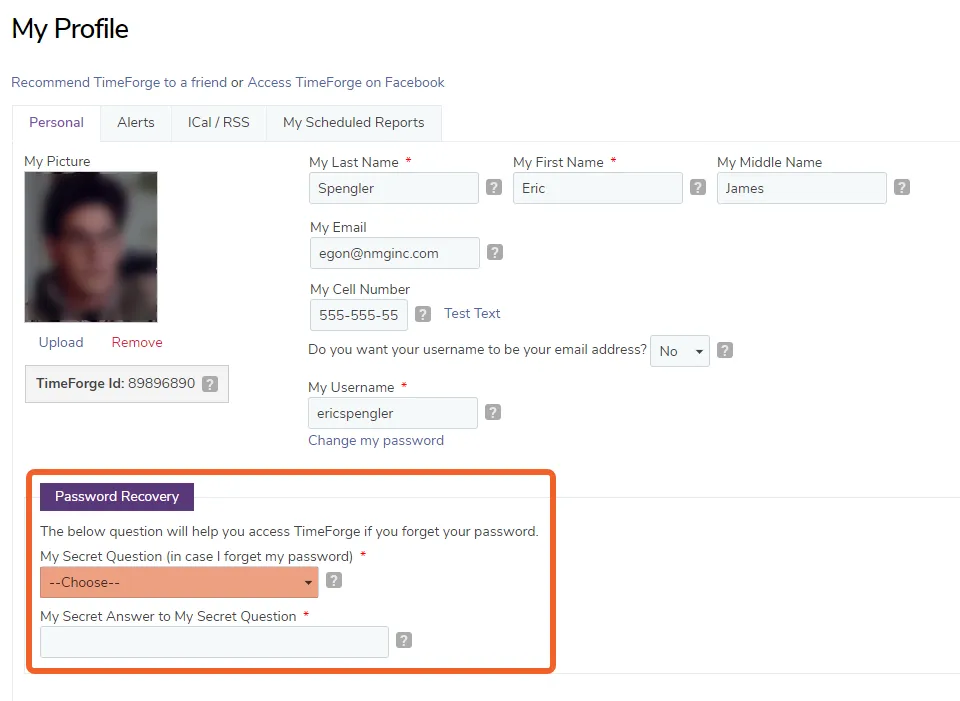
Under Password Recovery, select a secret question

Section titled “Under Password Recovery, select a secret question”

Under Password Recovery, select a secret question

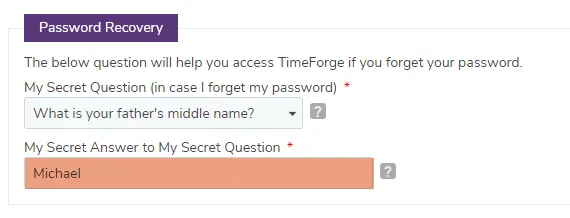
Enter your secret answer

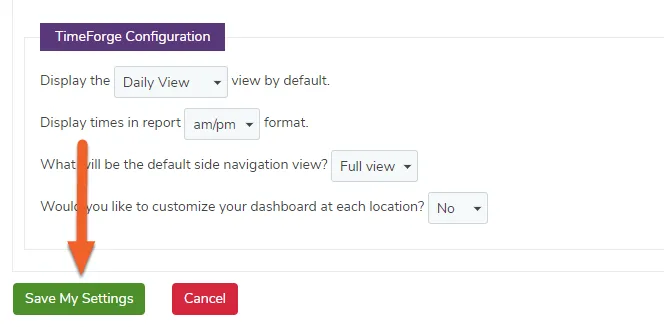
Click the save button to save your new secret question and answer

Section titled “Click the save button to save your new secret question and answer”

Click the save button to save your new secret question and answer

The system will inform you if your settings are saved successfully.