

How to start your free trial
Follow the steps below to create a new account and start using TimeForge right away. It’s free for 30 days, with no contracts and no credit card required.
Choose “I run the business”
Section titled “Choose “I run the business””To start your free trial, you’ll want to sign up as an admin, not as an employee! Make sure to select the tile that says “I run the business”:

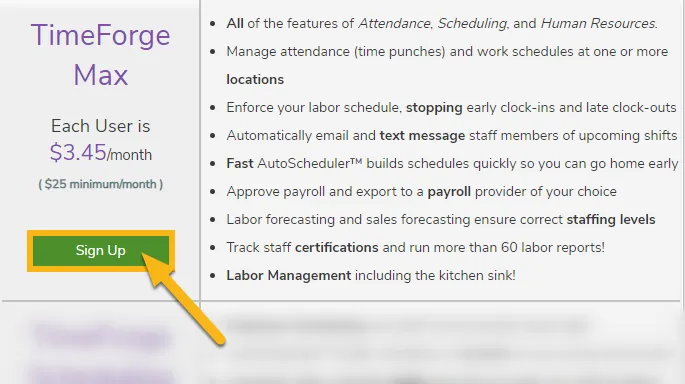
Select the “TimeForge Max” plan
Section titled “Select the “TimeForge Max” plan”Next, you’ll need to select a plan. To make sure you have access to all the scheduling and attendance features, select the Max plan. We don’t require a credit card, so there’s no risk to you. If you decide to stick with TimeForge, we’re happy to find a price point and feature set that works best for your business.
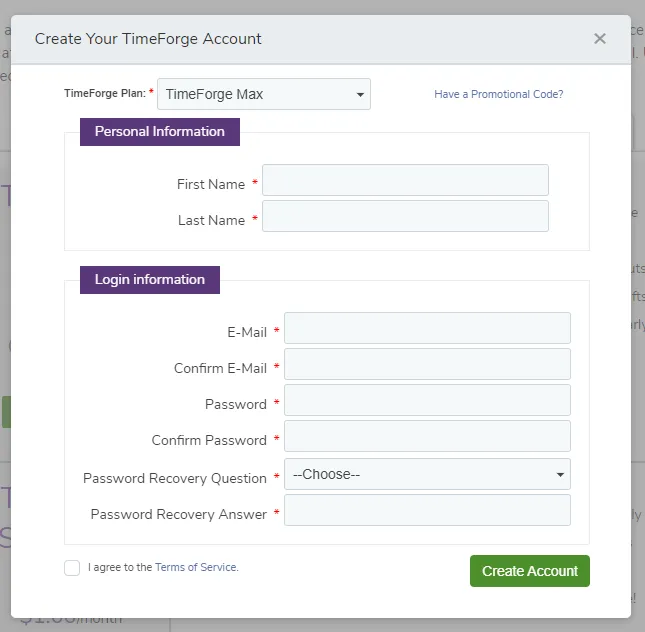
Create your TimeForge Account
Section titled “Create your TimeForge Account”Fill out the form to create your account and login information.
Set up your account
Section titled “Set up your account”You’re in! It’s time to set up your account. There are 3 simple things you’ll need to do:
- Provide some basic information about your company
- Enter in some positions
- Add some employees
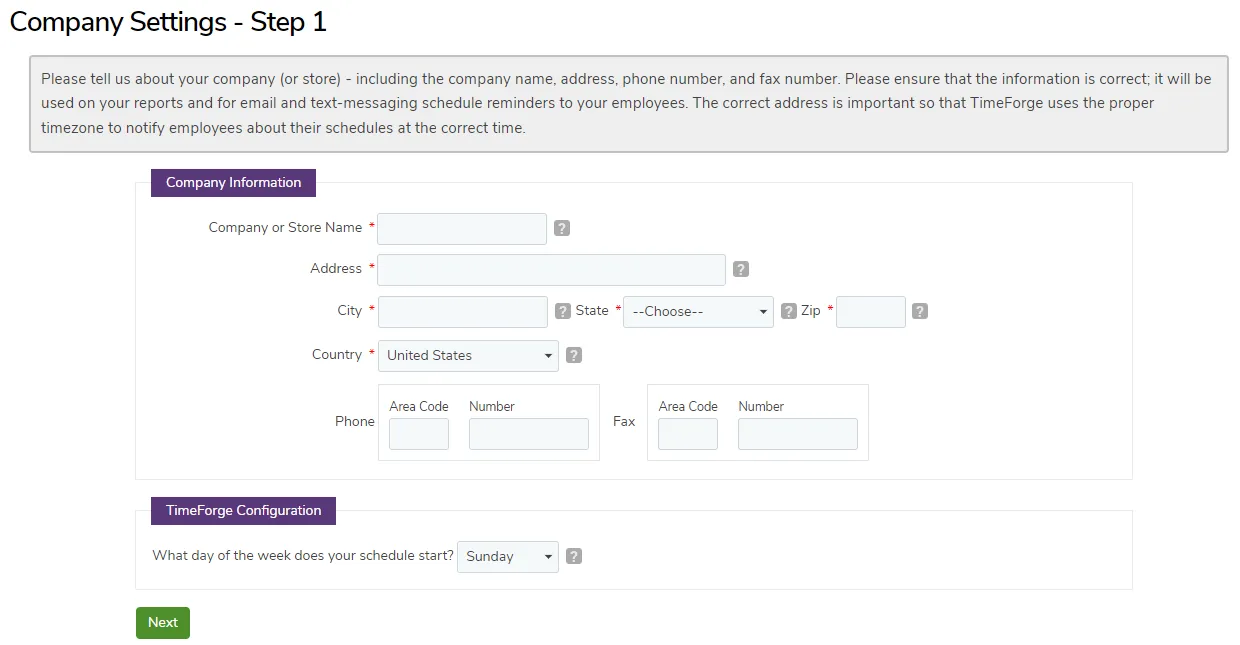
Add your company details
Section titled “Add your company details”Required fields are marked with a red asterisk(*).
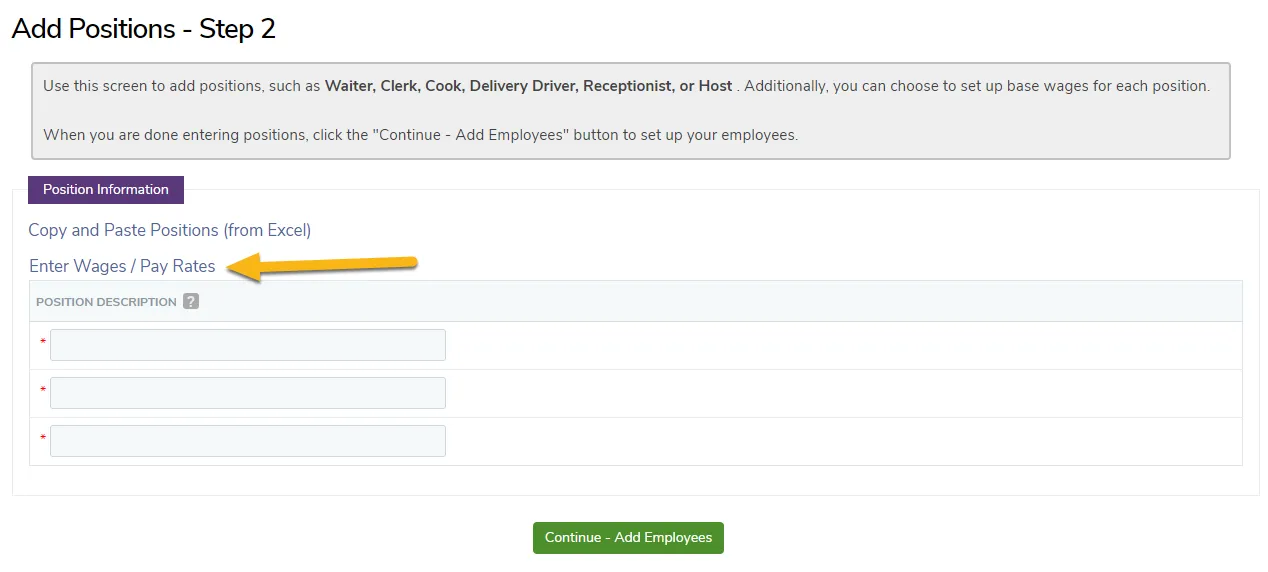
Add positions (and, optionally, wages for each)
Section titled “Add positions (and, optionally, wages for each)”Next, enter in a few positions you want to track. If you’d like, you can click “Enter Wages / Pay Rates” to add pay information, including amount and frequency.
Add some employees
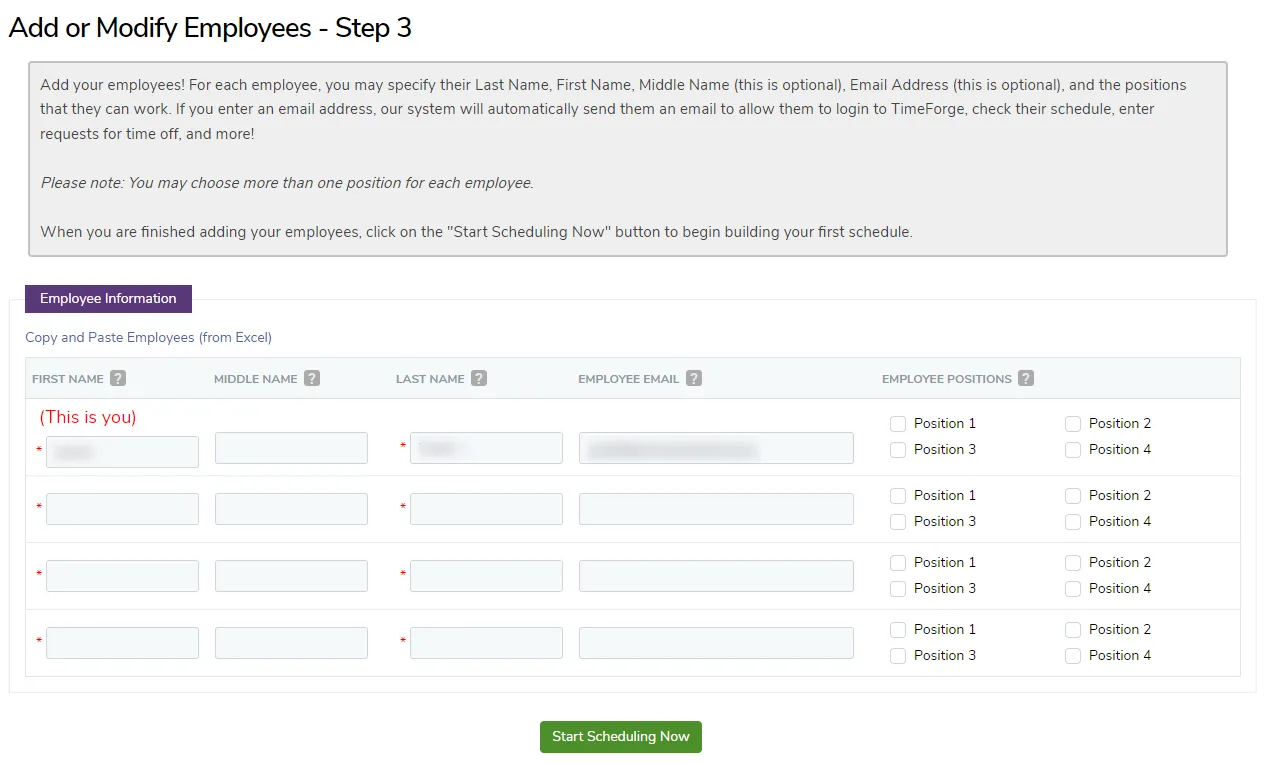
Section titled “Add some employees”You’re almost done! Add some employees and indicate which positions they will work. The first row will be you.
You don’t have to enter email addresses for your employees right now, but we do recommend that you have their email address on file so that they can recover their password if they lose it.
Start scheduling!
Section titled “Start scheduling!”Once you click “Start Scheduling Now,” you’ll be able to create your first schedule! Congratulations!
If you need help creating your first schedule, we recommend this guide to scheduling in TimeForge.
How to restart the setup process
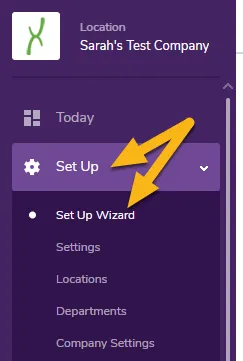
Section titled “How to restart the setup process”If you need to re-do anything, you can restart the setup process by clicking Set Up -> Set Up Wizard in the side menu:
How to get help if you need it
Section titled “How to get help if you need it”You can find all of our helpful guides for managers here. These guides contain everything you need to know to track and manage attendance, use the ShiftBuilder, track time off requests, and much, much more.
If you ever get stuck, you can send us a message using the help button in the lower right corner of the app:

You can also email us at support@timeforge.com. Thanks again for trying TimeForge!