Change your payment method
At TimeForge, we truly appreciate the relationships we have with our customers. Thank you for your continued patronage, and please feel free to contact us if you ever have any questions, need any new features, or just want to talk about how cool TimeForge is!
Follow the steps below to change your payment method.
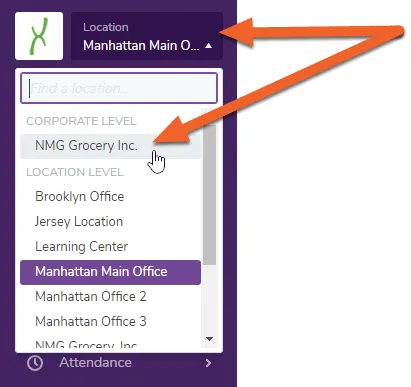
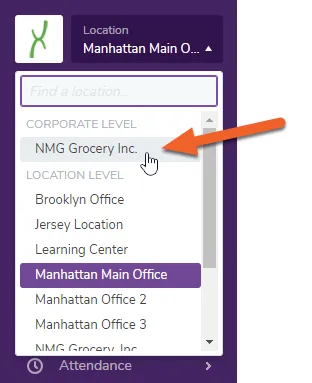
If you have more than one location, you’ll need to switch to the Corporate level. Simply click on the drop down arrow in the top left corner of the screen, then click on the name of your business at the top, under the “Corporate Level” heading.
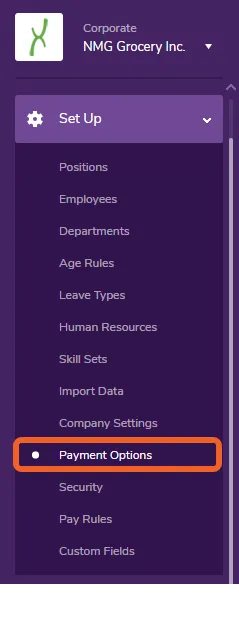
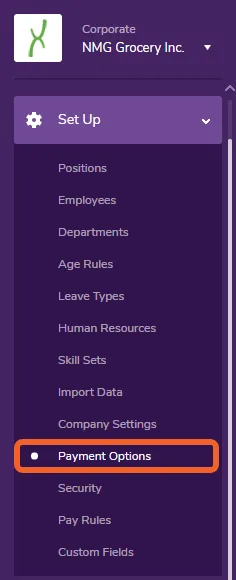
Open the Set Up tab, then select Payment Options from the sub-menu.
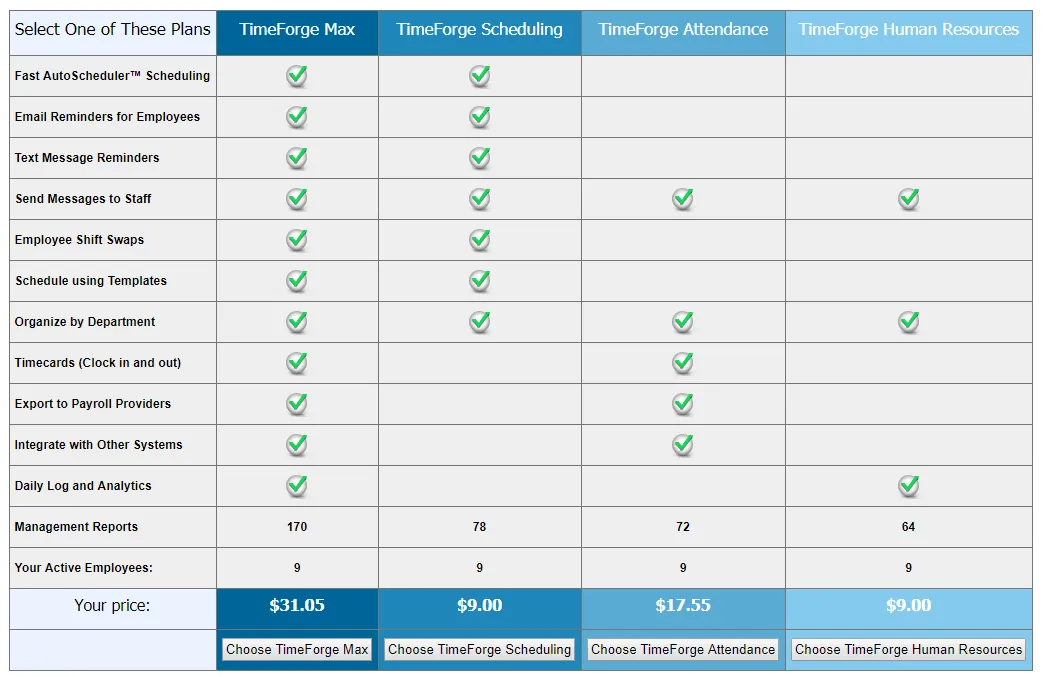
If this is your first time entering a payment method, you will be prompted to select a plan. Choose one of the available options to continue.
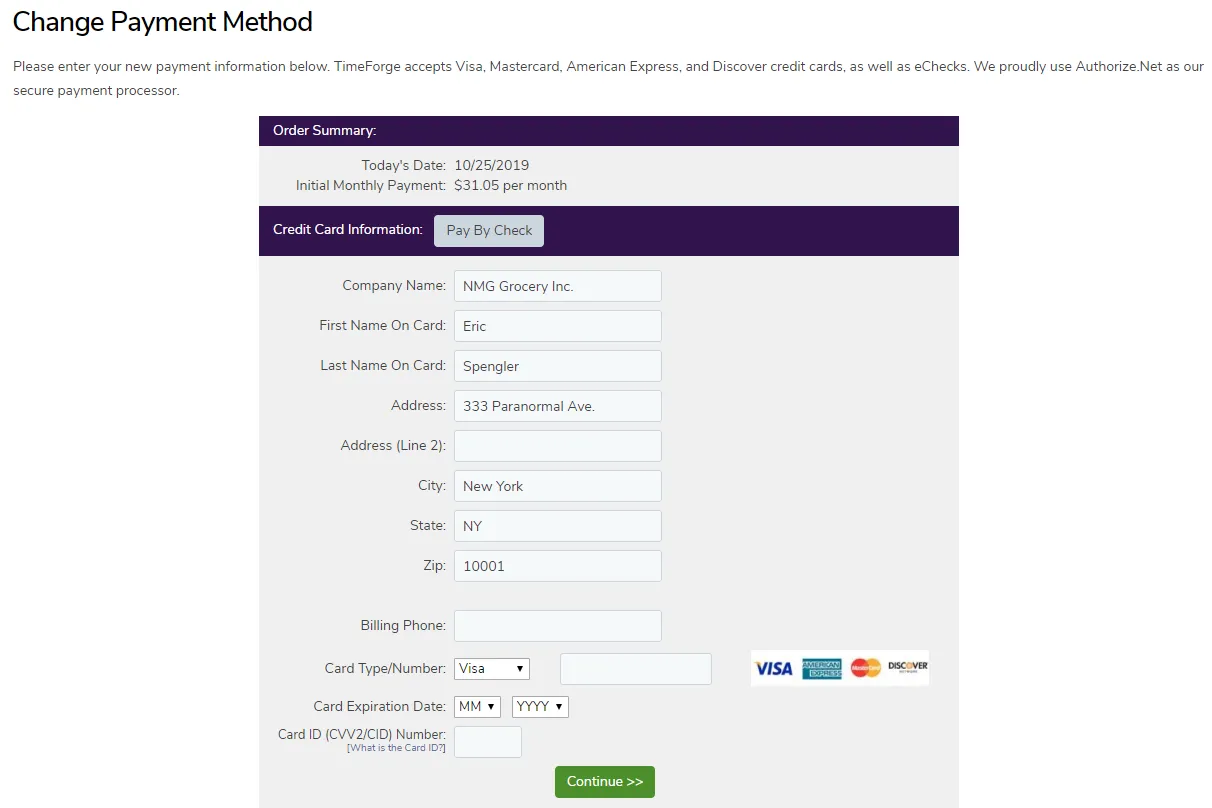
The form will automatically fill in your company name and address if you’ve already provided these under your Company settings. Otherwise, you can enter this information now or make changes to what’s there.
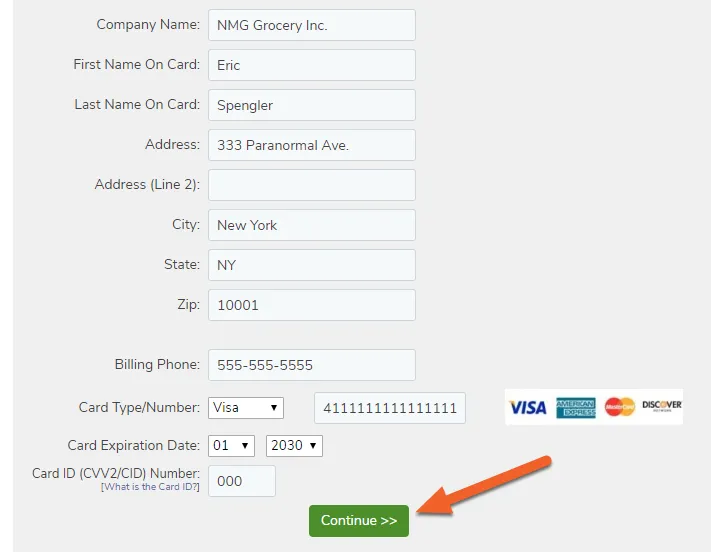
Enter your payment information, then click Continue >> to apply your changes.
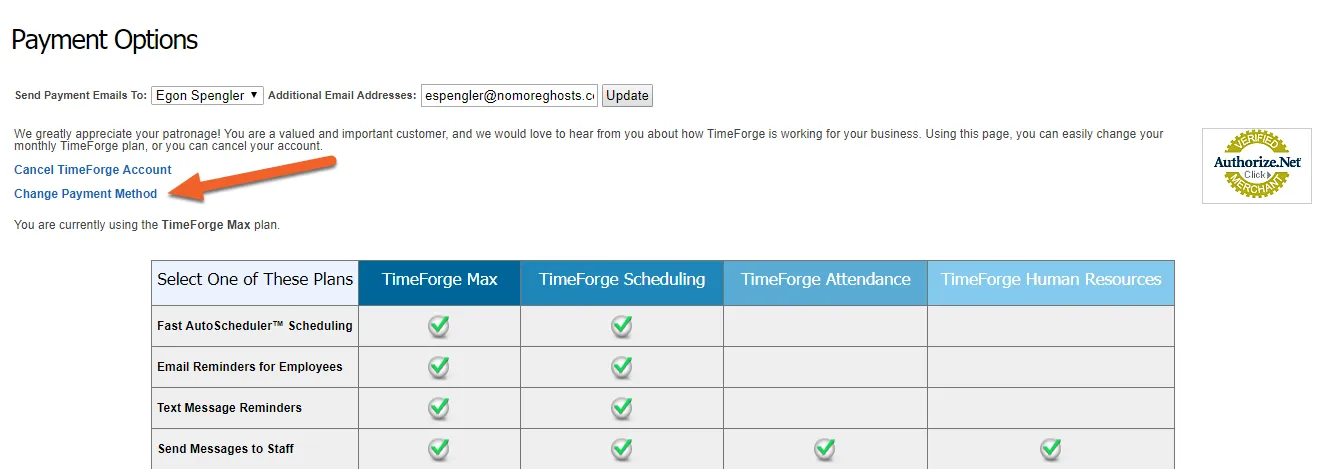
Just need to update your credit card information? No problem! Click the Change Payment Method link in the top left corner of the screen, then enter your credit card information.
Be sure to click Continue >> to apply your changes.
View previous invoices
TimeForge electronically stores your payment history so that you don’t have to worry about keeping up with a pile of paper invoices. You are able to view previous invoices at any time, no matter what features of TimeForge you’re using.
However, for security purposes, you will need to either be the account creator, or have authorization from the account creator, in order to view past invoices.
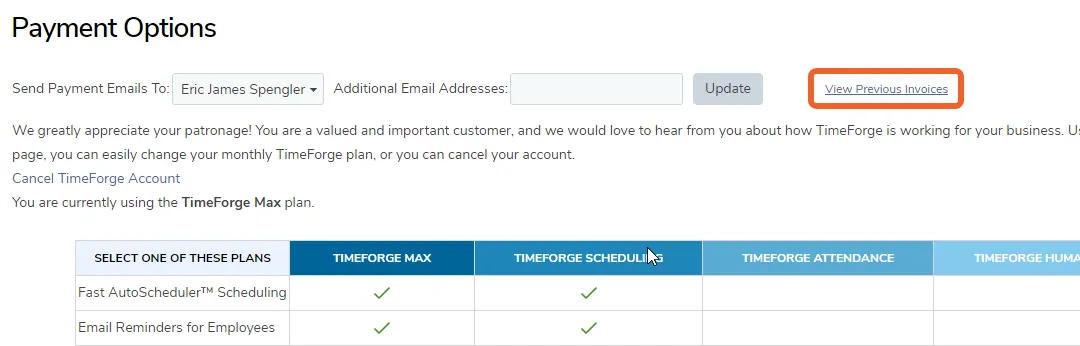
Open the Set Up tab and select Payment Options.
You should see a link to the right of the Update button. Click this link to view your previous invoices.
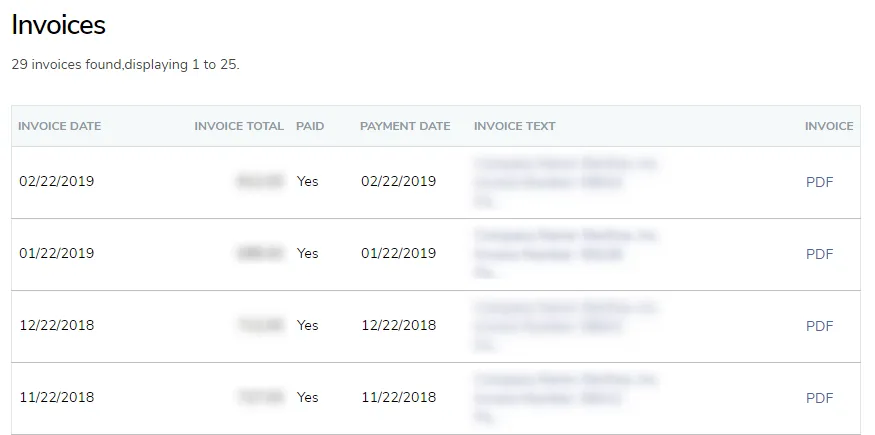
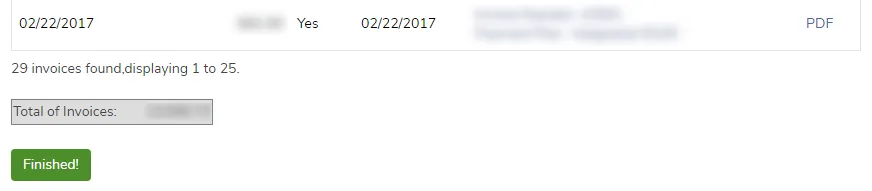
You can quickly view all of your invoices for each month you’ve been with us. Just click on the Invoice Text for a given date or click the PDF link to view, save, or print a PDF copy of the invoice. Also, at the bottom of your invoices page, you can see a total cost of all your invoices.
Cancel a TimeForge account
TimeForge accounts can be canceled at any time. TimeForge values each and every customer and strives to keep them satisfied and their accounts active, but we understand that we are not always the best fit. Customers are not required to sign any contracts and can cancel their TimeForge accounts at their own discretion. However, here are some helpful things to keep in mind when canceling an account:
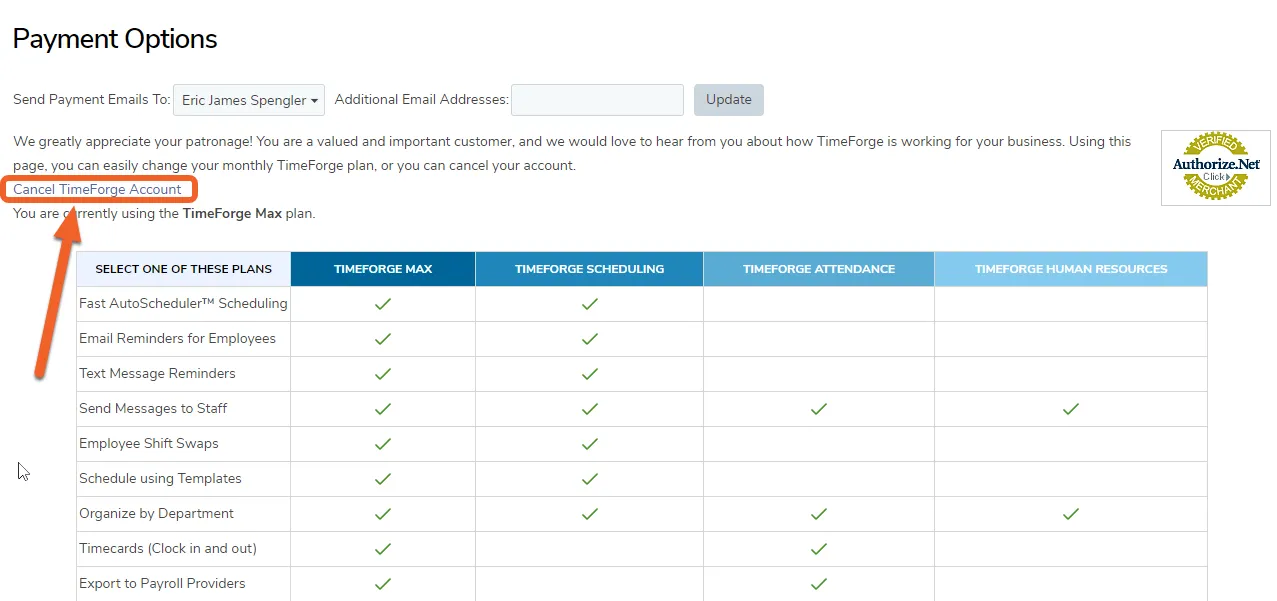
- You are solely responsible for properly canceling your account. An email or phone request to cancel an account is not considered cancellation. You can cancel your account at any time by clicking on the Payment Options link in the Set Up tab at the top of the screen. The Payment Options screen provides a simple, no questions asked cancellation link.
- All of your content will be immediately deleted from the service upon cancellation. This information cannot be recovered once your account is canceled.
- If you cancel the service before the end of your current paid up month, your cancellation will take effect immediately and you will not be charged again.
(See our Terms of Service.)
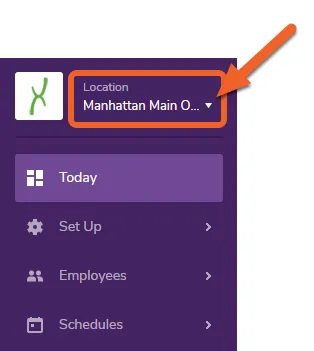
Log in as a manager or account owner. If your account has more than one location in TimeForge, switch to the Corporate level. You’ll know you’re at the Corporate level if the dropdown at the top of the left side navigation menu reads “Corporate.”
Help! I'm at the location level, how do I switch?
If the menu reads “Location” (as in the image below), just click the down arrow and select the name of your business under CORPORATE LEVEL to switch to the Corporate level.
Open the Set Up tab and select Payment Options.
Locate and click the blue link that says “Cancel TimeForge Account.”