Common Questions about TimeForge
Below is a list of frequently asked questions (FAQ) and short answers. Can’t find what you’re looking for? Our friendly Support Team is here to help.
How many employees can I add to my TimeForge account?
If you’re on the Scheduling Lite plan, you can add up to 10 employees.
Otherwise, you can add as many employees as you like!
How many locations can I add to my TimeForge account?
As many as you’d like!
I have a lot of employees, but most of them don't work every week. Will I be billed for all of them?
TimeForge bills proactively, in 30-day billing cycles, based on the number of employees in your account at the time you’re billed.
This means that if you signed up for TimeForge Scheduling on January 1, and you have 10 active employees, you’ll be billed for all 10. If, on February 1, you have 12 active employees, you’ll be billed for 12.
Some TimeForge customers that have seasonal businesses will terminate (in TimeForge) the employees who don’t work during certain seasons. During those months, they will only be billed for the employees who are active/not terminated. Then, when the busy season arrives, they re-instate the terminated employees and are billed for those employees again.
What counts as a user in TimeForge?
Employees, supervisors, and managers are all considered users in TimeForge.
In TimeForge, there are three “employee types” to choose from: employee, supervisor, and manager. All three are considered users. Active users are employees, supervisors, and managers in your TimeForge account that have not been terminated. TimeForge bills based on the number of active users in your account at the beginning of your payment cycle.
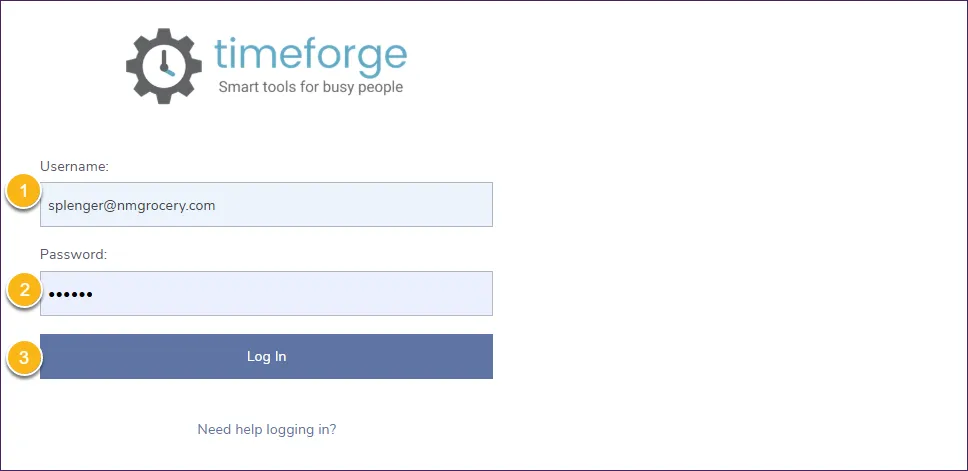
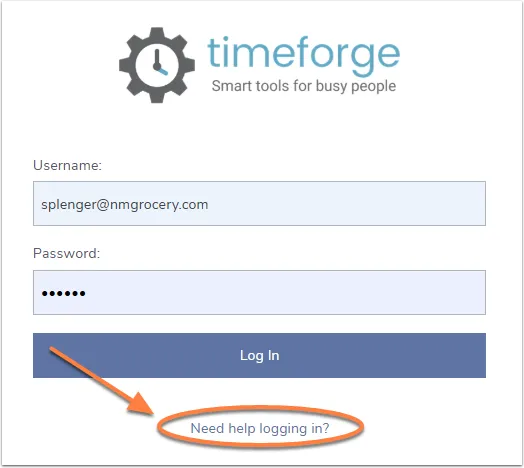
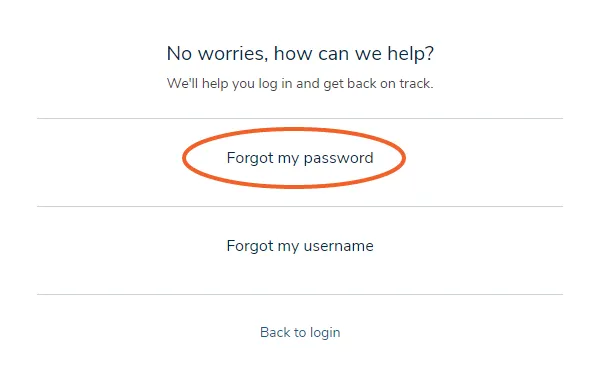
Will TimeForge help my employees if they have trouble logging in?
Absolutely! Customer Support is our number one priority.
Anyone who is having trouble logging in can call us at 866-684-7191 or send us an email. We’re here to help!
Will I still receive alerts if I log in with a username instead of an email address?
Absolutely! If you have an email address in TimeForge, you will receive email alerts, even if you log in with a username instead of an email address.
If you have an email address in TimeForge, and you set your account to receive certain alerts, you will receive the alerts both as emails and as TimeForge messages. If you do not have an email address anywhere in TimeForge, you will still receive alerts, but as TimeForge messages only.
Can my employees share an email address in TimeForge?
Because each email address is uniquely tied to an account in TimeForge, each employee must have their own unique email address. An email address cannot be used more than once in TimeForge.
Does TimeForge have an API or a web service?
Sure does! TimeForge can integrate with several point of sale and payroll systems to pull attendance, sales, employee, and other data into TimeForge and then push schedules to the point of sale. TimeForge can also be used with timeclock hardware, which is controlled by web services.
Do I have to download anything to use TimeForge?
Nope! TimeForge is a web-based application that exists “in the cloud.” This means you only need internet access and a web browser in order to use it.
Unless you are integrating TimeForge with another program, you will never have to install or download software. You will be able to access the features of your account and retrieve your data securely from the internet–anywhere, any time. See our Security page to learn more about how your data is stored.
Can TimeForge handle shifts that extend past midnight?
Definitely! TimeForge is great at handling shifts where employees work through midnight.
If an employee works past midnight, TimeForge can simply record the attendance on the day the shift started. Or, you can choose to have the attendance split at midnight, so that anything after midnight appears on the next day’s attendance.
Is TimeForge designed to schedule appointments?
TimeForge is designed to schedule employees, not to schedule appointments.
Although TimeForge is not an appointment scheduling software, the TimeForge Events feature may accommodate your needs.
Schedule an event
What is the difference between actual and forecasted sales?
Actual Figures are your real-life sales numbers that are either imported from a CSV file or are pulled from your POS system.
System Forecasts are generated by an algorithm that looks at historic sales data in your account and makes educated guesses about what your upcoming sales numbers might be.
Why am I stuck on a Payment Options page when I log in?
Your free trial has expired.
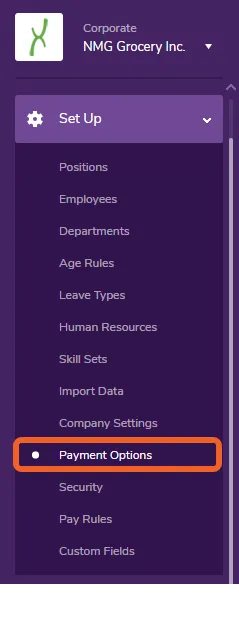
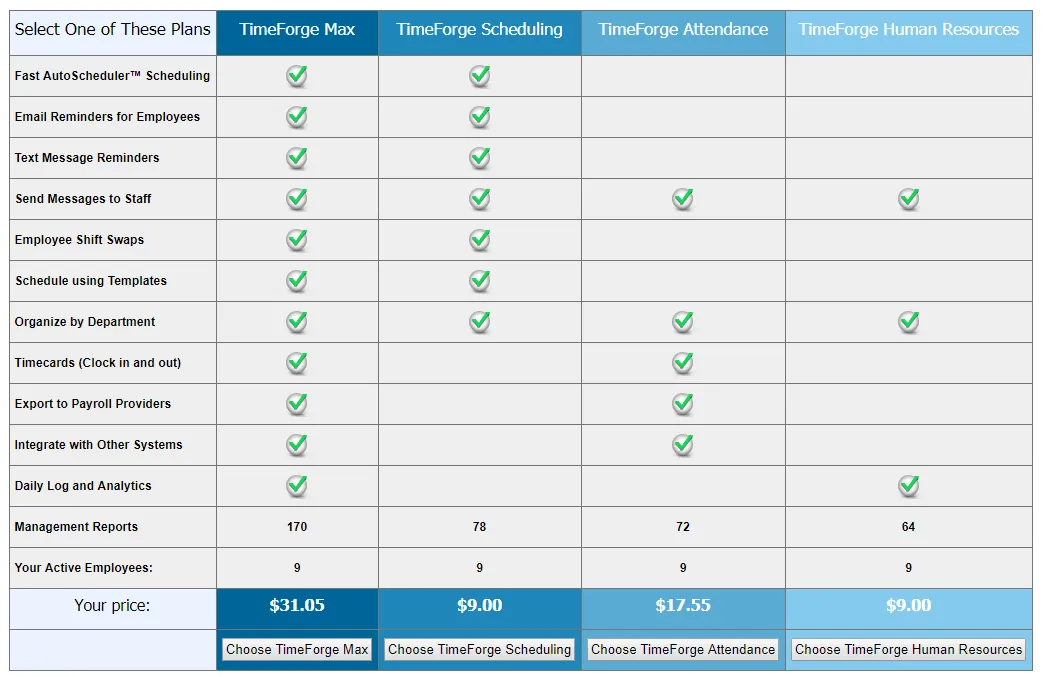
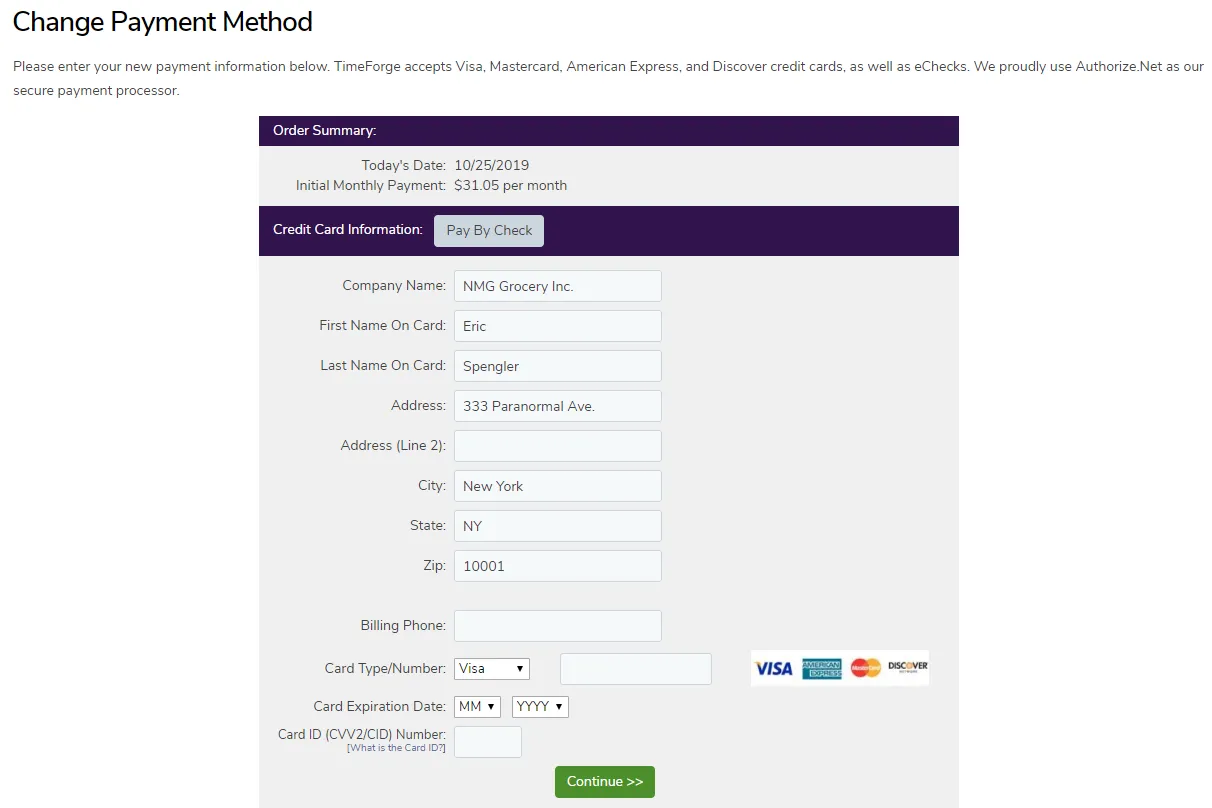
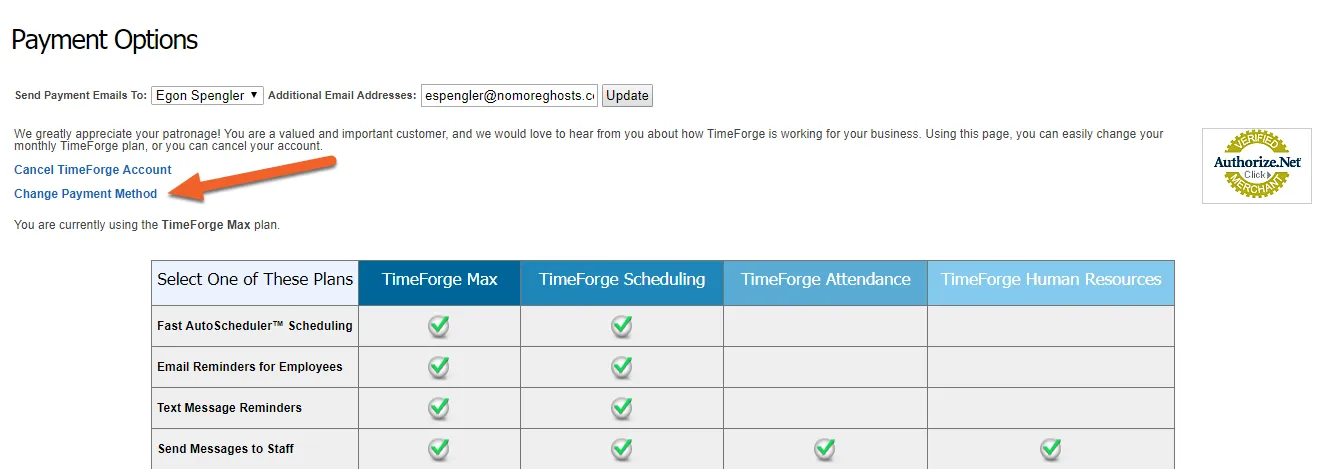
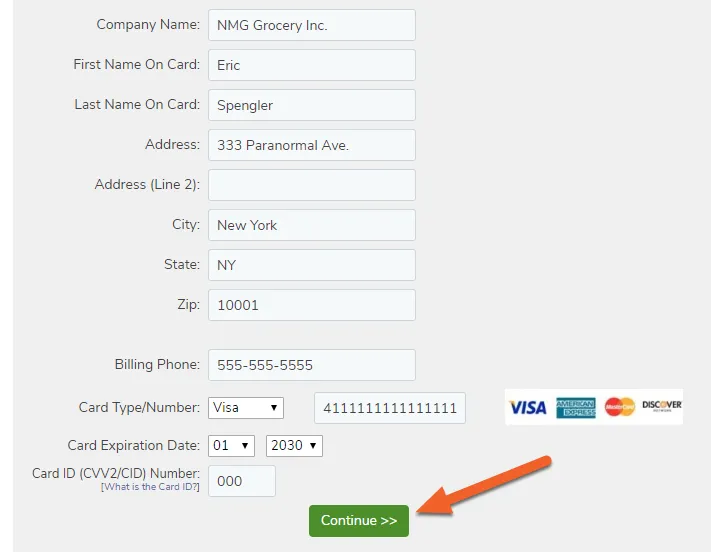
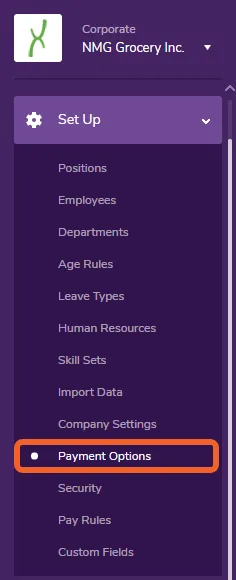
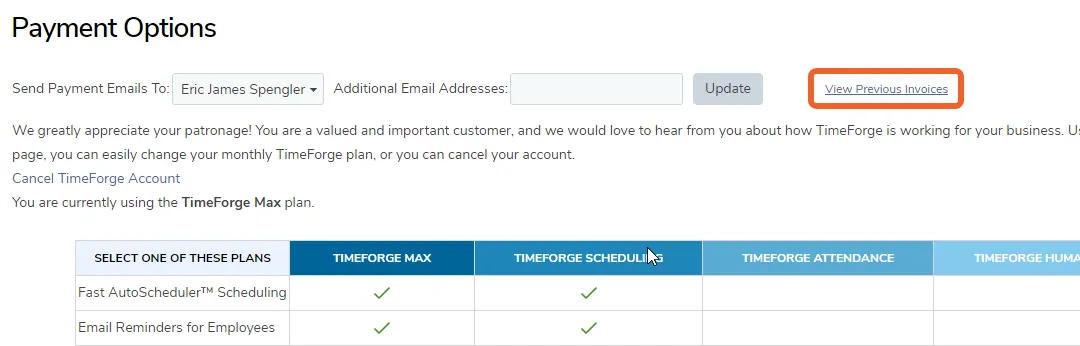
Once your free trial expires, TimeForge requires payment to continue using the service. The Payment Options screen allows you to choose which features you want, then enter in your payment information through our secure portal. Once that’s done, you can access any page in TimeForge and all the data from your free trial, for as long as you subscribe.
Why am I being prompted for payment information for Scheduling Lite?
Our Terms of Service state that we require a valid credit card for all TimeForge accounts, whether they’re paying accounts or free accounts. As long as you have fewer than 10 employees, we’ll never charge you for Scheduling Lite.
How do I get additional features turned on for my account?
TimeForge is highly customizable and can be configured to suit your needs. For example, you may want to start with the basics, then add features individually as you see fit or as your business grows.
To add additional features to your account, call us at 866-684-7191. We’ll be happy to help!
How do I request new features or reports?
TimeForge grows and evolves based on customer feedback.
We’re always looking for ways to improve TimeForge. If you ever think of something that could really benefit your business (that TimeForge doesn’t already offer), just let us know. You can put in a request with our Support Team or give us a call at 866-684-7191. We’d love to hear your ideas!
How do I request a demo of TimeForge? Can I try it out, first?
At TimeForge, we truly value our customers, and we make it our goal to show them how our software can help them save time and money.
Often, our customers request a demo of TimeForge, or a walk through of some features and modules that they want to customize for their business. During these demos, customers can see our screen, and we’ll also be connected in a conference call so that we can explain how TimeForge’s features work and how their business can take advantage of the software.
To set up a demo of TimeForge, all you have to do is contact us. We’re happy to schedule a demo for a time that works best for you.
And if you don’t have TimeForge yet, you can always start your free trial from our website!
How do I access my data after I cancel my TimeForge account?
Once you cancel your TimeForge account, you can no longer access your TimeForge data.
When you cancel your TimeForge account, it is assumed that you no longer need access to the information stored in the account. However, TimeForge features many handy reports that allow you to track all of the important information in your account, so just make sure you run any necessary reports before you cancel your account, and save those files to your computer.
Is TimeForge available to businesses outside the USA?
Absolutely! TimeForge has customers in several countries.
TimeForge is a powerful labor management tool with the ability to internationalize. Currently, TimeForge is being used in multiple countries, such as Australia, India, Canada, and Germany. TimeForge values its customers and works hard to accommodate everyone, no matter where they’re based.
What kinds of security features does TimeForge offer?
Tons! TimeForge is incredibly secure!
We’re living in the information age, which means it’s becoming more and more necessary to use the internet to store and track important information. TimeForge is aware of the risks you’re taking by storing your information in an online database and has made the system incredibly secure so that you can rest easy.
Read on to learn more about TimeForge’s security features or check out our official Security policy here.
- The TimeForge data center is in Dallas, TX, with backups all over the world.
- The data center provides driver’s license verification, photo ID checks, 24/7 video surveillance, a man trap when entering and exiting the building, and is SOC-1 compliant.
- Database backups and key infrastructure software pieces are stored in offsite data centers.
- The database is backed up every day and those backups are stored for 45 days at a time in both data centers.
- There is no limit on data storage.
- All personally identifiable information (PII) data are stored encrypted.
- Access to the database is only available to key personnel, and all access is logged.
- The network infrastructure has four backups and three generators.
- TimeForge software is protected by multiple firewalls, including software and hardware firewalls.
- TimeForge uses website monitoring systems to protect against malware, blacklisting, server scanning, and viruses.
- All changes to the software are stored in a “change log”.
- Every connection to or from TimeForge is SSL encrypted or protected using TLS 1.2.
- Security within an account can be set up for different users and/or roles, restricting access to features like unassigned locations, pay rates, etc.
- In order to reset a password or give someone access to an account, TimeForge requires identification information to be verified.
- Customers can view information about changes made in their account in the Audit Log feature of TimeForge Daily Log.
- No customer data is ever shared without your permission.
- TimeForge data is retained indefinitely - your important information won’t be deleted!
- The TimeForge web software doesn’t require any installation.
- Upgrades happen late at night or early in the morning, and the downtime usually lasts about 1 minute, if at all.
TimeForge understands how scary it can be to put all of your important personal and business information into a system without being sure who will be able to view it, or how safe it may be from viruses or deletion. Don’t worry - your data are safe with us!
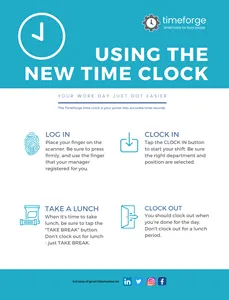
Why can't my employees clock out for a break?
This is a common question from new TimeForge users, and there are two easy answers:
Either you do not have breaks turned on in TimeForge, or the employees are not meeting the criteria specified in your break rules.
For instance, if your break rules state that employees aren’t allowed to take a break unless they’ve been at work for two hours, they won’t be given the option to take a break in TimeForge until they’ve been clocked in for two hours.
This goes for your management team, too. Make sure everyone’s aware of what your company’s break rules are, so that they aren’t confused when they discover they can’t take a break.
Why can't I see other Departments?
In TimeForge, you won’t be able to see other departments unless you are associated with them. To be able to see a department, you must be assigned to that department (you can manage a department without working in the department).
For example, if you are a “Craft Manager” (position) in “Crafts” (department), and all “Craft Managers” are assigned to the “Crafts” department, then you will be able to see what’s going on in the “Crafts” department but not what’s going on in the “Produce” department unless all “Craft Managers,” or just you specifically, are also assigned to “Produce.”
If you don’t want to assign ALL employees in a particular position to a particular department, you can add employees individually. So, if you only want a specific “Craft Manager” to work in “Produce,” you can assign just one employee without assigning all the other “Craft Managers” to “Produce.”
Why do my employees see Re-confirm?
TimeForge gives employers the option to have employees confirm their shifts. This allows employers to get a quick visual of which employees are aware of a shift. It can also help ensure that your employee schedule and your actual attendance will be as close as possible. Even though most employees are trustworthy and loyal, occasionally someone may claim ignorance about a given schedule. The “confirm shift” feature gives the employer the chance to prove knowledge about a shift.
Furthermore, an employer can have employees confirm their shift a few days out, and then re-confirm the shift on the actual day it occurs. This is useful for many businesses that have employees out on location such as a catering company.
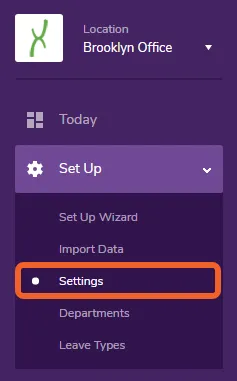
While at the Location level, open the Set Up tab and select Settings.
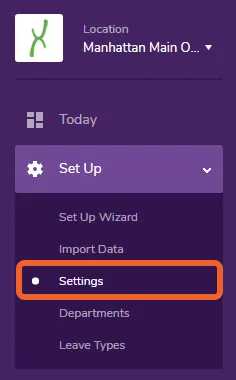
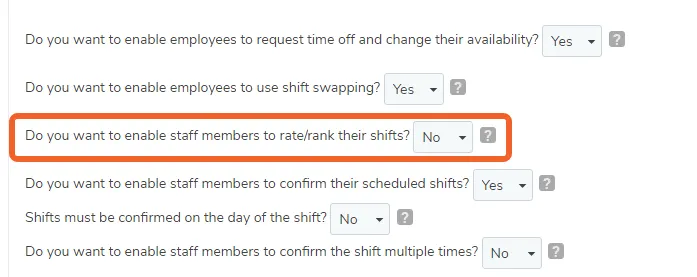
Scroll down the page and look for the setting that reads: Do you want to enable staff members to confirm the shift multiple times?
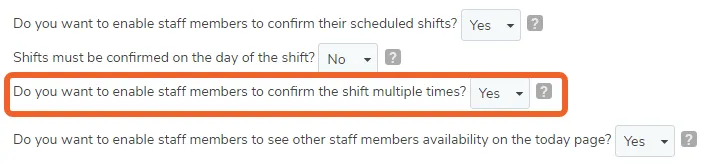
Employees will be prompted to re-confirm their shifts if the option to confirm multiple times is set to yes.
Set this option to “No” if you don’t want your employees to have to re-confirm their shifts.

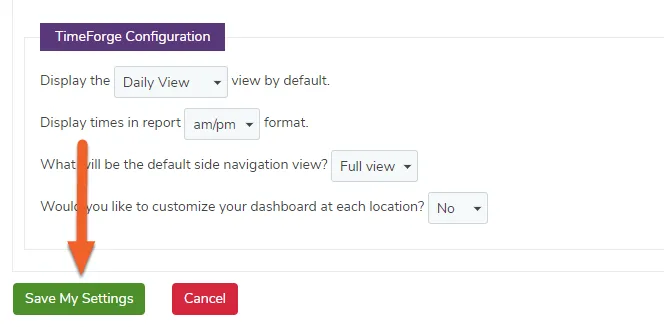
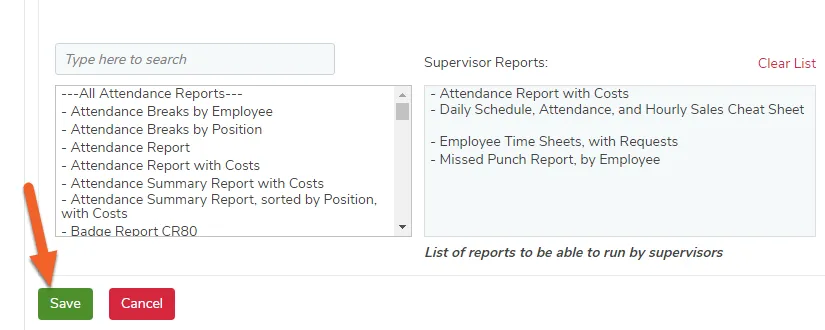
If you make any changes, be sure to scroll down and click the Save button at the bottom of the page.
I think TimeForge rocks! How can I recommend it to a friend?
TimeForge is changing how labor management, employee scheduling, and time management is done in businesses around the world. If TimeForge has affected how you schedule your time, we’d love for you to tell your friends about it!
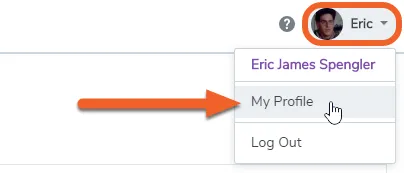
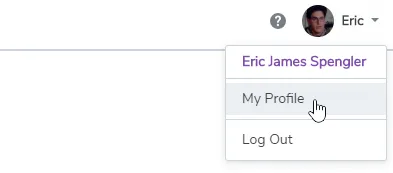
Open the menu in the upper right and select My Profile.
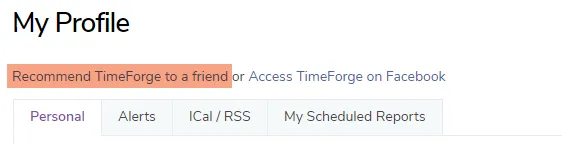
At the top of the page, you’ll see a link to Recommend TimeForge to a friend. Click this link.
Enter your friend’s email address in the Send to: field. You can also customize the Message Subject, and the Message Text.
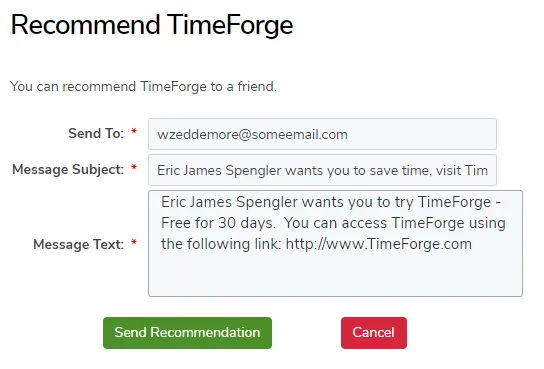
Click the Send Recommendation button to send your recommendation to your friend!
Thank you for recommending TimeForge!
How to start your free trial
Follow the steps below to create a new account and start using TimeForge right away. It’s free for 30 days, with no contracts and no credit card required.
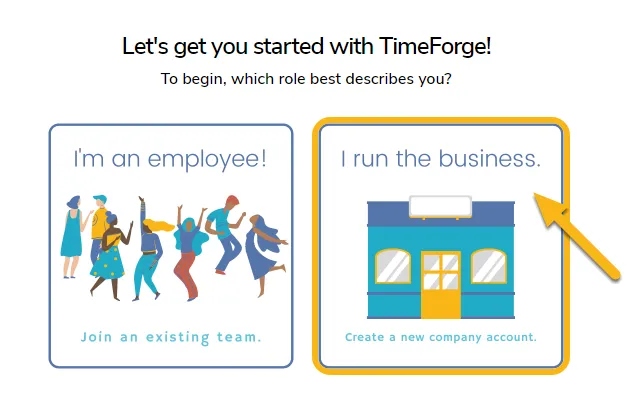
To start your free trial, you’ll want to sign up as an admin, not as an employee! Make sure to select the tile that says “I run the business”:
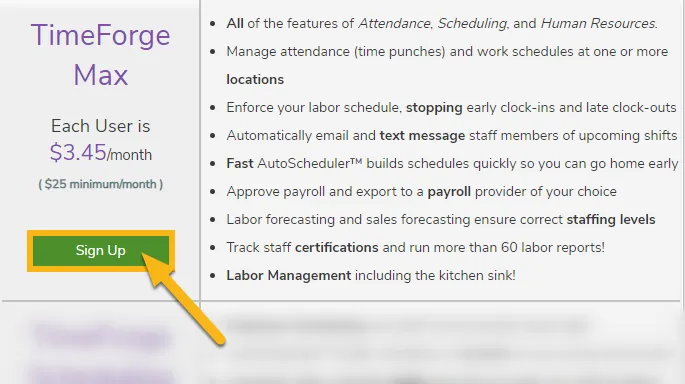
Next, you’ll need to select a plan. To make sure you have access to all the scheduling and attendance features, select the Max plan. We don’t require a credit card, so there’s no risk to you. If you decide to stick with TimeForge, we’re happy to find a price point and feature set that works best for your business.
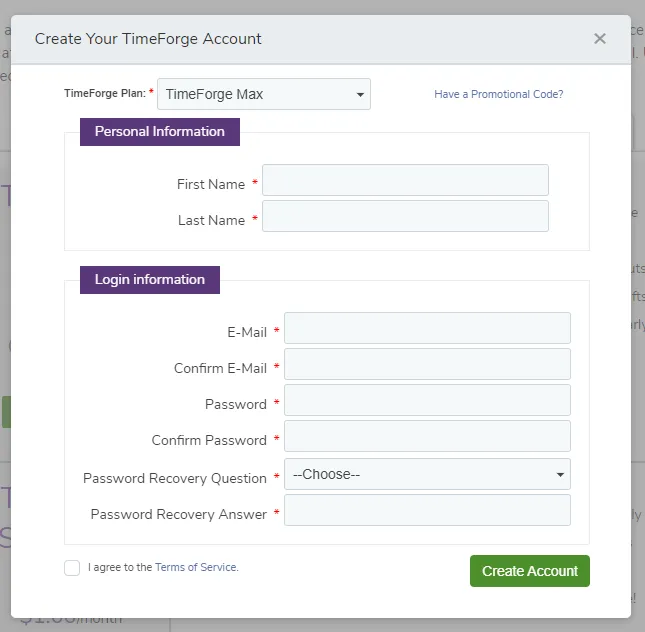
Fill out the form to create your account and login information.
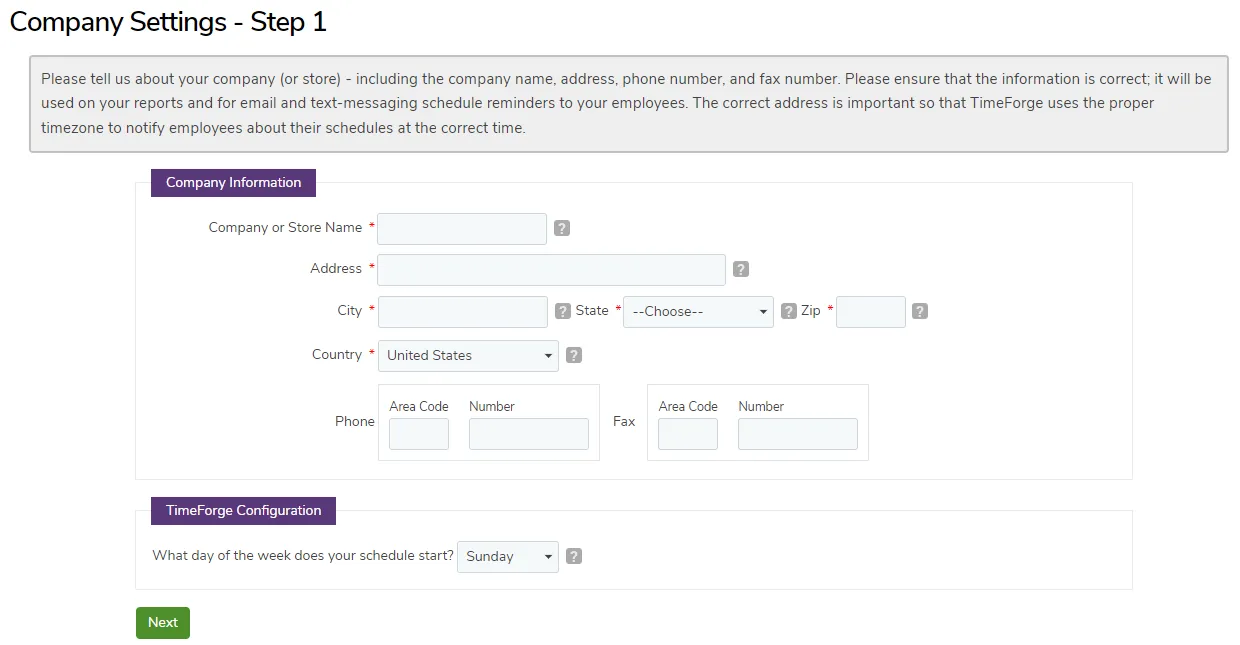
You’re in! It’s time to set up your account. There are 3 simple things you’ll need to do:
- Provide some basic information about your company
- Enter in some positions
- Add some employees
Required fields are marked with a red asterisk(*).
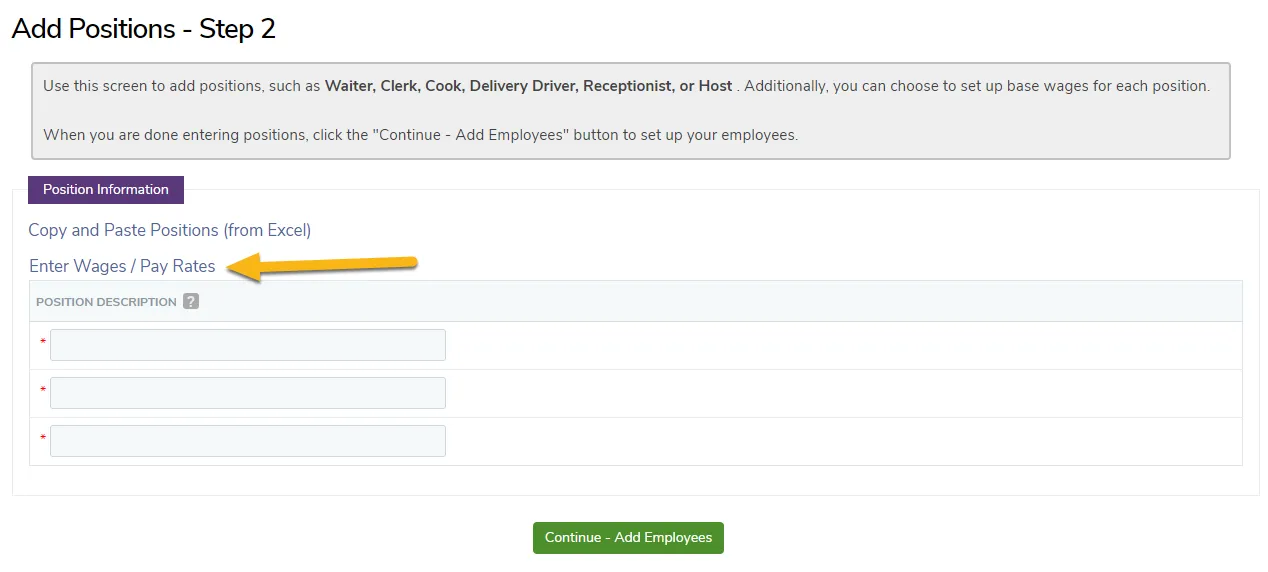
Next, enter in a few positions you want to track. If you’d like, you can click “Enter Wages / Pay Rates” to add pay information, including amount and frequency.
You’re almost done! Add some employees and indicate which positions they will work. The first row will be you.
You don’t have to enter email addresses for your employees right now, but we do recommend that you have their email address on file so that they can recover their password if they lose it.
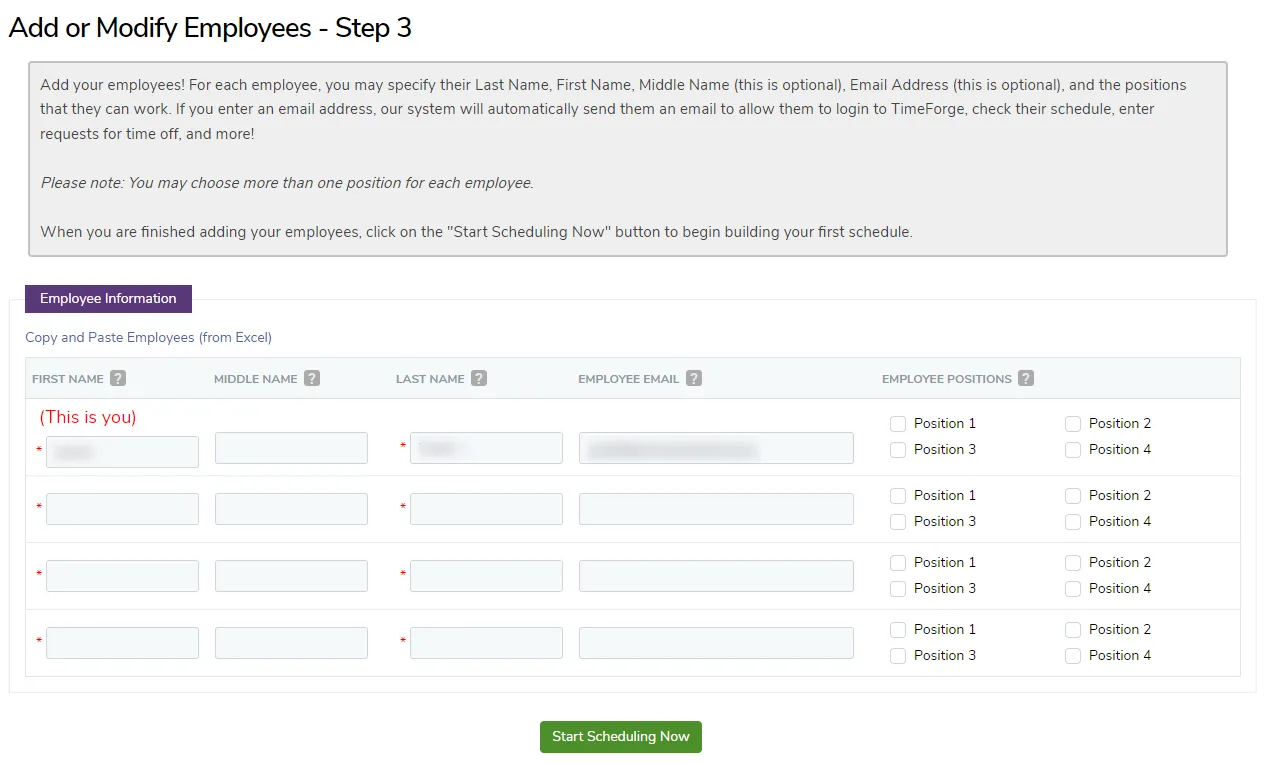
Once you click “Start Scheduling Now,” you’ll be able to create your first schedule! Congratulations!
If you need help creating your first schedule, we recommend this guide to scheduling in TimeForge.
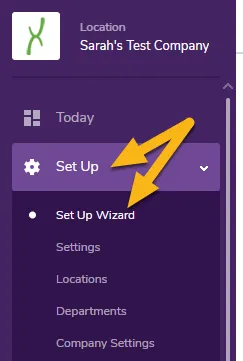
If you need to re-do anything, you can restart the setup process by clicking Set Up -> Set Up Wizard in the side menu:
You can find all of our helpful guides for managers here. These guides contain everything you need to know to track and manage attendance, use the ShiftBuilder, track time off requests, and much, much more.
If you ever get stuck, you can send us a message using the help button in the lower right corner of the app:

You can also email us at support@timeforge.com. Thanks again for trying TimeForge!